


Using Compliance Checklists
Checklists help you enforce standardized procedures for safety inspections, daily tasks, and regulatory compliance.
Accessing Checklists
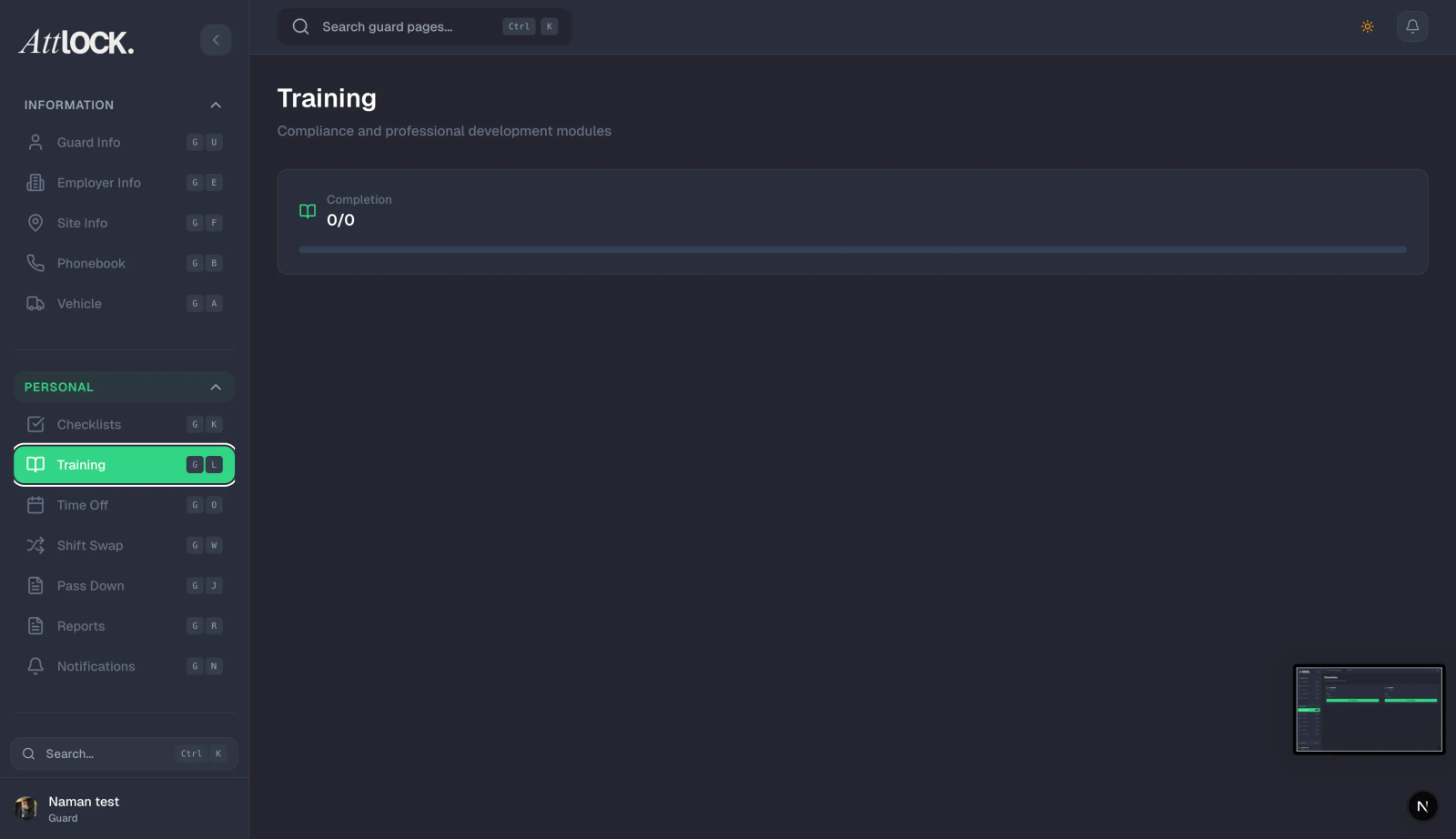
- Navigate to Compliance > Checklists in the sidebar.
- The main view shows all checklist templates.
Checklists Overview
Templates View
Browse your checklist templates:
- Checklist name.
- Category (Safety, Daily Operations, Compliance, etc.).
- Number of items.
- Active/Inactive status.
- Assigned sites or teams.
Analytics Tab
View checklist compliance metrics:
- Completion rate — Percentage of checklists completed on time.
- Trend analysis — How completion rates change over time.
- Non-compliance items — Most frequently failed checklist items.
- Guard compliance scores — Individual compliance ratings.
Creating a Checklist Template
- Click Create Checklist.
- Fill in:
- Checklist Name — (e.g., "Daily Site Opening", "Fire Safety Inspection").
- Description — Purpose of the checklist.
- Category — Safety, Daily Operations, Compliance, Incident Response.
- Frequency — How often it should be completed (daily, weekly, monthly).
- Add checklist items:
- Item text — The task or inspection point.
- Required — Whether this item must be completed.
- Photo required — Whether a photo must be attached.
- Notes field — Allow guards to add comments.
- Reorder items by dragging.
- Click Save.
Example: Daily Site Opening Checklist
- Verify all entry points are secure.
- Check CCTV cameras are operational.
- Test alarm system.
- Inspect fire extinguishers (photo required).
- Review visitor log from previous shift.
- Confirm emergency contact numbers are posted.
- Brief incoming guards on active issues.
Assigning Checklists
Checklists can be assigned to:
- Sites — All guards at the site must complete the checklist.
- Shifts — Completed at the start or end of specific shifts.
- Guards — Assigned to individual guards.
- Teams — Entire team completes the checklist.
Assignment Steps
- Open the checklist template.
- Click Assign.
- Select the target (site, shift, guard, or team).
- Set the schedule (when and how often).
- Click Save Assignment.
Completing Checklists (Guard Mobile App)
Guards complete checklists in the mobile app:
- Open the assigned checklist.
- Go through each item:
- Tap to mark as Completed or Failed.
- Take photos where required.
- Add notes if the item needs attention.
- Submit the completed checklist.
- Results sync to the admin dashboard immediately.
Reviewing Completed Checklists
- Go to the checklist's history/results.
- View completed checklists:
- Guard who completed it.
- Date and time.
- Item-by-item results.
- Photos and notes.
- Overall pass/fail status.
- Flag issues that need follow-up.
Compliance Dashboard
The main Compliance page (Compliance > Compliance) shows:
Stats Cards
- Total Guards with Active Compliance.
- Non-Compliant Guards.
- Upcoming Expirations.
- Critical Issues.
Charts
- Compliance trend over time — Line chart showing improvement or decline.
- Compliance status breakdown — Area chart of status categories.
Filters
- All
- Expiring (within 30 days)
- Expired
- Critical
Policies
Manage company policies alongside checklists:
- Go to Compliance > Policies.
- Upload policy documents.
- Assign to roles or teams.
- Track acknowledgement (guards must confirm they've read policies).
Tips & Best Practices
- Keep checklists focused — 5-10 items per checklist. Long checklists get rushed.
- Require photos for critical items — Visual evidence improves accountability.
- Review analytics monthly — Identify trends in non-compliance before they become issues.
- Update checklists when regulations change — Keep procedures current.
- Use the analytics tab to identify which items are most commonly failed.
Troubleshooting
Checklist not appearing for guard
- Verify the checklist is assigned to their site, shift, or team.
- Check the checklist is in Active status.
- Ensure the frequency and schedule match the current time.
Completion rate seems low
- Check if guards are aware of the checklist assignment.
- Review if the checklist is reasonable for the available time.
- Check mobile app connectivity — submissions may be queued offline.
Related Articles
- Managing Training Programs
- Tracking Compliance and Certifications
- Managing Policies
- Creating a New Site