


Accepting & Declining Shift Offers
When your company has open shifts available, you may receive shift offers through the Attlock Guard app. This article explains how to review offers, accept or decline them, and understand the status of each shift.
Where to Find Shift Offers
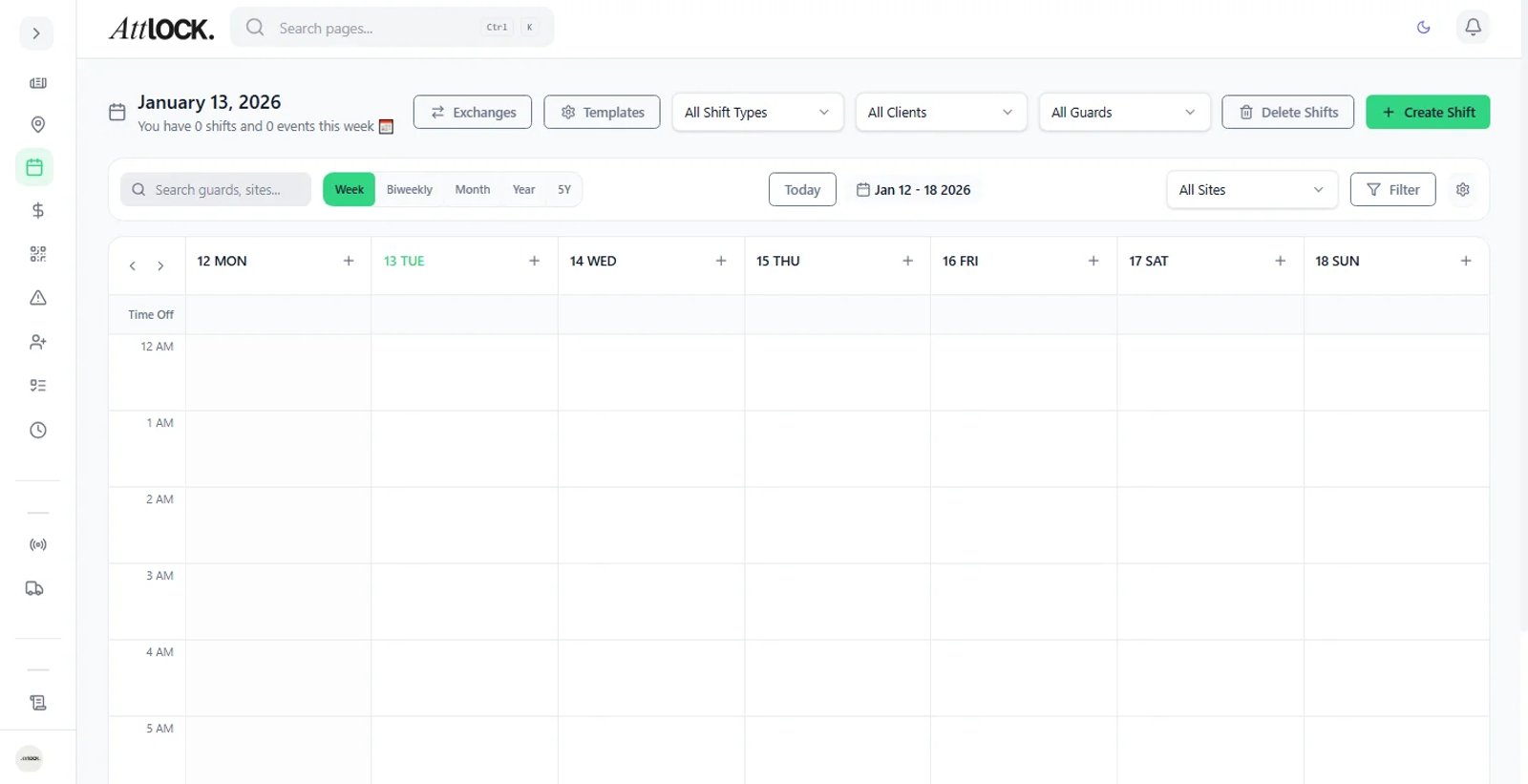
- Open the app and tap the Schedule tab
- Look for shifts marked with an orange "Offer" badge
- You'll also receive a push notification when a new offer arrives (if notifications are enabled)
- The Home tab may display a banner showing the number of pending offers
Viewing Offer Details
Before making a decision, review the full details of the shift:
- Tap the shift offer to open it
- Review the following information:
- Site name and address — where you'll be working
- Date and time — start and end times, including break allocation
- Duration — total shift length
- Pay rate — your hourly rate and estimated total pay for the shift
- Role or position — the type of duty required
- Special instructions — any additional notes from your supervisor
- Use this information to decide whether the shift works for your schedule
Accepting a Shift Offer
- Open the shift offer
- Review the details
- Slide the Accept bar from left to right to confirm
- A confirmation message appears: "Shift accepted"
- The shift moves to your confirmed schedule with an Approved badge
The slide-to-accept gesture prevents accidental taps. You must complete the full slide for the acceptance to register.
Declining a Shift Offer
- Open the shift offer
- Tap Decline
- Select a reason from the list (e.g., "Unavailable", "Schedule conflict", "Too far", "Other")
- Optionally add a brief note for your supervisor
- Tap Confirm Decline
- The offer is removed from your pending list
Providing a reason helps your supervisor understand your availability for future scheduling.
Shift Status Badges
Each shift in your schedule displays a status badge:
| Badge | Colour | Meaning | ------- | -------- | --------- | Offer | Orange | A shift has been offered to you and is awaiting your response | Pending | Yellow | You've accepted, but your supervisor hasn't confirmed yet | Approved | Green | The shift is confirmed and on your schedule | Cancelled | Red | The shift has been cancelled by your company | Completed | Grey | The shift has been worked and finalised |
|---|
Time Limits on Offers
Shift offers may have an expiry time set by your supervisor:
- A countdown timer appears on offers with a deadline
- If you don't respond before the timer expires, the offer is automatically withdrawn
- Expired offers disappear from your pending list
- The shift may then be offered to another guard
Check your offers promptly to avoid missing opportunities.
What Happens After Accepting
Once you accept a shift offer:
- The shift appears in your confirmed schedule
- You'll receive a reminder notification before the shift starts (typically 1 hour prior)
- On the day, navigate to the site and clock in as usual
- If the shift is cancelled after you've accepted, you'll receive a notification
Tips
- Review offers as soon as you receive the notification — popular shifts fill quickly
- If you accept a shift but your circumstances change, contact your supervisor immediately
- Repeatedly declining offers without reason may affect future offer priority
- Check the site address and travel time before accepting to ensure you can arrive punctually