


Creating and Editing Guard Profiles
Guard profiles are the central record for each security officer in your organization. They contain personal information, certifications, site assignments, and performance data.
Accessing Guard Management
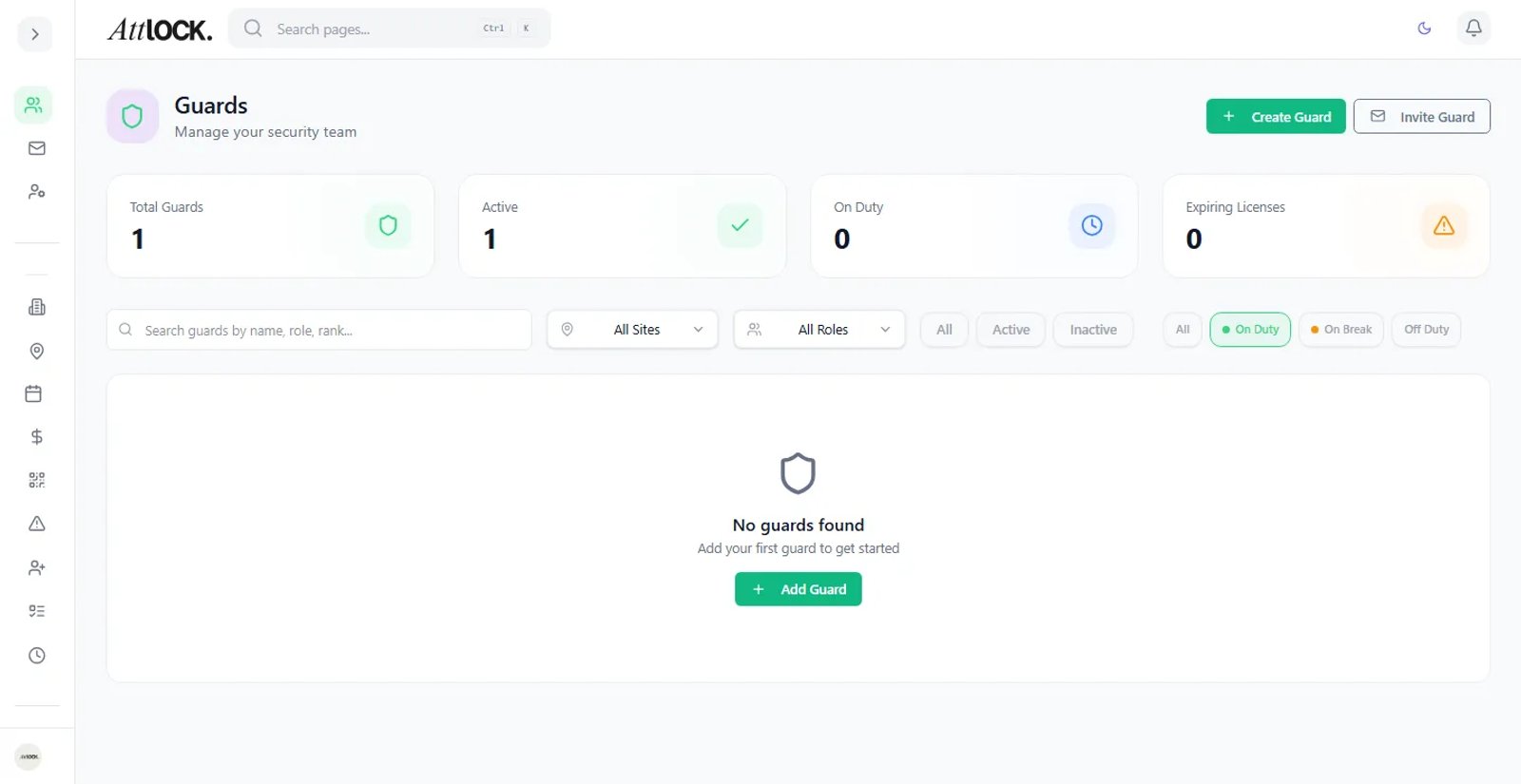
- Navigate to Team > Guards in the sidebar (shortcut: `G` then `G`).
- You will see a list of all guards in your company with search and filters.
Viewing the Guard List
The guard list shows:
- Name and profile photo
- Role (Guard, Supervisor, etc.)
- Status (Active, Inactive, On Leave)
- Assigned Sites
- Last Active — When the guard last used the platform.
Filtering Guards
Use the filter bar to narrow the list:
- By Status — Active, Inactive, On Leave.
- By Site — Guards assigned to a specific site.
- By Team — Filter by team group.
- Search — Type a guard's name, email, or ID number.
Viewing a Guard Profile
- Click on a guard's name in the list.
- The profile page shows multiple tabs:
Overview Tab
- Personal details (name, email, phone, address).
- Profile photo.
- Employee ID / badge number.
- Role and permissions.
- Date joined.
- Current status.
Assignments Tab
- Sites — Which sites the guard is assigned to.
- Teams — Which team groups they belong to.
- Current Shift — If currently on duty, shows shift details.
Schedule Tab
- Upcoming shifts for this guard.
- Shift history.
- Total hours this week/month.
Performance Tab
- Attendance rate.
- Patrol completion rate.
- Incident response metrics.
- Reports filed.
Documents Tab
- Uploaded certifications and licenses.
- Training records.
- Compliance documents.
- Expiry date tracking.
Activity Tab
- Recent activity log (clock-ins, reports, patrols).
- GPS tracking history (if enabled).
Editing a Guard Profile
- Open the guard's profile.
- Click the Edit button (pencil icon) in the top right.
- Modify any fields:
- Personal information (name, contact details).
- Role assignment.
- Site assignments.
- Status (Active/Inactive).
- Click Save Changes.
Note: Changing a guard's role takes effect immediately. The guard may need to refresh their app to see permission changes.
Assigning Guards to Sites
- Open the guard's profile.
- Go to the Assignments tab.
- Click Assign to Site.
- Select one or more sites from the dropdown.
- Click Save.
Alternatively, you can assign guards from the Sites page:
- Go to Operations > Sites.
- Open a site.
- Go to the Guards tab.
- Click Assign Guard and select from the list.
Assigning Guards to Teams
- Navigate to Team > Teams or go to Team > Guard Overview.
- Click on a team.
- Click Add Member.
- Select guards and confirm.
Uploading Guard Documents
- Open the guard's profile.
- Go to the Documents tab.
- Click Upload Document.
- Select the file and fill in:
- Document Type (License, Certification, ID, Other).
- Expiry Date (if applicable).
- Notes (optional).
- Click Upload.
Tip: Set expiry dates on certifications — Atlock will notify you before they expire.
Deactivating a Guard
When a guard leaves or is temporarily removed:
- Open the guard's profile.
- Click Edit.
- Change Status to Inactive.
- Click Save.
Deactivated guards:
- Cannot log in or use the mobile app.
- Are removed from future schedules.
- Their historical data is preserved.
- Can be reactivated at any time.
Guard Overview
For a high-level view of your entire guard roster:
- Navigate to Team > Guard Overview.
- See all guards organized by team.
- Quick-view their status, assigned sites, and upcoming shifts.
Tips & Best Practices
- Keep profiles up to date — Regularly review contact information and certifications.
- Use teams — Group guards into teams for easier scheduling and management.
- Track certifications — Use the Documents tab to track license expiry and get automated reminders.
- Review performance regularly — The Performance tab provides data for quarterly reviews.
Troubleshooting
Guard can't log in
- Verify their account status is Active.
- Check if their invitation was accepted.
- Ensure their email address matches what they're using to log in.
Guard not appearing in lists
- Check the status filter — they may be set to Inactive.
- Verify they were properly invited and accepted.
Can't change guard's role
- You need the `users.assign_role` permission.
- Only Company Admins can modify roles by default.
Related Articles
- Inviting Guards to the Platform
- Assigning Guards to Sites and Teams
- Tracking Compliance and Certifications
- Monitoring Guard Performance