


Run Sheets
Run sheets define the daily routes for mobile patrol guards. Each sheet specifies a sequence of stops with times, instructions, and assignments.
Accessing Run Sheets
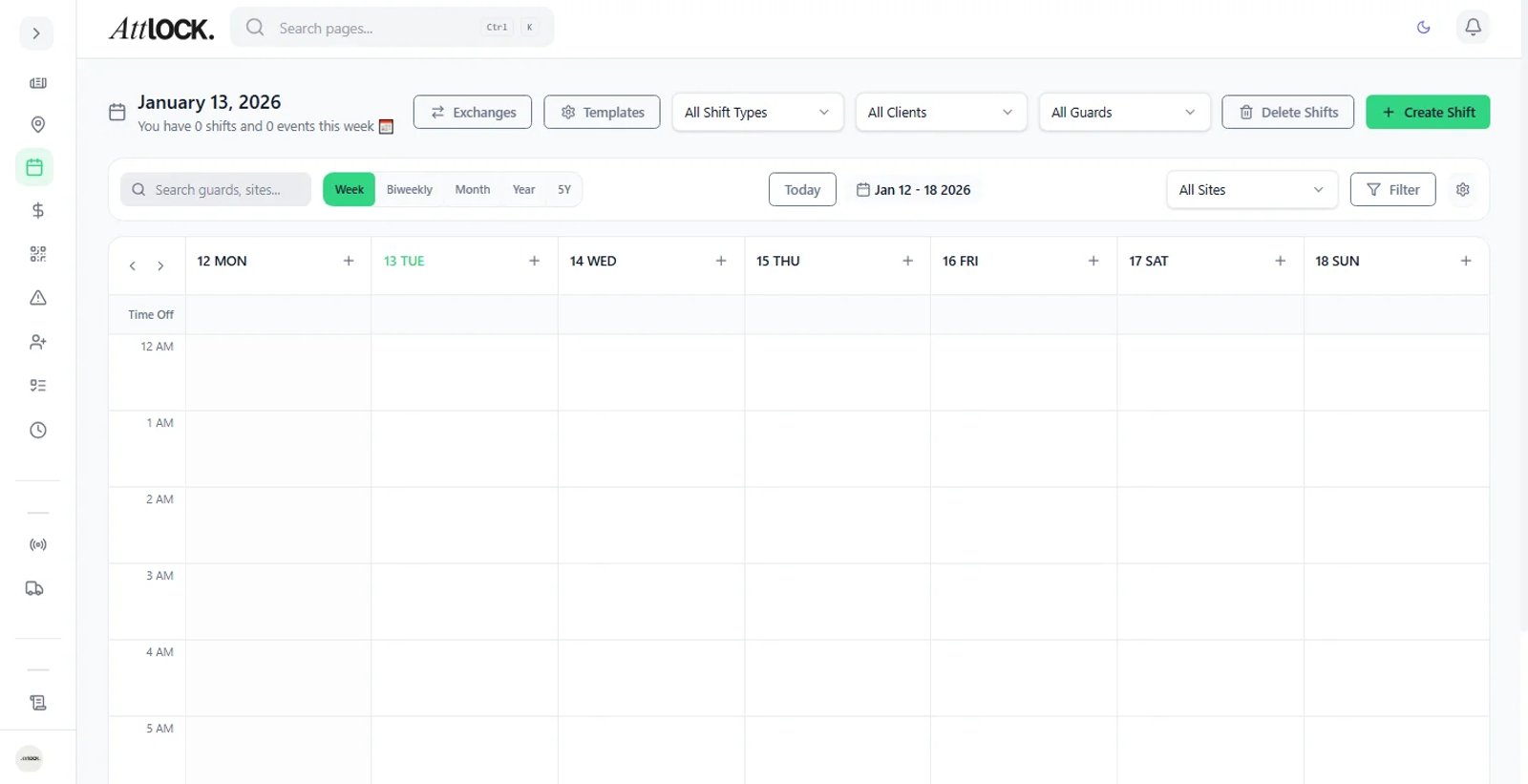
Navigate to Operations → Scheduling → Run Sheets in the sidebar, or from the Vehicle Manager section.
Creating a Run Sheet
- Click Create Run Sheet.
- Fill in the header:
- Sheet Name (e.g., "Route 1 — Downtown")
- Date — the date this run sheet is for.
- Start Time and End Time — overall window.
- Mobile Patrol — select which patrol this belongs to.
- Guard (optional) — assign a specific guard.
- Vehicle (optional) — assign a specific vehicle.
- Add Stops.
Adding Stops
Each stop represents a location the guard must visit:
- Click Add Stop.
- Configure:
- Site — select from your sites list.
- Start Time and End Time — when the guard should be at this stop.
- Duration — expected time on-site (in minutes).
- Stop Type — typically "Mobile Patrol Stop".
- Contract (optional) — link to a billing contract.
- Instructions — free-text notes for the guard.
- Repeat for each stop on the route.
Reordering Stops
Drag and drop stops to change the visit order. Times should be sequential — the system validates that stops don't overlap.
Removing Stops
Click the × on any stop to remove it.
Stop Statuses
As the guard progresses through the run sheet, each stop updates:
| Status | Color | Meaning | -------- | ------- | --------- | Pending | Gray | Not yet started | In Transit | Blue | Guard is traveling to this stop | On Site | Green | Guard has arrived | Completed | Bright Green | Stop finished | Skipped | Red | Stop was bypassed |
|---|
Viewing Run Sheets
- Filter by Date — see run sheets for a specific day.
- Filter by Patrol — narrow to a specific patrol route.
- Each run sheet shows its name, assigned guard, vehicle, number of stops, and overall status.
Editing a Run Sheet
Click any run sheet to open it. You can:
- Change the assigned guard or vehicle.
- Add, remove, or reorder stops.
- Update instructions.
- Adjust times.
Deleting a Run Sheet
Click the three-dot menu → Delete. Confirm in the dialog.
Tips
- Create run sheets the day before so guards can review their routes in advance.
- Include clear instructions at each stop — what to check, who to contact, special procedures.
- Assign vehicles to ensure the right equipment is available.
- Review completed run sheets to verify guards visited all stops on time.
Related Articles
- Patrols & Checkpoints
- Scheduling Shifts
- Vehicle Management
- Managing Sites