


Managing Training Programs
The Training module lets you create training courses, enroll guards, and track completion rates to ensure your workforce is qualified and compliant.
Accessing Training
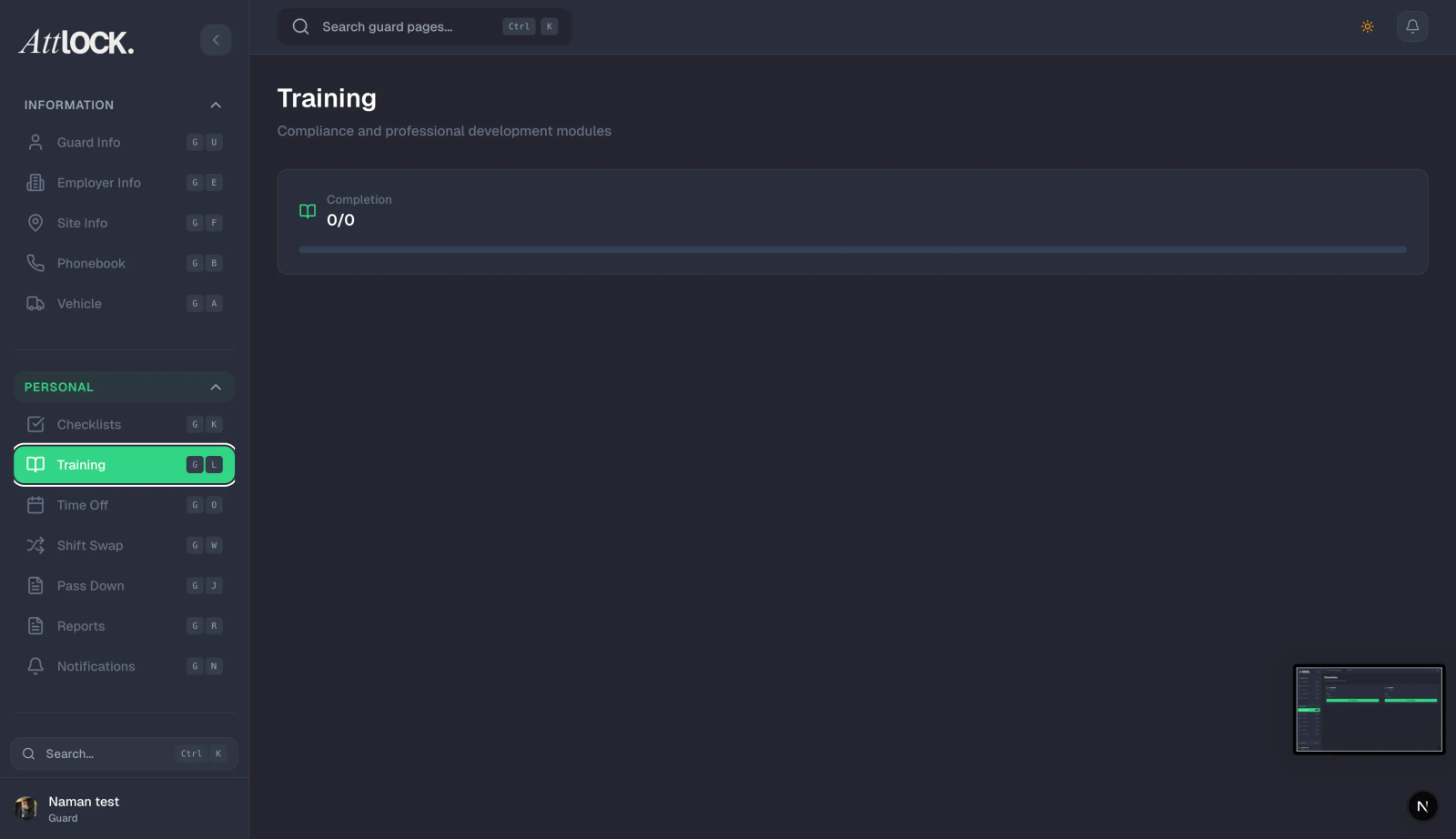
- Navigate to Compliance > Training in the sidebar.
- The page title reads "Training" with subtitle "Manage training programs and certifications."
Note: Training requires the `training_module` feature in your subscription plan.
Training Overview
Stats Cards
Four summary cards at the top:
- Active Courses (blue, BookOpen icon) — Number of currently active training modules.
- Total Guards Enrolled (green, Users icon) — Guards across all active courses.
- Certifications (orange, Award icon) — Certifications issued.
- Avg Completion (purple, CheckCircle icon) — Average completion rate across all courses.
Training Module Cards
Training modules display in a grid layout, each card showing:
- Icon badge — Visual identifier for the course.
- Title — Course name.
- Description — Brief overview (2-line maximum).
- Category badge — Categorized as:
- Compliance — Regulatory requirements.
- Safety — Health and safety training.
- General — Other training topics.
- "Required" indicator — Shows if the course is mandatory.
- Duration (Clock icon) — Estimated time to complete.
- Enrolled (Users icon) — Number of guards enrolled.
- Completion Rate (%) — Percentage of enrolled guards who completed the course.
- Progress bar — Visual completion indicator.
- "View Details" button (Play icon) — Open the full module.
Creating a Training Module
- Click the "Add Training" button (green, Plus icon).
- Fill in the module details:
- Title — Course name.
- Description — What the training covers.
- Category — Compliance, Safety, or General.
- Duration — Estimated time in minutes.
- Is Required — Toggle on if this training is mandatory for all guards.
- Click Create.
Enrolling Guards
- Open a training module (click View Details).
- Go to the enrollment section.
- Add guards individually or in bulk:
- Individual — Search and select guards.
- By Team — Enroll entire teams.
- All Guards — Enroll every active guard.
- Enrolled guards will see the training in their mobile app.
Tracking Progress
- Open a training module.
- View the enrollment list:
- Guard name.
- Enrollment date.
- Completion status (Not Started, In Progress, Completed).
- Completion date (if finished).
- Score (if applicable).
Managing Certifications
When a guard completes a training module:
- A certification record is created automatically.
- View certifications in the guard's profile under Documents.
- Set certification expiry dates to trigger renewal reminders.
Certification Tracking
- Navigate to Compliance > Compliance for a dashboard view.
- See:
- Guards with active compliance.
- Non-compliant guards.
- Upcoming expirations.
- Critical issues.
Training & Compliance Reports
- Go to the Compliance dashboard.
- View charts:
- Compliance trend over time (line chart).
- Status breakdown (area chart).
- Export reports:
- PDF Audit Reports — For regulatory submissions.
- CSV — For spreadsheet analysis.
- Training Certificates — Individual PDF certificates.
Tips & Best Practices
- Mark critical trainings as Required — Guards will be flagged as non-compliant until completed.
- Set realistic durations — Helps guards plan their time.
- Track expiry dates — Many certifications (First Aid, CPR, Security License) need annual renewal.
- Review completion rates monthly — Low completion may indicate scheduling issues or training quality problems.
Troubleshooting
Training module not appearing for guards
- Verify the guard is enrolled in the module.
- Check that the module is in Active status.
- Ask the guard to refresh their mobile app.
Can't access Training
- Requires the `training_module` subscription feature.
- Requires the `training.view` permission.
Completion rate seems wrong
- Rate is calculated as: completed guards / enrolled guards.
- Newly enrolled guards lower the percentage until they complete the training.
Related Articles
- Tracking Compliance and Certifications
- Creating and Editing Guard Profiles
- Managing Policies
- Using Compliance Checklists