


Using Pass-On Logs
Pass-on logs (also called passdown logs) ensure smooth shift handovers by documenting important information for the incoming guard or supervisor.
Accessing Pass-On Logs
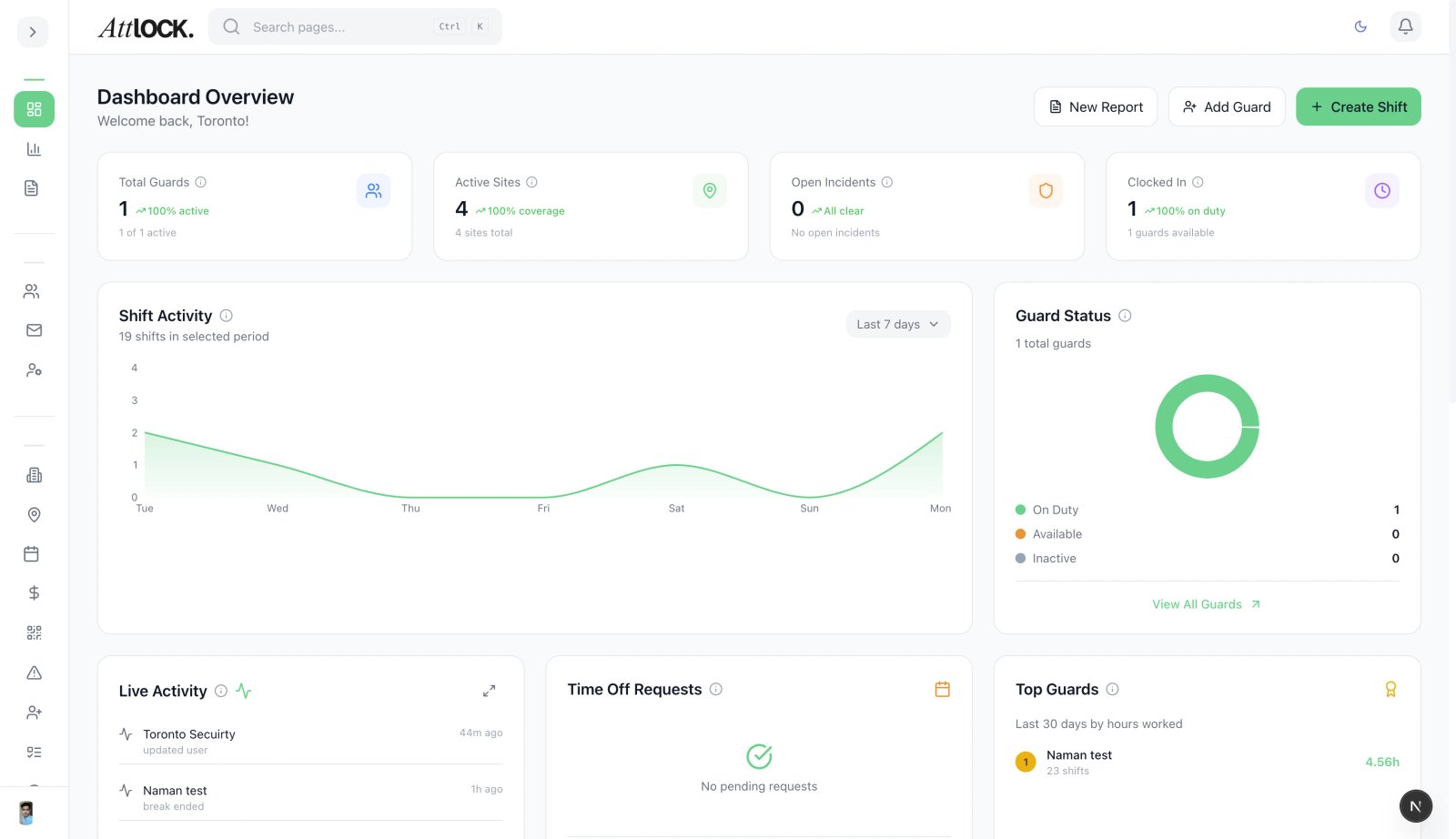
- Navigate to Field Management > Pass-on Logs in the sidebar.
- View all passdown entries across sites and shifts.
What Is a Pass-On Log?
A pass-on log is a structured handover note left by the outgoing guard for the incoming guard. It covers:
- Outstanding issues from the current shift.
- Security observations.
- Visitor or client updates.
- Equipment status changes.
- Pending tasks.
- Any incidents or unusual events.
Viewing Pass-On Logs
The main page shows a chronological list of passdown entries:
- Guard name — Who wrote the entry.
- Site — Which site the entry is for.
- Shift — The shift the entry relates to.
- Date and time — When it was submitted.
- Content — Summary of the handover notes.
Filtering
- Filter by site.
- Filter by guard.
- Filter by date range.
- Search by content.
Creating a Pass-On Log
Guards typically create pass-on logs at the end of their shift via the mobile app. Admins can also create entries:
- Click Create Passdown.
- Fill in:
- Site — Which site this applies to.
- Subject — Brief title.
- Content — Detailed handover notes.
- Priority — Normal or Urgent.
- Attachments — Photos or documents.
- Click Submit.
Passdown Templates
- Go to Pass-on Logs > Templates.
- Create templates for common handover scenarios:
- Standard end-of-shift template.
- Emergency situation template.
- Weekend/holiday template.
- VIP visit handover.
- Guards can select a template and fill in the specifics.
Creating a Template
- Click Create Template.
- Define:
- Template name.
- Pre-filled sections (checkboxes, text fields, required items).
- Which sites this template applies to.
- Save the template.
Pass-On Logs on the Dashboard
Pass-on entries appear in the main admin dashboard under the Pass-on tab in the Activity section. This gives supervisors visibility into handovers without navigating away from the dashboard.
Tips & Best Practices
- Make pass-ons mandatory — Require guards to submit a passdown before clocking out.
- Use templates to ensure consistent and complete handovers.
- Flag urgent items — Use the Priority field so incoming guards know what needs immediate attention.
- Review weekly — Supervisors should scan pass-ons for recurring issues or patterns.
Troubleshooting
Pass-on not appearing
- Verify the guard submitted it from the correct site.
- Check the date range filter.
- The entry may be pending sync (if submitted offline on mobile).
Related Articles
- Creating a New Shift
- Managing Post Orders
- Understanding the Admin Dashboard
- Creating a New Site