


Using Coverage Forecasting
The Forecasting tool helps you predict staffing needs based on historical data, contractual requirements, and seasonal patterns.
Accessing Forecasting
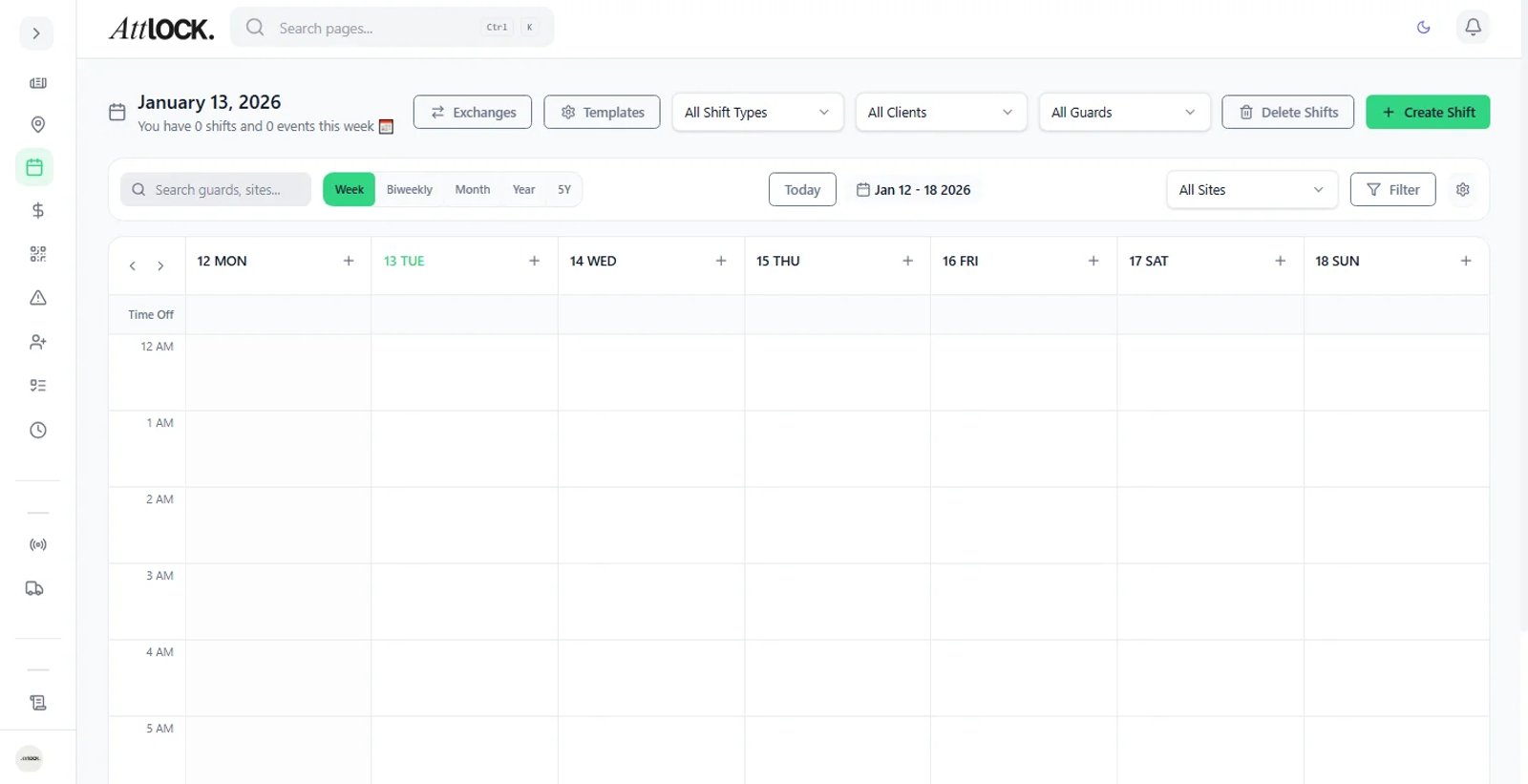
- Navigate to Operations > Scheduling > Forecasting in the sidebar.
- The forecasting dashboard loads with predictions based on your scheduling data.
Forecasting Dashboard
The dashboard shows:
- Staffing Demand Prediction — Projected guard hours needed per site.
- Coverage Gaps — Periods where scheduled guards fall below requirements.
- Overtime Projections — Guards likely to exceed regular hours.
- Cost Forecast — Estimated payroll based on projected schedules.
How Forecasting Works
Atlock analyzes:
- Historical patterns — Past scheduling data to identify trends.
- Site requirements — Minimum guard coverage per site/shift.
- Guard availability — Who is available, on leave, or reaching overtime.
- Seasonal adjustments — Higher demand periods (holidays, events).
Using Forecast Data
Identify Coverage Gaps
- Review the gaps view showing understaffed periods.
- For each gap:
- See which site needs additional coverage.
- See the time window.
- See how many additional guards are needed.
- Create shifts to fill gaps directly from the forecast view.
Plan Overtime
- Review overtime projections.
- Identify guards approaching overtime thresholds.
- Reassign shifts to distribute hours more evenly.
Budget Planning
- Use cost forecasts to project payroll expenses.
- Compare against budget targets.
- Adjust scheduling to stay within budget.
Managing Time-Off Requests
- Navigate to Scheduling > Vacation Requests (or from the Teams section).
- View all pending time-off requests:
- Guard name.
- Requested dates.
- Reason.
- Impact on coverage.
- Approve or Deny with a reason.
- Approved time-off automatically blocks the guard from scheduling on those dates.
Tip: The forecasting tool factors in approved time-off when calculating coverage.
Tips & Best Practices
- Review forecasts weekly when planning next week's schedule.
- Address coverage gaps proactively rather than scrambling day-of.
- Use forecasting data in client meetings to justify staffing recommendations.
- Monitor overtime closely — It's often cheaper to hire additional guards than pay overtime.
Troubleshooting
Forecast seems inaccurate
- Forecasting improves with more historical data. New accounts will have less accurate predictions.
- Verify site requirements are configured correctly.
Coverage gaps not showing
- Ensure minimum coverage requirements are set for each site.
- Check the date range of the forecast view.
Related Articles
- Creating a New Shift
- Managing Shift Swaps and Exchanges
- Processing Payroll Runs
- Using the Analytics Dashboard