


Configuring Auto-Approval Rules
Auto-approval rules allow qualifying shift swaps to be approved automatically without manual admin review. This reduces administrative overhead while maintaining scheduling integrity through configurable criteria and safeguards.
Accessing Auto-Approval Settings
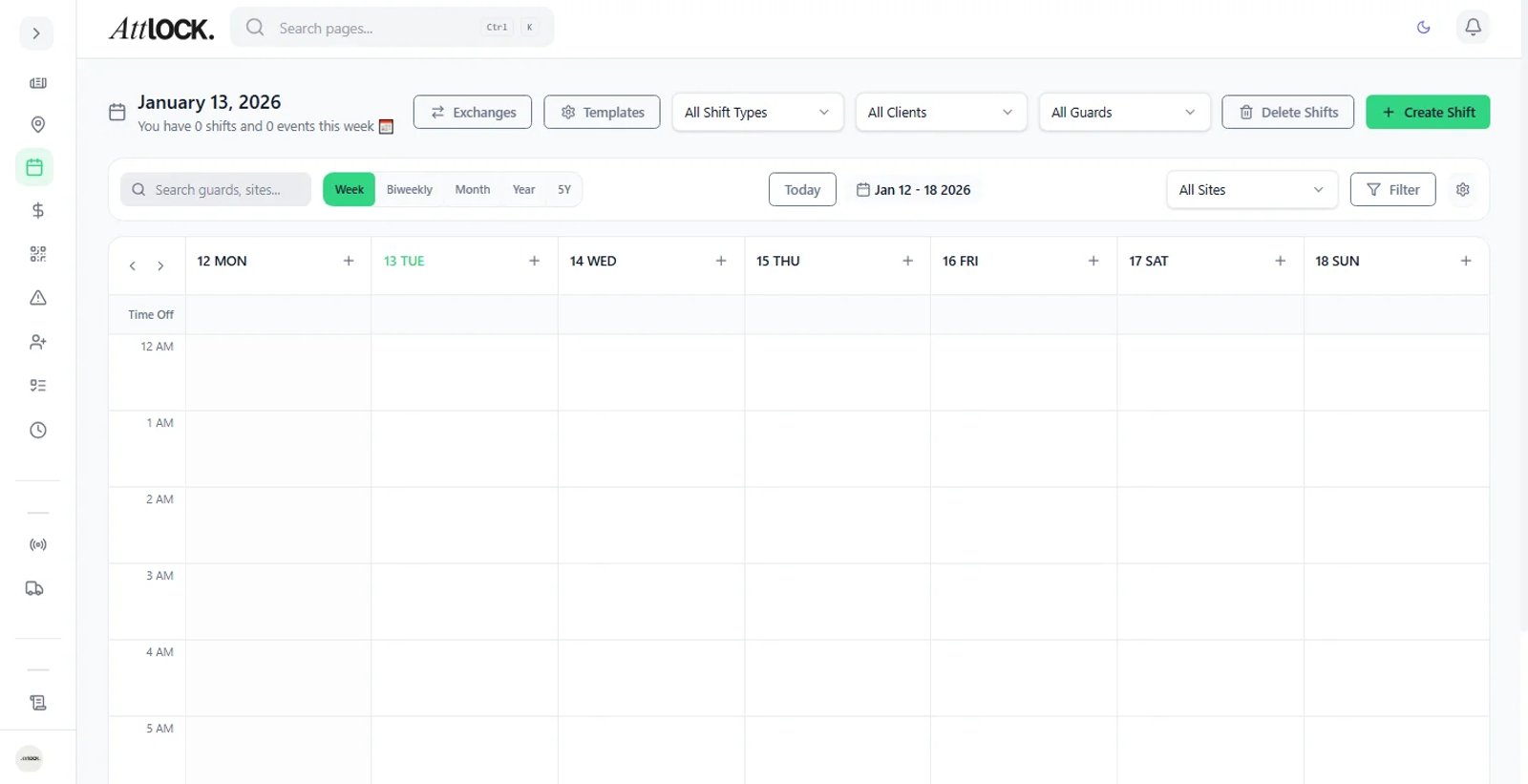
Navigate to Operations > Scheduling > Auto-Approval in the sidebar. The settings page shows the current rule configuration, approval history, and toggle controls.
Enabling Auto-Approval
- On the Auto-Approval page, toggle Enable Auto-Approval to on.
- Select the scope for auto-approval:
- All Sites — rules apply company-wide.
- Specific Sites — select which sites allow auto-approved swaps.
- Click Save.
Once enabled, swap requests that meet all configured criteria are approved instantly. Requests that do not meet the criteria remain in the manual review queue.
Important: Auto-approval only applies to shift swaps between guards. Vacation requests, new shift assignments, and schedule changes always require manual approval.
Setting Approval Criteria
Criteria define the conditions a swap must meet for automatic approval. Configure these under the Rules section:
Same-Site Requirement
- Enabled by default — both guards must be assigned to the same site.
- When disabled, cross-site swaps can also be auto-approved.
Qualification Matching
- Role match — the replacement guard must hold the same role or position as the original assignment (e.g., Armed Guard, Patrol Officer).
- Certification match — the replacement guard must have all required certifications for the shift (e.g., firearms license, first aid).
- Experience level — optionally require the replacement guard to meet a minimum experience threshold.
Schedule Conflict Check
- Always enabled — the system automatically verifies the replacement guard is not already scheduled for an overlapping shift.
- This check cannot be disabled to prevent double-booking.
Hours Limit
- Set a maximum weekly hours threshold. If accepting the swap would push the replacement guard over this limit, the swap is routed to manual review.
- Default: 40 hours (configurable to match your overtime policies).
Time Window
- Set a minimum lead time for auto-approval (e.g., swaps must be requested at least 24 hours before the shift starts).
- Last-minute swaps below this threshold require manual review regardless of other criteria.
Configuring Notifications
When a swap is auto-approved, notifications keep everyone informed:
- Go to the Notifications tab on the Auto-Approval page.
- Configure who receives notifications:
- Both guards — always notified (cannot be disabled).
- Site supervisor — toggle on to notify the site supervisor of auto-approved swaps.
- Admin digest — receive a daily or weekly summary of all auto-approved swaps.
- Choose the notification channels:
- Push notification (mobile app)
- In-app notification
- Click Save.
Tip: Enable supervisor notifications for high-security sites so on-site managers are always aware of personnel changes, even when swaps are auto-approved.
Override and Manual Review Options
Auto-approval does not remove admin control. Several override mechanisms are available:
Per-Swap Override
- Any auto-approved swap can be reversed by an admin within a configurable window (default: 4 hours).
- Go to Scheduling > Shift Swaps, find the auto-approved swap, and click Reverse.
Guard-Level Exclusions
- Exclude specific guards from auto-approval eligibility.
- Go to Team > Guards > [Guard Name] > Settings and toggle Exclude from Auto-Approval.
- Useful for guards on probation, performance improvement plans, or restricted assignments.
Temporary Pause
- Pause auto-approval company-wide or for specific sites without losing your rule configuration.
- Click Pause Auto-Approval on the settings page. Reactivate at any time.
Force Manual Review
- Flag specific shifts or time periods for mandatory manual review.
- When creating or editing a shift, check Require Manual Swap Approval to exempt that shift from auto-approval.
Reviewing Auto-Approval History
Track how auto-approval is performing:
- Go to Scheduling > Auto-Approval > History.
- View a log of all auto-approved swaps with:
- Date and time of approval
- Both guards involved
- The criteria that were evaluated
- Whether any criteria were borderline
- Use the Export button to download the history for auditing.
Best Practices
- Start conservative — enable strict criteria initially (same site, same role, 48-hour lead time). Loosen rules gradually as you gain confidence.
- Monitor the first month — review the auto-approval history weekly to ensure the rules produce good outcomes.
- Use guard exclusions sparingly — widespread exclusions negate the time savings of auto-approval.
- Keep supervisors notified — especially for sites with specialized security requirements.
Related Articles
- Scheduling Shifts
- Using Shift Schedule Templates
- Managing Vacation & Time-Off Requests