


Configuring Holiday Pay
Holiday pay ensures guards working on designated company holidays are compensated at the correct premium rate. Attlock lets you define your holiday calendar, set pay multipliers, and automatically apply holiday rates to payroll calculations.
Setting Up the Holiday Calendar
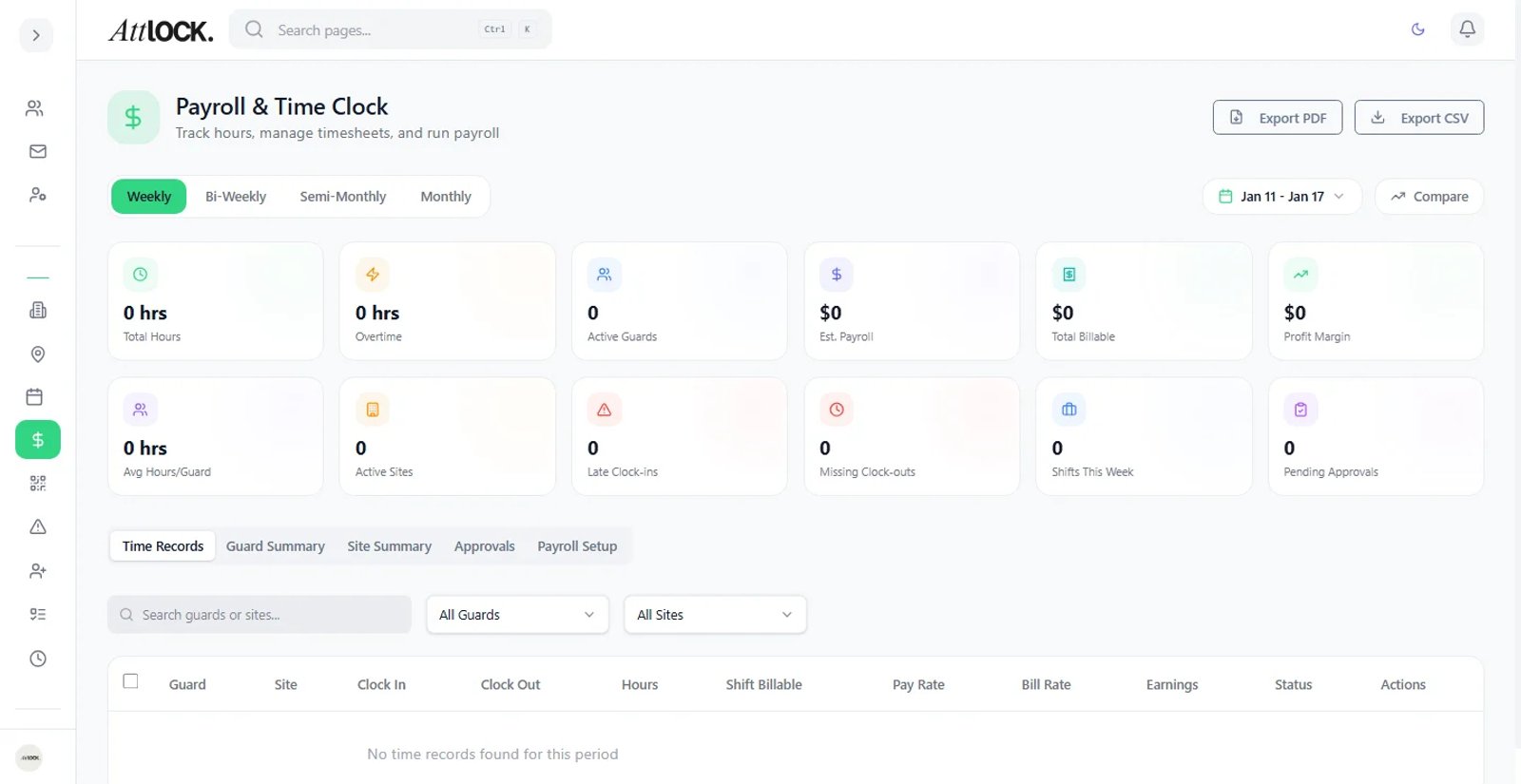
Before holiday pay can be calculated, you need to define which dates your company recognizes as holidays.
- Navigate to Settings > Scheduling > Holidays.
- Click Add Holiday.
- Enter the following details:
- Holiday Name — e.g., "New Year's Day", "Independence Day".
- Date — the specific date for the holiday.
- Recurring — toggle on if this holiday repeats annually on the same date.
- Observed Date — if the holiday falls on a weekend, specify the observed weekday (e.g., the following Monday).
- Click Save.
Repeat for each company holiday. Most organizations add all holidays for the year at once during annual planning.
Tip: Use the Import Standard Holidays option to pre-populate common national holidays for your country. You can then edit or remove any that do not apply to your company.
Configuring Holiday Pay Multipliers
Pay multipliers determine how much extra guards earn for working on holidays.
- Go to Settings > Payroll > Holiday Pay Rules.
- Click Add Rule or edit an existing rule.
- Configure the multiplier:
- Multiplier — the pay rate factor (e.g., 1.5x, 2.0x, 2.5x).
- Applies To — select which holidays this multiplier covers. You can set a default multiplier for all holidays, then override specific ones.
- Eligible Roles — optionally restrict the multiplier to certain guard roles or positions.
- Minimum Hours — optionally set a minimum number of hours a guard must work on the holiday to qualify for the premium rate.
- Click Save Rule.
Common Holiday Pay Configurations
| Scenario | Multiplier | Notes | ---------- | ----------- | ------- | Standard holiday premium | 1.5x | Time-and-a-half for all holidays | Major holiday premium | 2.0x | Double time for Christmas, New Year's, etc. | Premium + base | 2.5x | Double time plus regular pay (holiday pay on top of shift pay) |
|---|
Important: Multipliers apply to the guard's base hourly rate. If a guard normally earns $20/hr and the holiday multiplier is 2.0x, they will earn $40/hr for holiday shifts.
How Holidays Affect Scheduling
When a date is marked as a company holiday, the scheduling system reflects this in several ways:
- Calendar highlighting — holiday dates appear with a distinct marker on the schedule view so supervisors can see at a glance which days carry premium rates.
- Staffing alerts — the system flags holidays with insufficient coverage so you can fill gaps early.
- Template exclusions — when applying weekly templates, you can choose to skip holidays or include them with a flag for manual review.
- Guard availability — guards can indicate holiday availability separately from their regular availability preferences.
Holidays do not automatically prevent scheduling. Guards can still be assigned shifts on holidays — the system simply ensures the correct pay rate is applied.
Holiday Pay in Payroll
When payroll is processed, holiday shifts are automatically calculated at the configured multiplier:
- Go to Payroll > Current Period to review the pay run.
- Holiday shifts appear with a Holiday tag in the shift breakdown.
- The Rate column shows the multiplied rate (e.g., "$30.00/hr (1.5x Holiday)").
- The Holiday Premium line item shows the additional cost above the base rate.
You can view a summary of all holiday pay across the company in Payroll > Reports > Holiday Pay Summary.
Managing Edge Cases
- Shifts spanning midnight — if a shift starts before a holiday and ends during it (or vice versa), only the hours falling on the holiday date receive the premium rate.
- Overtime on holidays — overtime rules and holiday multipliers stack. If a guard works overtime on a holiday, both the overtime and holiday premiums apply according to your configured rules.
- Holiday falling on a day off — configure whether guards receive a holiday allowance even when not scheduled, under Settings > Payroll > Holiday Pay Rules > Day-Off Policy.
Best Practices
- Plan ahead — add all holidays for the upcoming year at the start of each fiscal year.
- Communicate early — publish holiday schedules to guards well in advance so they can plan accordingly.
- Audit before payroll — review holiday-tagged shifts in the payroll preview to catch any misclassified dates.
- Use tiered multipliers — set higher rates for major holidays to incentivize guards to accept those shifts.
Related Articles
- Setting Up Pay Rates
- Payroll Management
- Scheduling Shifts