


Billing Contracts & Bill Items
Billing Contracts define the terms of service with your clients. Bill Items configure what you charge for. Together they drive invoice generation.
Billing Contracts
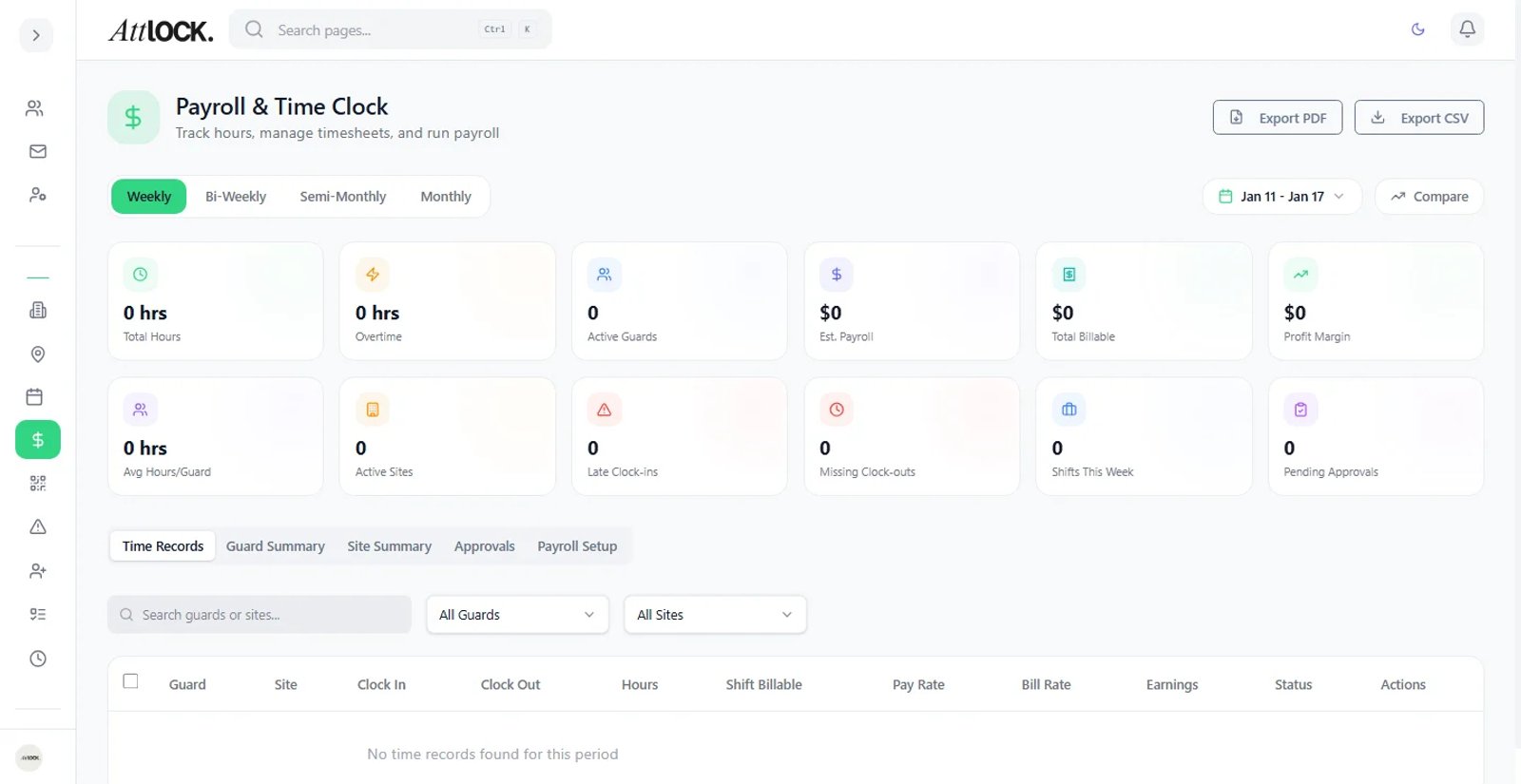
Navigate to Operations → Payroll → Billing Contracts in the sidebar.
Creating a Contract
- Click Create Contract.
- Fill in:
- Client — select the client company.
- Contract Name (e.g., "Office Park Security Agreement 2026").
- Start Date and End Date.
- Terms — free-text description of service terms.
- Billing Frequency: Weekly, Bi-Weekly, Monthly.
- Payment Terms: Net 15, Net 30, Net 60, Due on Receipt.
- Add Bill Items to the contract (see below).
- Save.
Contract Statuses
| Status | Meaning | -------- | --------- | Draft | Being prepared, not active | Active | Currently in effect | Expired | Past the end date | Cancelled | Terminated early |
|---|
Managing Contracts
- Activate a draft contract when both parties agree.
- Renew an expiring contract by creating a new one with updated dates.
- Cancel if the relationship ends early.
- Export contract details for record-keeping.
Bill Items
Navigate to Operations → Payroll → Bill Items.
Bill items define what services you charge for.
Creating a Bill Item
- Click Create Bill Item.
- Fill in:
- Service Name (e.g., "Hourly Guard Service").
- Service Model: Hourly Guard, Scheduled Patrol, Dispatch, Recurrent Fixed.
- Unit Type: Hourly, Per Item, Flat Rate.
- Price — the rate.
- Save.
Bill Item Types
| Type | Description | Billing Basis | ------ | ------------- | --------------- | Hourly Guard | Standard guard hours | Per hour worked | Scheduled Patrol | Patrol visits to sites | Per patrol visit | Dispatch | On-demand guard dispatch | Per dispatch event | Recurrent Fixed | Fixed monthly/weekly fee | Flat rate per period |
|---|
Activating/Deactivating
Toggle items on or off. Inactive items won't appear on new invoices but existing invoice records are preserved.
How Contracts and Bill Items Connect
- You create Bill Items as your service catalog.
- You create a Billing Contract with a client.
- You attach relevant Bill Items to the contract.
- When generating invoices, the system uses the contract's bill items and the actual hours/events to calculate totals.
Tips
- Create a standard set of Bill Items that covers your most common services.
- Set clear payment terms — Net 30 is standard, but shorter terms improve cash flow.
- Review expiring contracts at the start of each month to avoid service gaps.
- Keep contracts updated when service scope changes.
Related Articles
- Payroll Management
- Managing Clients
- Invoices & Billing
- Reports & Analytics