


Processing Payroll Runs
Atlock's Payroll module helps you track guard hours, manage pay rates, process payroll runs, and generate payroll reports.
Accessing Payroll
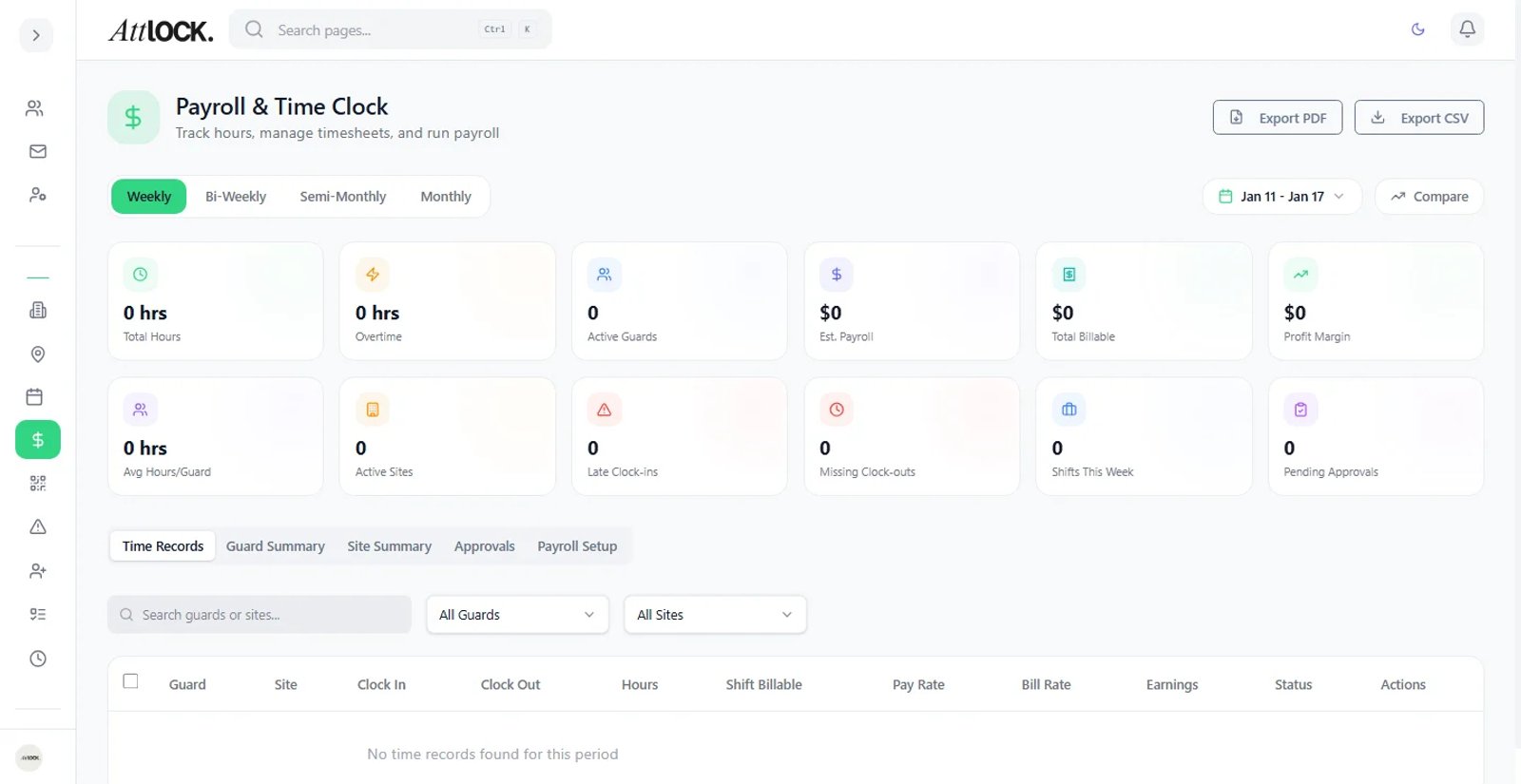
- Navigate to Operations > Payroll in the sidebar (shortcut: `G` then `P`).
- The main payroll dashboard loads with an overview of current period data.
Payroll Dashboard
The overview shows:
- Total Hours Worked — Aggregate hours for the current pay period.
- Guards Scheduled — Number of guards with shifts this period.
- Overtime Hours — Hours exceeding regular thresholds.
- Total Payroll Cost — Estimated cost based on configured rates.
Charts
- Weekly Hours Breakdown — Bar chart of daily hours.
- Cost Per Guard — Distribution of payroll costs.
- Overtime Analysis — Trend of overtime hours over time.
Reviewing Timesheets
- Go to Payroll > Timesheets (if available as a sub-tab).
- Each timesheet row shows:
- Guard Name
- Shifts Worked
- Total Hours
- Overtime Hours
- Pay Rate
- Gross Pay
- Status (Pending, Approved, Paid)
- Review hours against scheduled shifts.
- Approve timesheets individually or in bulk.
Approving Timesheets
- Select one or more timesheets.
- Click Approve.
- Approved timesheets are locked from further editing.
Tip: Review timesheets weekly to catch discrepancies early.
Managing Pay Rates
- Go to Payroll > Pay Rates.
- Configure rates for different scenarios:
- Base Hourly Rate — Standard rate per hour.
- Overtime Rate — Rate for hours beyond regular threshold (e.g., 1.5x).
- Weekend Rate — Premium for weekend shifts.
- Night Differential — Additional pay for overnight shifts.
- Holiday Rate — Premium for working on designated holidays.
- Rates can be set:
- Company-wide — Default for all guards.
- Per Guard — Override for specific individuals.
- Per Site — Different rates for different locations.
- Per Shift Type — Day vs. night rate differences.
Running a Payroll
- Go to Payroll > Payruns.
- Click Create Payrun.
- Configure the payrun:
- Pay Period — Start and end dates.
- Include Guards — All or specific guards/teams.
- Apply Rates — Confirm which pay rates to use.
- Click Generate — Atlock calculates totals based on approved timesheets.
- Review the payrun summary:
- Number of guards included.
- Total regular hours.
- Total overtime hours.
- Total payroll cost.
- Individual guard breakdowns.
- Status progression: Draft → Approved → Processed → Paid.
Exporting Payroll Data
- Open a completed payrun.
- Click Export.
- Choose format:
- PDF — Formatted pay stubs for distribution.
- CSV — Raw data for spreadsheet analysis.
- Excel — For accounting system import.
Configuring Holidays
- Go to Payroll > Holidays.
- Click Add Holiday.
- Set:
- Holiday name (e.g., "New Year's Day").
- Date.
- Pay multiplier (e.g., 2x for double time).
- Whether it's a paid day off or premium pay for working.
- Holidays are applied automatically to payroll calculations.
Invoices
- Go to Operations > Invoices.
- Generate invoices for clients based on:
- Guard hours at their sites.
- Contracted rates.
- Additional charges (overtime, equipment, etc.).
- Export invoices as PDF.
Billing Contracts
- Go to Operations > Billing Contracts.
- Manage contracts with clients:
- Contract period (start/end dates).
- Agreed rates.
- Service level agreements.
- Billing frequency.
Tips & Best Practices
- Set pay rates before creating shifts — Ensures accurate cost projections.
- Approve timesheets before running payroll — Only approved timesheets are included.
- Configure holidays at the start of the year — Prevents missed premium pay.
- Export payroll data monthly — Keep backups for accounting and compliance.
- Review overtime regularly — High overtime costs may indicate understaffing.
Troubleshooting
Payroll totals don't match expected hours
- Check if all timesheets are approved.
- Verify guards clocked in/out correctly.
- Review if break time is being deducted.
Holiday pay not applied
- Ensure the holiday is configured in Payroll > Holidays.
- Verify the shift dates match the holiday date.
Can't access payroll
- Requires the `billing.payroll` permission.
- Only Company Admins have this by default.
Related Articles
- Using the Analytics Dashboard
- Creating a New Shift
- Managing Pay Rates and Differentials
- Configuring Holiday Pay Rules