


Objective
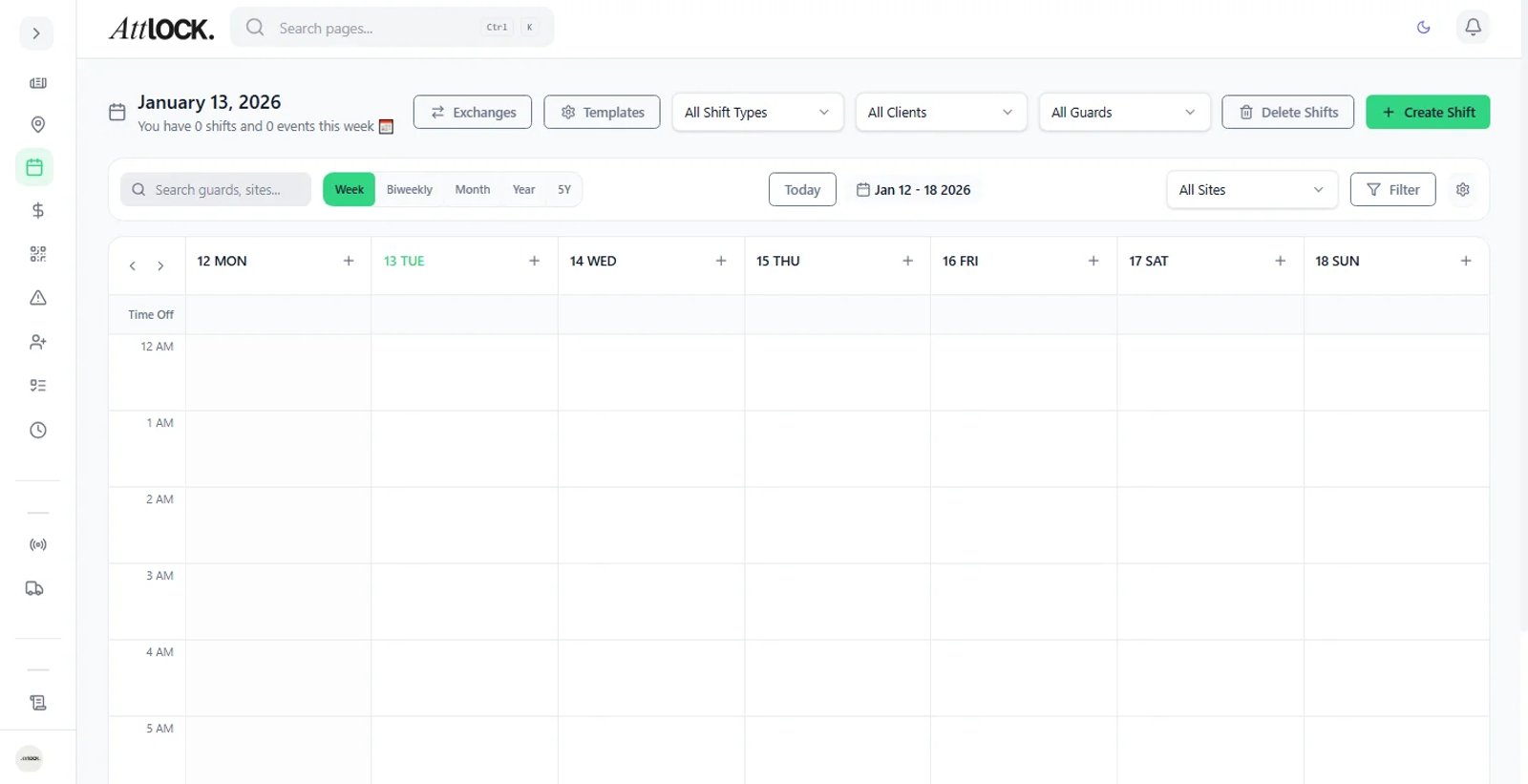
Build a roster of shifts for your sites to ensure coverage and communicate duties to your team.
Step-by-Step Guide
Access the Calendar
Navigate to Scheduling > Calendar.
Create a Shift
Double-click on a date row corresponding to a specific Site.
Enter Shift Details
Times: Set the Start Time and End Time.
Quantity: Indicate how many guards are needed for this slot (e.g., 1 or 2).
Position: Select the role required (e.g., "Unarmed Guard", "Supervisor").
Assign Staff
Option A (Direct Assign): Type a guard's name to assign them directly. The system will automatically check for availability conflicts.
Option B (Open Shift): Click "Open Shift" to leave it unassigned (see Article: Handling Open Shifts).
Save
Click Save Draft. The shift will appear on the calendar but is not yet visible to guards.