


Viewing the Audit Log
The Audit Log provides a comprehensive record of every significant action taken on your Atlock account — user logins, data changes, permission updates, and system events.
Accessing the Audit Log
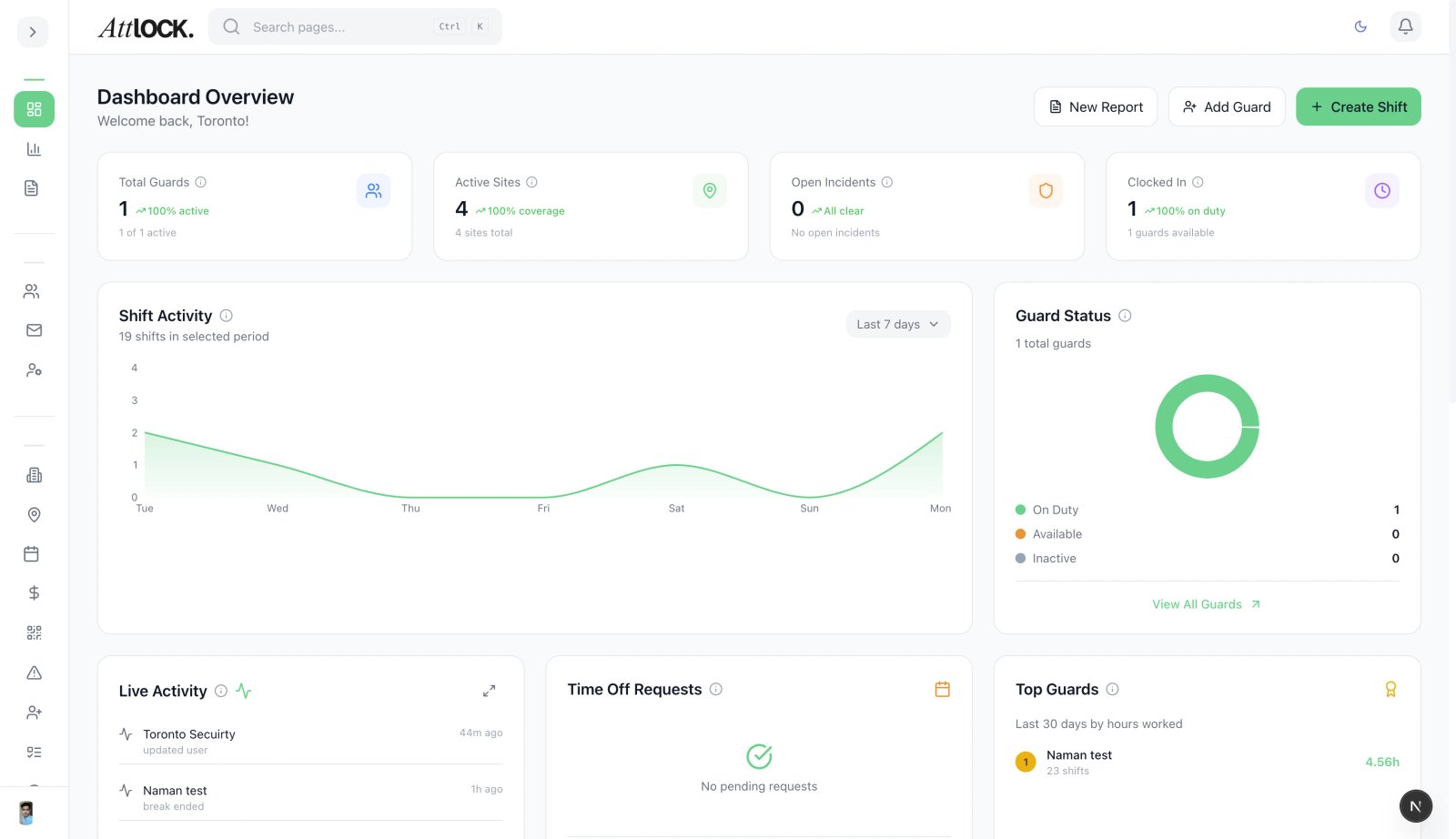
- Navigate to Settings > Audit Log in the sidebar.
- The log displays entries in reverse chronological order (newest first).
What Is Logged
User Actions
- Logins and logouts.
- Profile changes.
- Role and permission changes.
- Guard invitations sent/accepted/revoked.
- Data creation, updates, and deletions.
Operational Events
- Shift creation and modifications.
- Incident reports filed.
- Panic alerts triggered and resolved.
- Dispatch orders created.
- Reports generated and exported.
Security Events
- Failed login attempts.
- Permission denied events.
- API key creation/rotation.
- Webhook configuration changes.
System Events
- Data imports.
- Bulk operations.
- Settings changes.
- Subscription updates.
Filtering the Audit Log
- Date Range — Select start and end dates.
- User — Filter to a specific user's actions.
- Action Type — Create, Update, Delete, Login, Export, etc.
- Resource — Guard, Site, Shift, Incident, etc.
- Search — Free-text search across log entries.
Log Entry Details
Each entry shows:
- Timestamp — Exact date and time.
- User — Who performed the action.
- Action — What was done.
- Resource — What was affected.
- Details — Specific changes (old value vs. new value where applicable).
- IP Address — Where the action originated.
Exporting the Audit Log
- Apply your desired filters.
- Click Export.
- Choose format (CSV or PDF).
- Use exports for compliance reporting, investigations, or internal audits.
Tips & Best Practices
- Review weekly — Spot unusual activity early.
- Export monthly — Keep audit records for compliance requirements.
- Investigate failed logins — Repeated failures may indicate unauthorized access attempts.
- Track role changes — Ensure permission changes are authorized.
Troubleshooting
Can't find a specific event
- Broaden your date range.
- Try different filter combinations.
- Some routine events may not be logged to reduce noise.
Audit log seems incomplete
- Very old entries may be archived (depending on retention policy).
- Some system-level events are only visible to Super Admins.
Related Articles
- Understanding Roles and Permissions
- Managing Companies on the Platform
- Configuring Company Settings