


Notifications & Alerts
Stay informed about shift assignments, schedule changes, announcements, and emergency alerts through the notification system.
Viewing Notifications
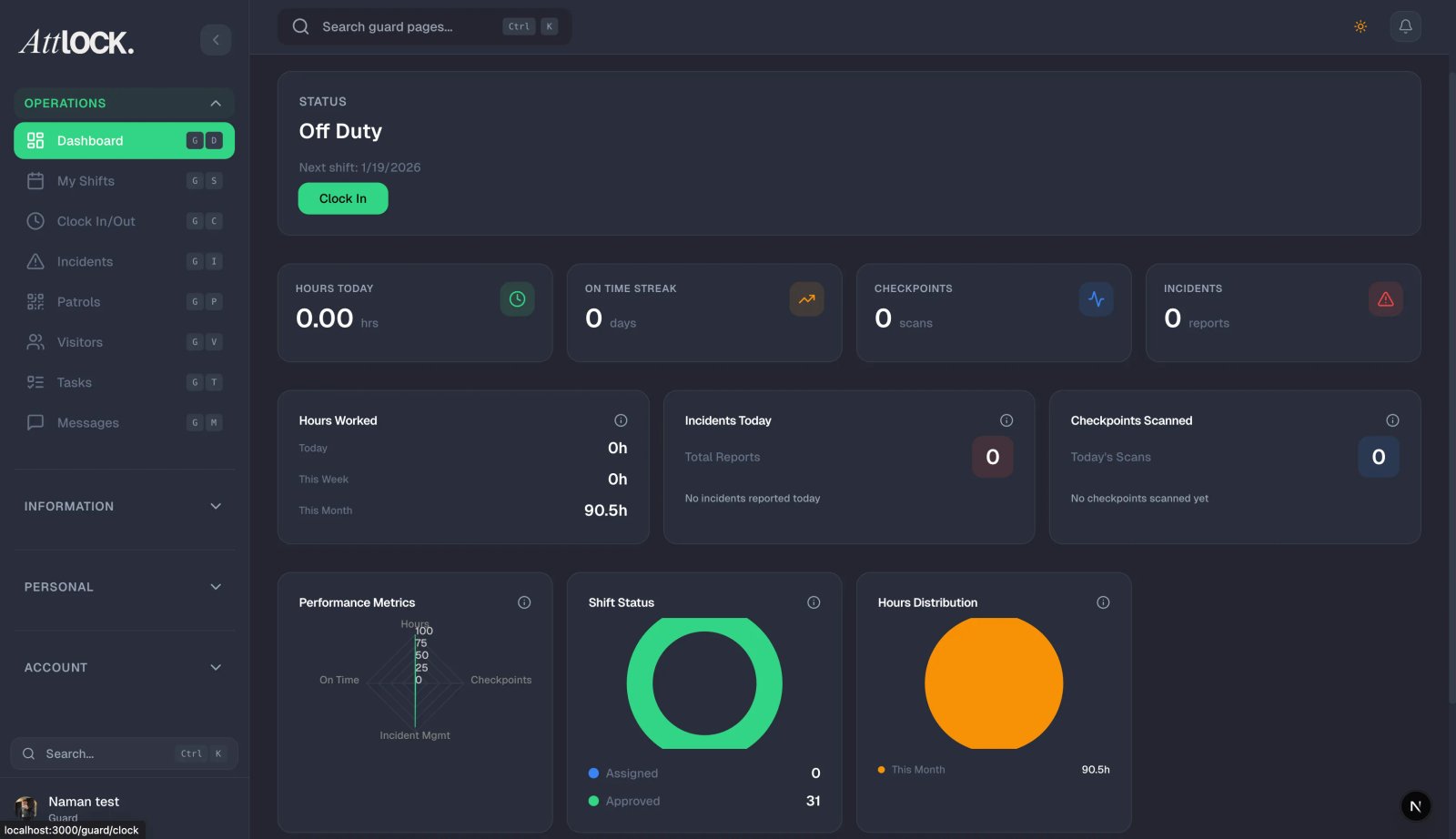
Tap the bell icon in the top-right corner of the Home screen.
You'll see a list of recent notifications (up to 50), sorted by most recent:
- Unread notifications have a colored dot indicator.
- Tap any notification to go to the relevant screen.
Notification Types
| Type | What It Means | ------ | -------------- | Shift Assignment | You've been assigned a new shift | Shift Change | A shift time, site, or status has changed | Schedule Update | Your schedule has been modified | Announcement | A new message from management | Time-Off Response | Your time-off request was approved or denied | Shift Swap | A swap opportunity or response | Alert | Urgent system alert | Task Reminder | A shift task is due |
|---|
Managing Notifications
- Mark as Read: Tap a notification to mark it as read.
- Mark All as Read: Tap the option at the top of the notification list.
- Filter: Filter by notification type or priority.
Notification Settings
- Go to Profile → Notification Settings.
- Toggle categories on or off:
- Shift notifications
- Alert notifications
- Announcement notifications
- Schedule changes
- Set Quiet Hours if you don't want notifications during certain times.
Push Notifications
For real-time alerts, make sure push notifications are enabled:
- Go to your phone's Settings → Attlock → Notifications.
- Enable Allow Notifications.
- Enable Sounds and Badges for visibility.
Important: Keep notifications enabled during shifts so you don't miss critical alerts or panic escalations.
Tips
- Check notifications at the start of each shift for any changes.
- Don't disable critical categories like Alerts and Shift Changes.
- Use Quiet Hours for off-duty times instead of disabling all notifications.
Related Articles
- Getting Started with the Guard Mobile App
- Viewing Your Schedule
- Using the Emergency SOS Button
- Profile Settings