


Access Control & Roles
Control who can see and do what in your Attlock dashboard with role-based access control (RBAC). Assign system roles or create custom roles with granular permissions.
Accessing Access Control
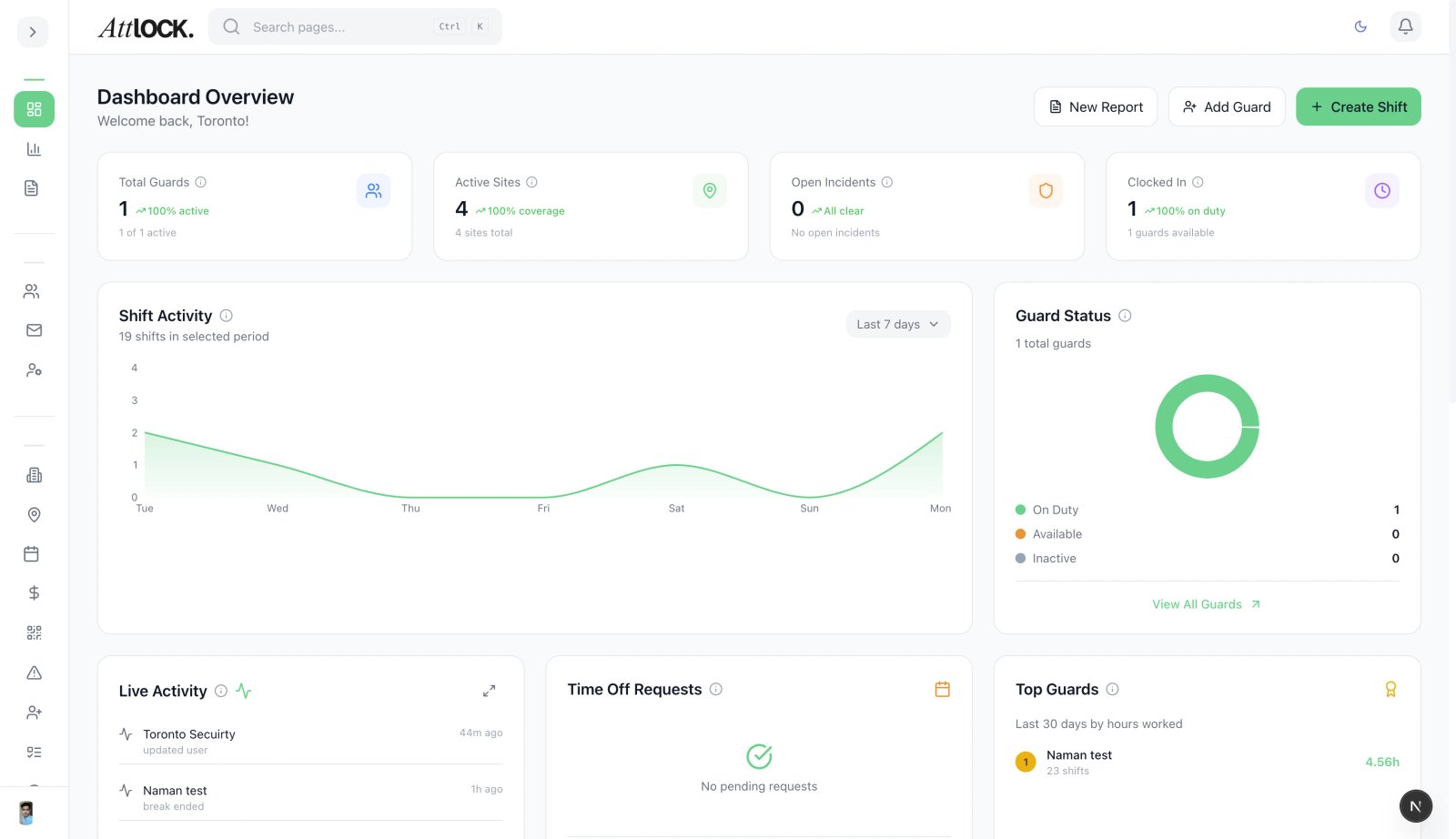
Navigate to Team → Access Control in the sidebar, or press G and search "Roles".
System Roles
Attlock includes built-in roles that cannot be deleted:
| Role | Access Level | ------ | -------------- | Super Admin | Full access to everything across all companies | Company Admin | Full access within their company | Supervisor | Manage guards and operations at assigned sites | Guard | Mobile app access for field operations | Client | Client portal access for their assigned sites |
|---|
Creating Custom Roles
- Go to Access Control → Roles.
- Click Create Role.
- Enter a Role Name (e.g., "Operations Manager").
- Select Permissions from the permission matrix:
- Guards: View, Create, Edit, Delete, Deactivate
- Sites: View, Create, Edit, Delete
- Shifts: View, Create, Edit, Delete, Publish
- Incidents: View, Create, Edit, Close
- Reports: View, Create, Export
- Payroll: View, Create, Approve
- Settings: View, Edit
- And more for each module.
- Save.
Assigning Roles to Users
- Go to Access Control → Users.
- Click a user's row.
- Select the Role to assign.
- Save.
Users inherit all permissions from their assigned role.
Managing Users
The Users page shows all admin and staff accounts:
- Search by name or email.
- Filter by role or status.
- Activate/Deactivate users.
- View activity logs for each user.
Sending Invitations
- Go to Team → Invitations.
- Click Invite User.
- Enter their email address.
- Select their role.
- Send the invitation.
- Track status: Pending, Accepted, Expired.
- Resend expired invitations.
Permission Checks
The system enforces permissions at every level:
- Sidebar navigation — only shows pages the user has access to.
- Page content — data is filtered to what the user can see.
- Actions — buttons and forms are hidden/disabled for unauthorized actions.
- API level — backend validates permissions on every request.
Tips
- Use the principle of least privilege — give users only the permissions they need.
- Create a "Shift Manager" custom role if you have staff who only handle scheduling.
- Audit roles regularly — remove permissions that are no longer needed.
- Review the Audit Log to see what users are doing with their access.
Related Articles
- Managing Guards
- Settings & Configuration
- Audit Log
- Invitations