


Using the Alert Center for Panic Alerts
The Alert Center monitors panic/SOS alerts triggered by guards. These are the highest priority events in Atlock and require immediate response.
Accessing the Alert Center
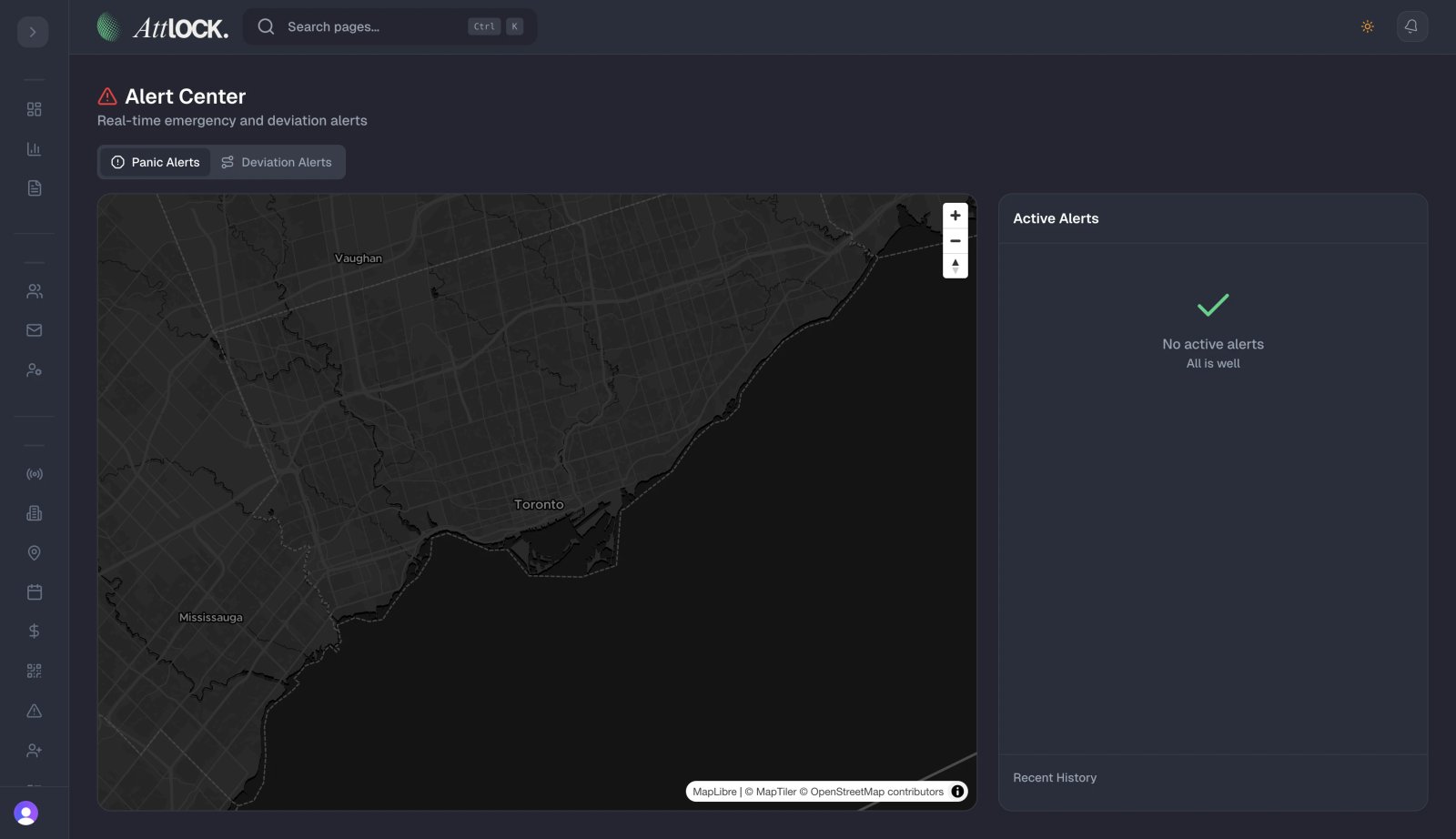
- Navigate to Field Management > Alert Center in the sidebar.
- Active panic alerts also appear as a red banner on the main admin dashboard.
How Panic Alerts Work
- A guard triggers the SOS/Panic button on their mobile app.
- An alert is created instantly with:
- Guard's GPS location.
- Timestamp.
- Guard's assigned site and shift.
- The admin dashboard shows a red panic banner.
- Push notifications are sent to all supervisors and admins.
- The alert appears in the Alert Center and Command Center.
Responding to a Panic Alert
- Open the alert in the Alert Center.
- View:
- Guard's current location on the map.
- Guard's contact information.
- Site details.
- Time since alert was triggered.
- Take action:
- Contact the guard — Call or message them immediately.
- Dispatch backup — Send additional guards to the location.
- Contact emergency services — Call 911/local emergency number.
- Notify the client — Alert the site client of the situation.
- Update the alert status as you take action.
Alert Resolution
- Once the situation is resolved, click Resolve Alert.
- Add resolution notes:
- What happened.
- Actions taken.
- Outcome.
- Follow-up needed.
- The panic banner dismisses from the dashboard.
- A permanent record is created in the incident log.
Panic Alert Configuration
Panic alerts are always enabled and cannot be disabled for safety reasons. However, you can configure:
- Notification recipients — Who receives panic alert notifications.
- Escalation rules — Automatic escalation if alert is not acknowledged within X minutes.
- Auto-dispatch — Automatically dispatch the nearest available guard.
Tips & Best Practices
- Respond immediately — Every second counts in a panic situation.
- Keep emergency contacts current — Ensure all admin phone numbers are up to date.
- Conduct panic drills — Test the system periodically so your team knows the response procedure.
- Review all resolved alerts — Debrief after each panic event to improve response.
- Never ignore a panic alert — Even false alarms must be investigated and documented.
Troubleshooting
Alert not received
- Check push notification settings on admin devices.
- Verify notification recipients are configured.
- The guard's device may have lost connectivity before the alert was sent.
Can't locate the guard
- GPS may be unavailable in their location (underground, indoors).
- Try calling the guard directly.
- Contact the site to check the guard's last known location.
Related Articles
- Using the Command Center
- Live Guard Tracking
- Managing Incidents
- Managing Investigations