


Managing Investigations
The Investigations module lets you manage formal investigation cases that go beyond simple incident reports — tracking evidence, building timelines, and documenting resolutions.
Accessing Investigations
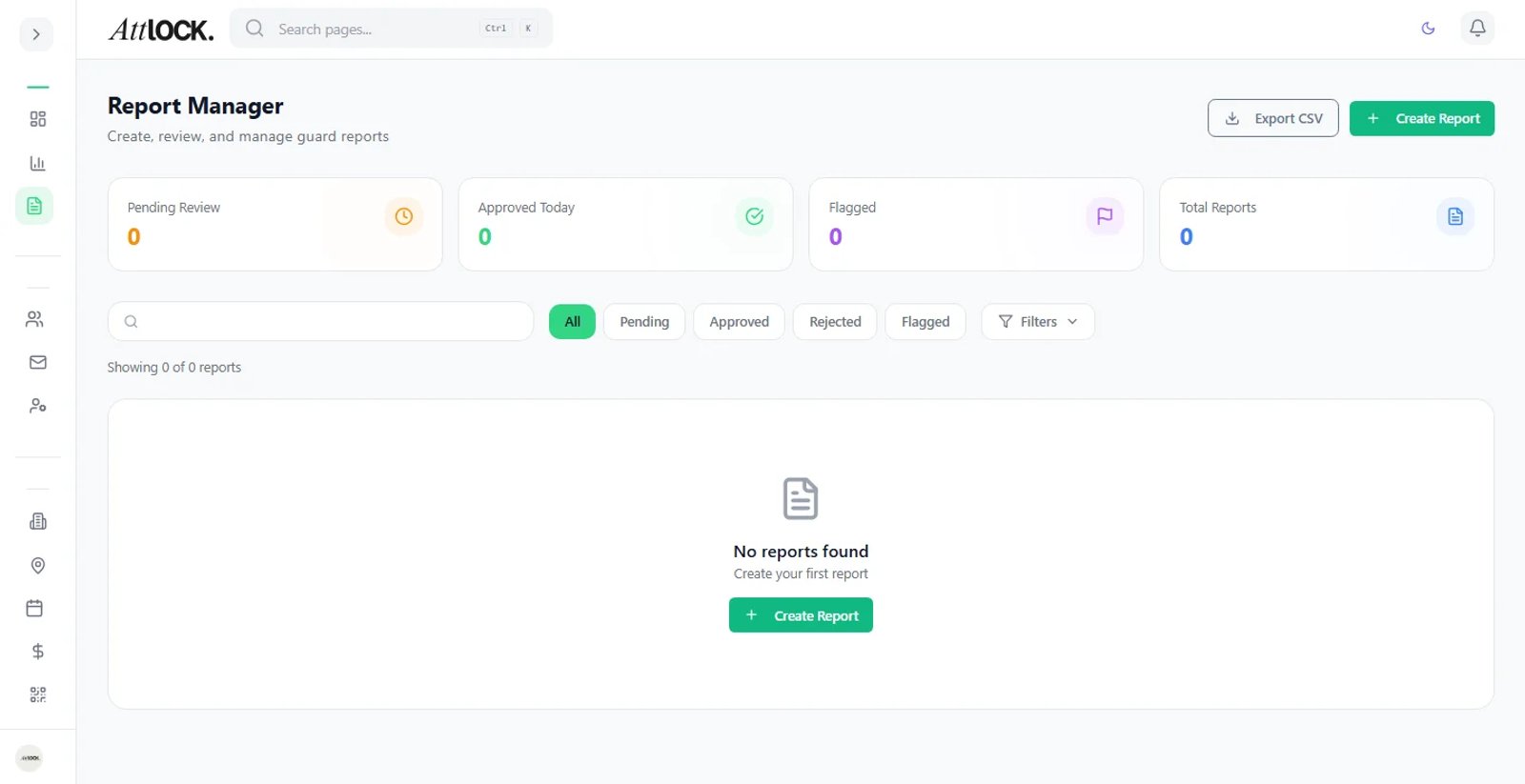
- Navigate to Field Management > Investigations in the sidebar.
- The main view shows all investigation cases.
Creating an Investigation
- Click New Investigation.
- Fill in the case details:
- Case Title — Brief summary of the investigation.
- Related Incident — Link to an existing incident report (optional).
- Priority — Low, Medium, High, Critical.
- Status — Open, In Progress, On Hold, Closed.
- Assigned To — Lead investigator.
- Description — Detailed background and scope.
- Site — Where the investigation is focused.
- Click Create.
Investigation Detail View
Each investigation has a dedicated detail page at `/investigations/[id]`:
Case Overview
- Full case details.
- Status and priority.
- Assigned investigator.
- Creation and last update dates.
Evidence Tracking
- Upload documents, photos, and videos.
- Tag evidence with descriptions.
- Chain of custody tracking.
- Evidence timestamps.
Timeline
- Chronological record of all events related to the case.
- Notes and updates from the investigation team.
- Status changes.
- Evidence additions.
Notes
- Internal investigation notes (not visible to non-investigation staff).
- Discussion between team members.
- Private observations and hypotheses.
Investigation Workflow
- Open — Case is created and assigned.
- In Progress — Active investigation, evidence being gathered.
- On Hold — Paused (waiting for external information, legal review, etc.).
- Closed — Investigation complete with documented resolution.
Tips & Best Practices
- Link to incidents — Always connect investigations to the originating incident for a complete audit trail.
- Upload evidence promptly — Delays can lead to lost or compromised evidence.
- Document everything — The timeline should tell the complete story of the investigation.
- Restrict access — Investigations may contain sensitive information; verify team permissions.
Troubleshooting
Can't create investigations
- Verify your role has investigation permissions.
- Contact your Company Admin for access.
Evidence upload fails
- Check file size limits.
- Ensure the file format is supported.
Related Articles
- Managing Incidents
- Using the Command Center
- Viewing the Audit Log
- Understanding Roles and Permissions