


Using the Message Board
The Message Board is Atlock's internal communication tool for sending messages to guards, teams, and sites.
Accessing Messages
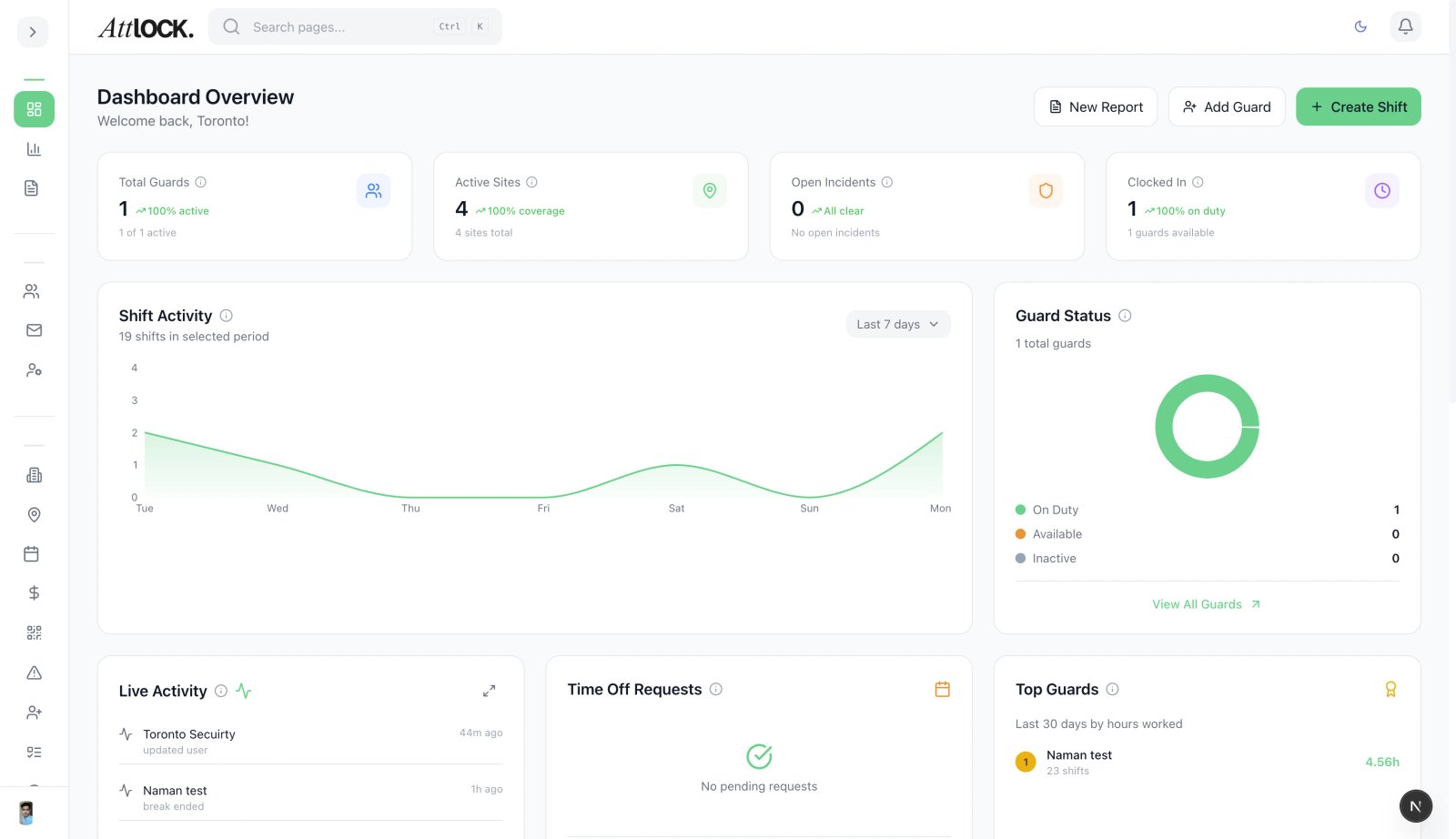
- Navigate to Field Management > Message Board in the sidebar.
- View all messages in chronological order.
Sending a Message
- Click New Message.
- Fill in:
- Recipients — Select individual guards, teams, or sites.
- Subject — Message topic.
- Content — Message body (supports rich text).
- Priority — Normal, Important, or Urgent.
- Attachments — Upload files, images, or documents.
- Click Send.
Broadcast Messages
Send a message to all guards at once:
- Click Broadcast.
- Write your message.
- Select scope:
- All Guards — Company-wide broadcast.
- By Site — All guards at specific sites.
- By Team — All guards in specific teams.
- Click Send Broadcast.
Broadcasts appear as priority notifications on the mobile app.
Message History
- All sent and received messages are stored.
- Filter by date, sender, recipient, or keyword.
- Messages cannot be deleted (audit trail).
Notifications
Manage notification preferences:
- Go to Field Management > Notifications.
- Configure which events generate alerts.
- Set delivery channels (in-app, push, email).
- Customize notification templates.
Tips & Best Practices
- Use broadcasts for shift-wide updates (weather alerts, policy changes, emergency info).
- Keep messages concise — Guards may be reading on mobile during their shift.
- Use priority levels appropriately — Reserve "Urgent" for time-sensitive communications.
Related Articles
- Understanding the Admin Dashboard
- Managing Incidents
- Creating a New Shift
- Using Pass-On Logs