


Tracking Equipment Across Sites
The Equipment Management module helps you track all security equipment — radios, flashlights, body cameras, uniforms, and more — across your sites and guards.
Accessing Equipment
- Navigate to Assets > Equipment in the sidebar.
- The equipment management page loads with tabs for different views.
Equipment Tabs
Inventory Tab
The main equipment inventory showing:
- Equipment ID/Tag.
- Type (Radio, Flashlight, Uniform, Body Camera, Weapon, First Aid Kit, etc.).
- Brand/Model.
- Serial Number.
- Status (Active, Maintenance, Retired).
- Condition (Good, Fair, Poor).
- Location/Site.
- Assigned Guard (if any).
Assignments Tab
View all current equipment assignments:
- Who has what equipment.
- When it was assigned.
- Check-out/check-in history.
Maintenance Tab
- Scheduled maintenance for equipment.
- Overdue maintenance alerts.
- Service history.
Usage History Tab
- Timeline of equipment usage.
- Check-in/check-out logs.
- Transfer history between guards/sites.
Reports Tab
- Equipment distribution charts (by type, by site).
- Status breakdown pie chart.
- Equipment cost tracking.
Adding Equipment
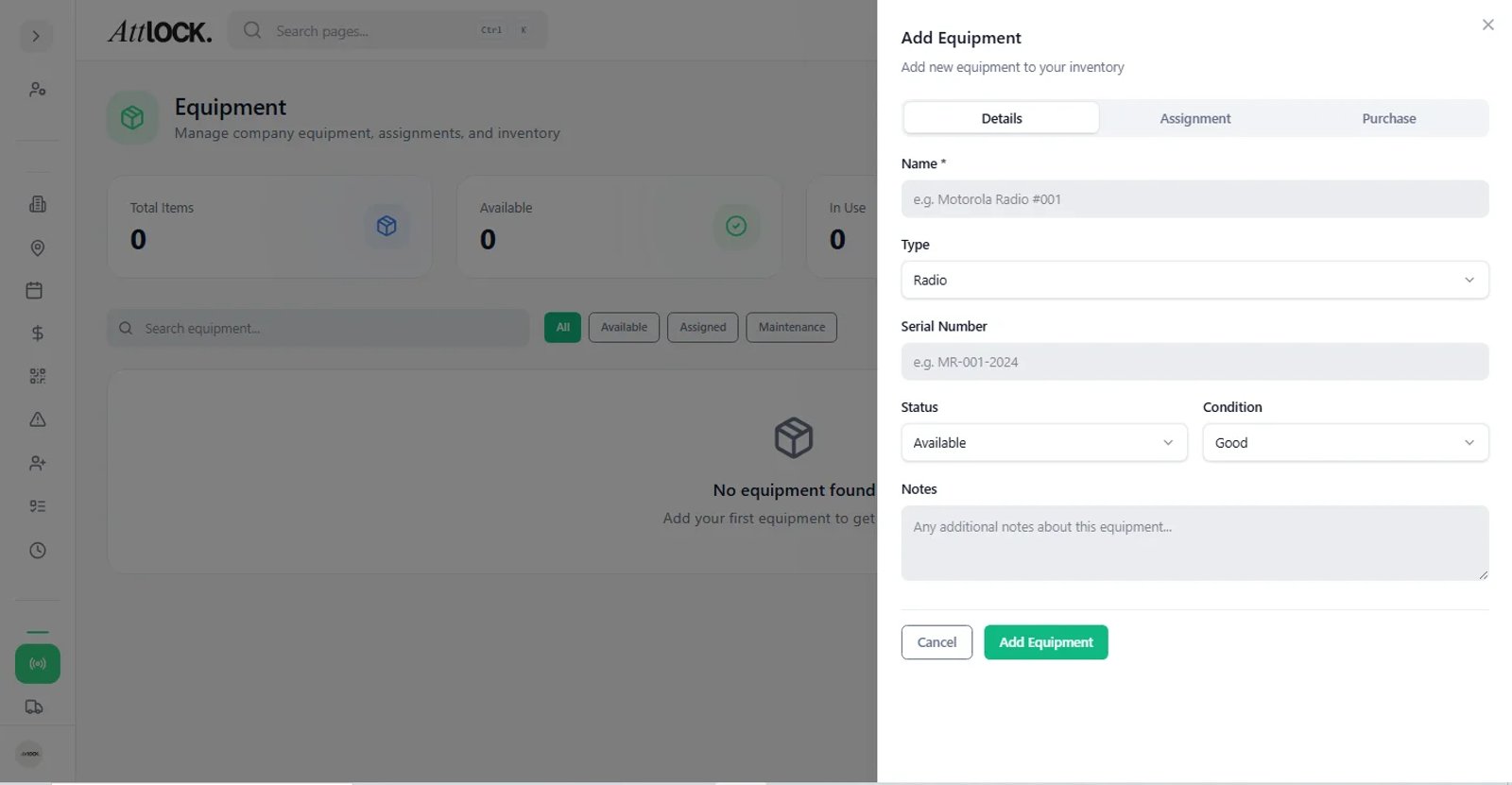
- Click Add Equipment (Plus icon).
- Fill in the details:
- Equipment ID/Tag — Unique identifier or barcode.
- Type — Select category (Radio, Flashlight, Uniform, Body Camera, etc.).
- Brand/Model — Manufacturer and model name.
- Serial Number — Unique serial number.
- Status — Active, Maintenance, or Retired.
- Condition — Good, Fair, or Poor.
- Location/Site — Where the equipment is stored.
- Purchase Date — When acquired.
- Cost — Purchase price.
- Maintenance Due Date — Next scheduled maintenance.
- Click Save.
Assigning Equipment to Guards
- Find the equipment item in the inventory.
- Click the item to open details.
- Click Assign to Guard.
- Select the guard from the dropdown.
- Confirm the assignment.
The guard will see their assigned equipment in the mobile app.
Equipment Check-In/Check-Out
- When a guard receives equipment, record a Check-Out.
- When equipment is returned, record a Check-In.
- This creates an audit trail of who had the equipment and when.
Logging Maintenance
- Go to the Maintenance tab.
- Click Log Maintenance.
- Enter:
- Equipment item.
- Maintenance type (Repair, Inspection, Calibration, etc.).
- Date.
- Performed by.
- Cost.
- Notes.
- Click Save.
Reporting Lost or Damaged Equipment
- Open the equipment item.
- Click Report Issue.
- Select:
- Lost — Equipment cannot be located.
- Damaged — Equipment is not functioning correctly.
- Add details and photos.
- The item status updates and an alert is created.
Exporting Inventory
- PDF — Formatted inventory report for records.
- CSV — Raw data for spreadsheet analysis.
- QR Code Sheets — Print QR codes for equipment tagging.
Tips & Best Practices
- Tag all equipment with QR codes — Makes check-in/check-out faster.
- Set maintenance schedules — Proactive maintenance extends equipment life.
- Audit inventory quarterly — Verify physical inventory matches records.
- Track costs — Purchase price and maintenance costs help with budgeting.
Troubleshooting
Equipment not appearing in inventory
- Check the status filter — you may be filtering to Active only.
- Verify the equipment was saved successfully.
Guard can't see assigned equipment
- Verify the assignment in the Assignments tab.
- Ask the guard to refresh their mobile app.
Related Articles
- Creating and Editing Guard Profiles
- Creating a New Site
- Tracking Compliance and Certifications
- Using the Fleet Dashboard