


How to Add a New Client
Step-by-Step Guide:
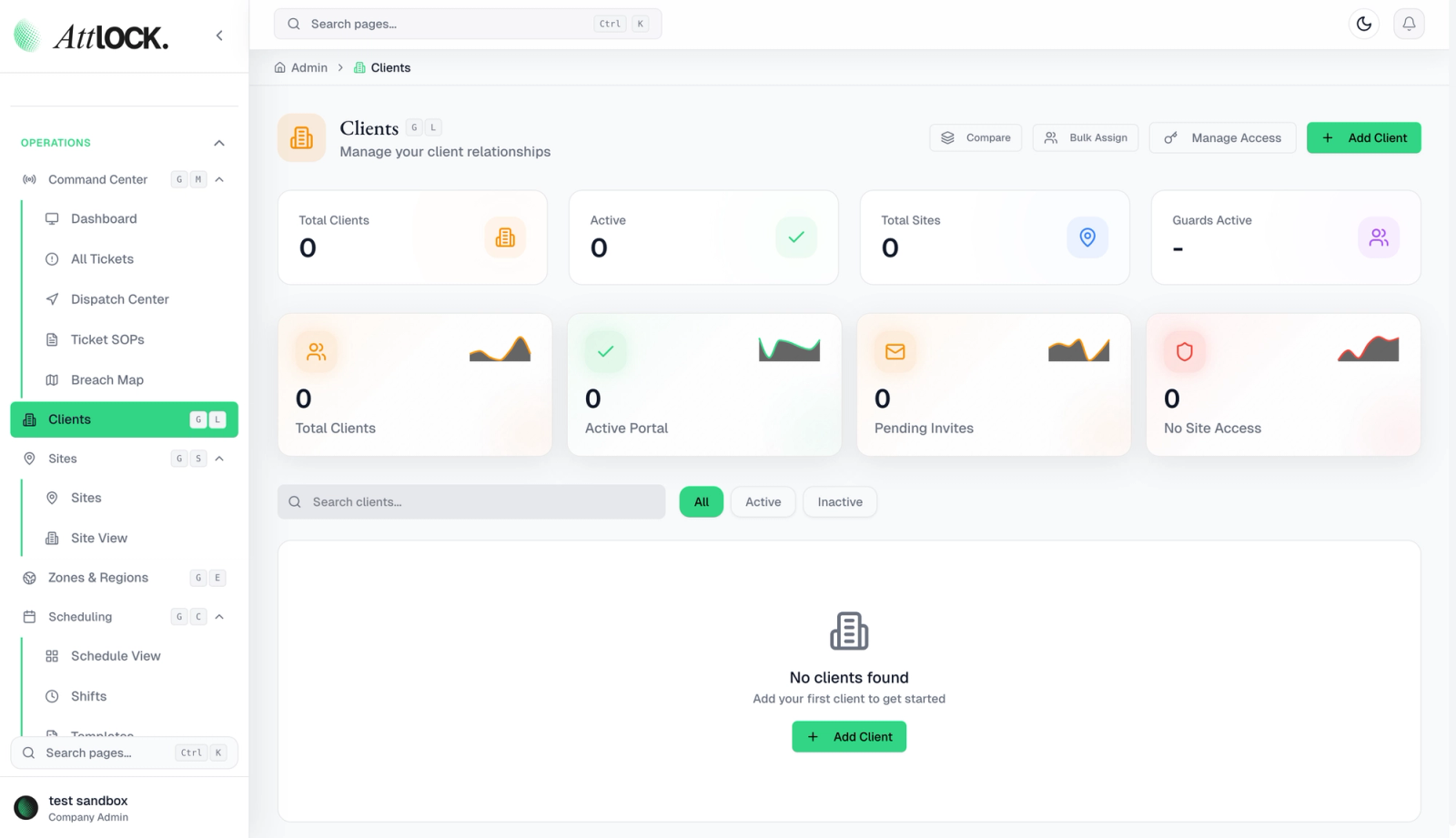
Navigate to Clients
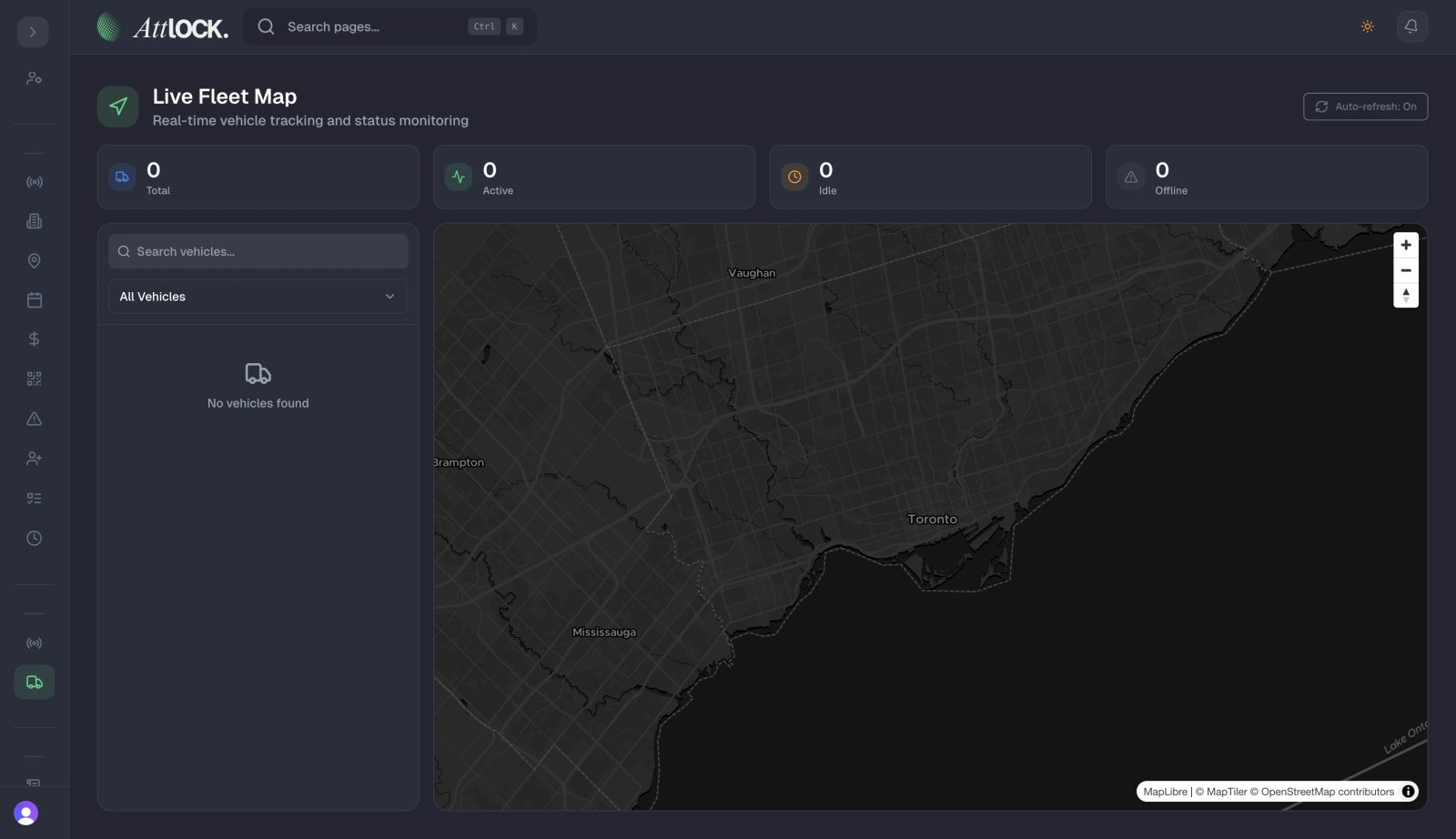
- Navigate to Clients:
- Go to Clients > All Clients on the main sidebar.
- Click the + Add Client button.
Enter Client Information
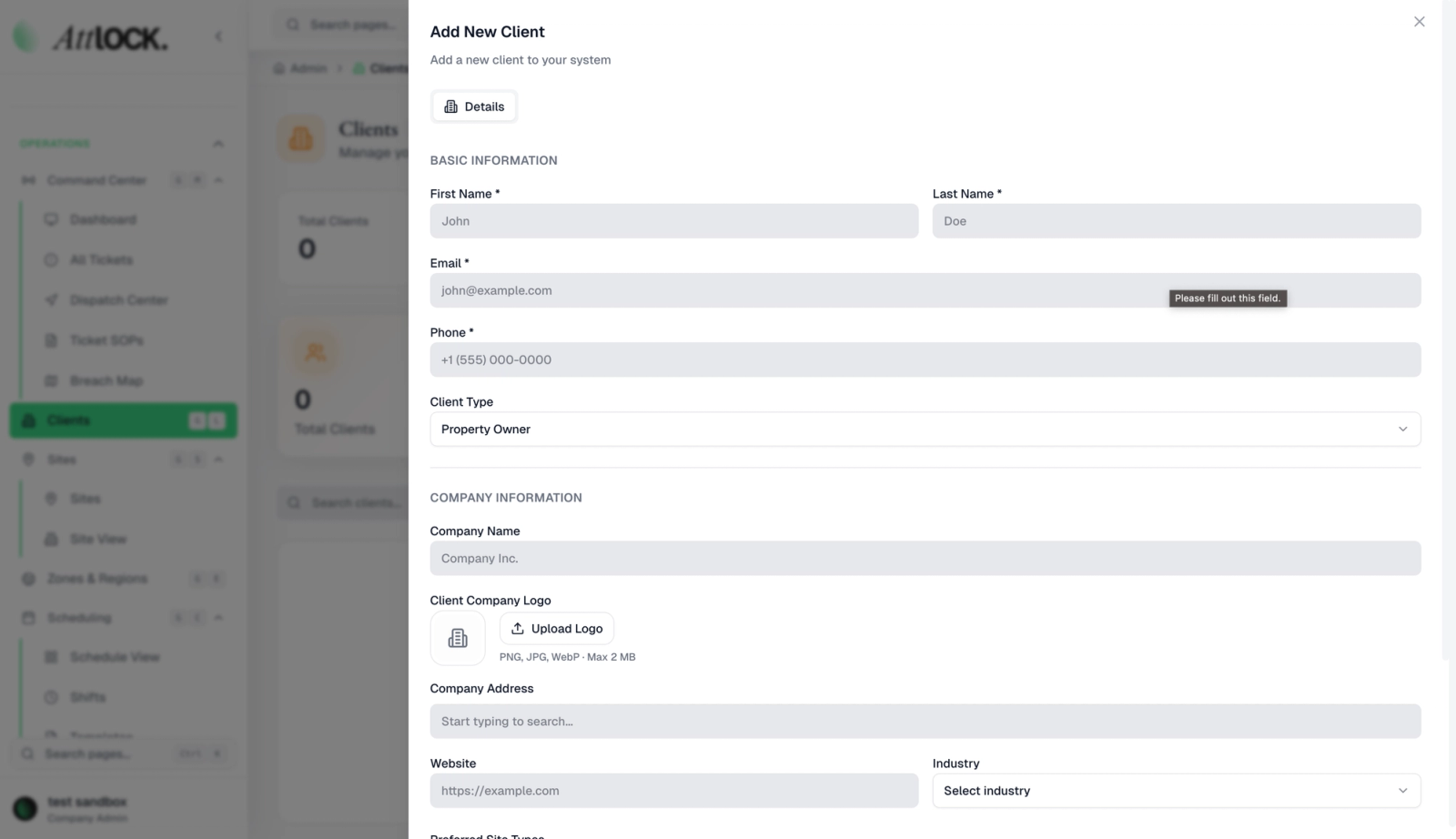
- Enter Client Information:
- Company Name: Enter the legal name of the client (e.g., "Westfield Property Group").
- Primary Contact: Input the Name, Email, and Phone of your main point of contact. Note: This email is often used for automated reporting.
- Billing Address: Enter the headquarters address for invoicing purposes.
Complete the Setup
- Finish:
- Click Create Client. You can now add specific Sites under this Client profile.