


Using the Emergency SOS Button
The Emergency SOS button is the most critical safety feature in the Attlock app. It's designed for situations where you face immediate danger and need help fast. When activated, it sends your location and identity to all supervisors, dispatch, and security management instantly.
Where to Find the Emergency Button
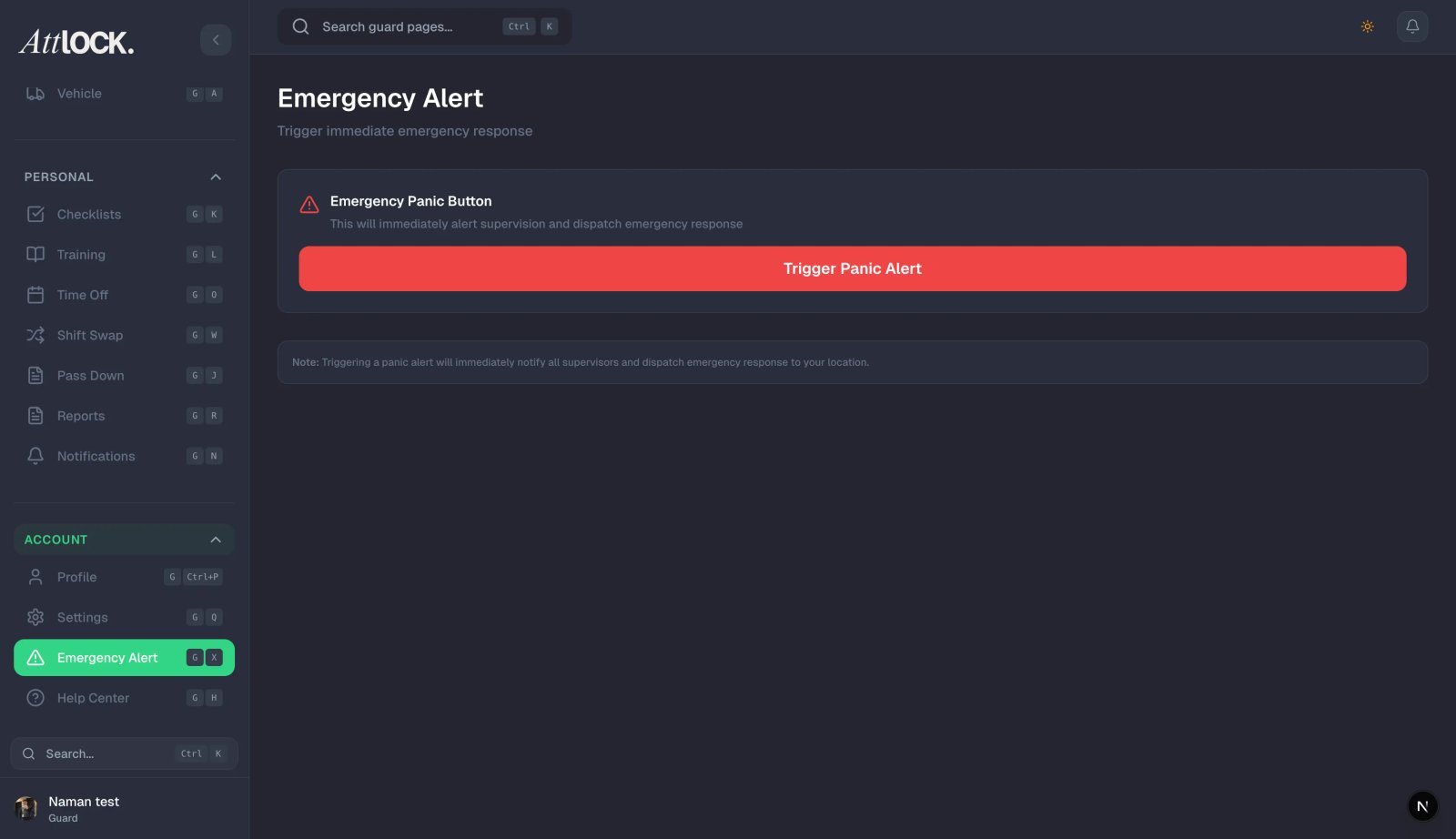
- Tap the More tab at the bottom of the screen.
- Tap "Emergency" (Shield icon, red) — it's always positioned at the top of the list for fast access.
Tip: Before you ever need it in a real situation, practice navigating to the Emergency screen so you know exactly where it is. Muscle memory matters in a crisis.
How to Activate a Panic Alert
- On the Emergency screen, you'll see a large red button with a Shield icon.
- Below it, the text reads: "TAP TO ACTIVATE EMERGENCY."
- Press and hold for 3 seconds to trigger the panic alert. The hold-to-activate design prevents accidental triggers.
- A confirmation dialog appears: "Are you sure? This will alert emergency contacts."
- Tap "Confirm Emergency" to send the alert immediately.
The entire process takes about 5 seconds from opening the app to sending the alert.
What Happens When You Activate It
Once you confirm the emergency alert, several things happen simultaneously:
- Your GPS location is sent to all supervisors, dispatch, and security management for your company.
- Push notifications are delivered immediately to all admin users.
- A red panic banner appears on the admin dashboard, making it impossible to miss.
- Live location tracking activates for 10 minutes — your position updates in real-time on the admin map so responders can find you.
- Your screen shows "Emergency Alert Sent" with a map of your current location.
Information Sent Automatically
You don't need to type or explain anything. The alert includes:
- Your full name.
- Your badge number.
- Your current shift and site name.
- Your GPS coordinates (latitude and longitude).
- The exact date and time of the alert.
After the Alert Is Sent
Once the alert goes out, your screen shows:
- "Emergency Alert Sent" confirmation with a green checkmark.
- "Tracking active for 10 minutes" — your location continues to update so your team can follow your position.
- "Cancel Emergency" button — to stop the alert if it was triggered by mistake.
- "Call Supervisor" button — a one-tap direct phone call to your supervisor.
Stay in a safe location if possible and keep your phone on. Help is on the way.
Cancelling a False Alarm
If you accidentally triggered the alert or the situation resolves quickly:
- Tap "Cancel Emergency" on the active alert screen.
- Confirm the cancellation when prompted.
- All supervisors and admins are notified that the alert was cancelled.
Important: Even cancelled alerts are logged permanently in the system. Your supervisor may follow up to make sure you're okay — this is standard procedure and nothing to worry about.
When to Use the Emergency Button
Activate the SOS button when you are facing:
- Immediate physical danger — assault, confrontation, weapon present, aggressive individual.
- Medical emergency — you or someone else needs urgent medical attention (collapse, heart attack, severe injury).
- Serious security breach — active break-in, armed trespasser, ongoing theft in progress.
- Risk of incapacitation — you feel you may lose consciousness, are trapped, or cannot leave safely.
- Any situation where you need backup immediately.
When NOT to Use It
The emergency button is for genuine emergencies only. For other situations, use the right tool:
- Routine incidents (non-dangerous observations, minor property damage) — use Incident Reports instead.
- Non-urgent notes or observations — use the Pass-Down Log or Message Board.
- Testing — never test the emergency button unless your supervisor has organized an official drill. False alarms waste response resources.
Tips
- Know where the button is before you need it — open the Emergency screen during your first shift so you can find it instantly under pressure.
- Don't hesitate in a real emergency — it is always better to trigger a false alarm than to not call for help when you need it. Your safety comes first.
- Keep your phone charged — the emergency button only works if your phone is powered on and the app is accessible.
- Stay in a safe location after triggering — move away from the threat if possible, find cover, and wait for responders.
- Use the "Call Supervisor" button if you can safely make a voice call — spoken communication provides more detail than the automated alert alone.
- Don't turn off your phone after sending an alert — live location tracking helps responders find you.
What Happens on the Admin Side
When you trigger an emergency alert, here's what your supervisors see:
- A prominent red panic banner appears at the top of the admin dashboard.
- Your name, badge number, site, and GPS coordinates are displayed.
- A live map shows your position updating in real-time.
- They receive push notifications on their phones immediately.
- The alert remains active until it's resolved or cancelled.
Related Articles
- Getting Started with the Guard Mobile App
- Submitting an Incident Report
- Welfare Check-Ins
- Clocking In and Out of Shifts
- Notifications and Alerts