


Managing Post Orders
Post orders are standing instructions that define guard duties and procedures at each site. They ensure every guard knows exactly what is expected at their assigned post.
Accessing Post Orders
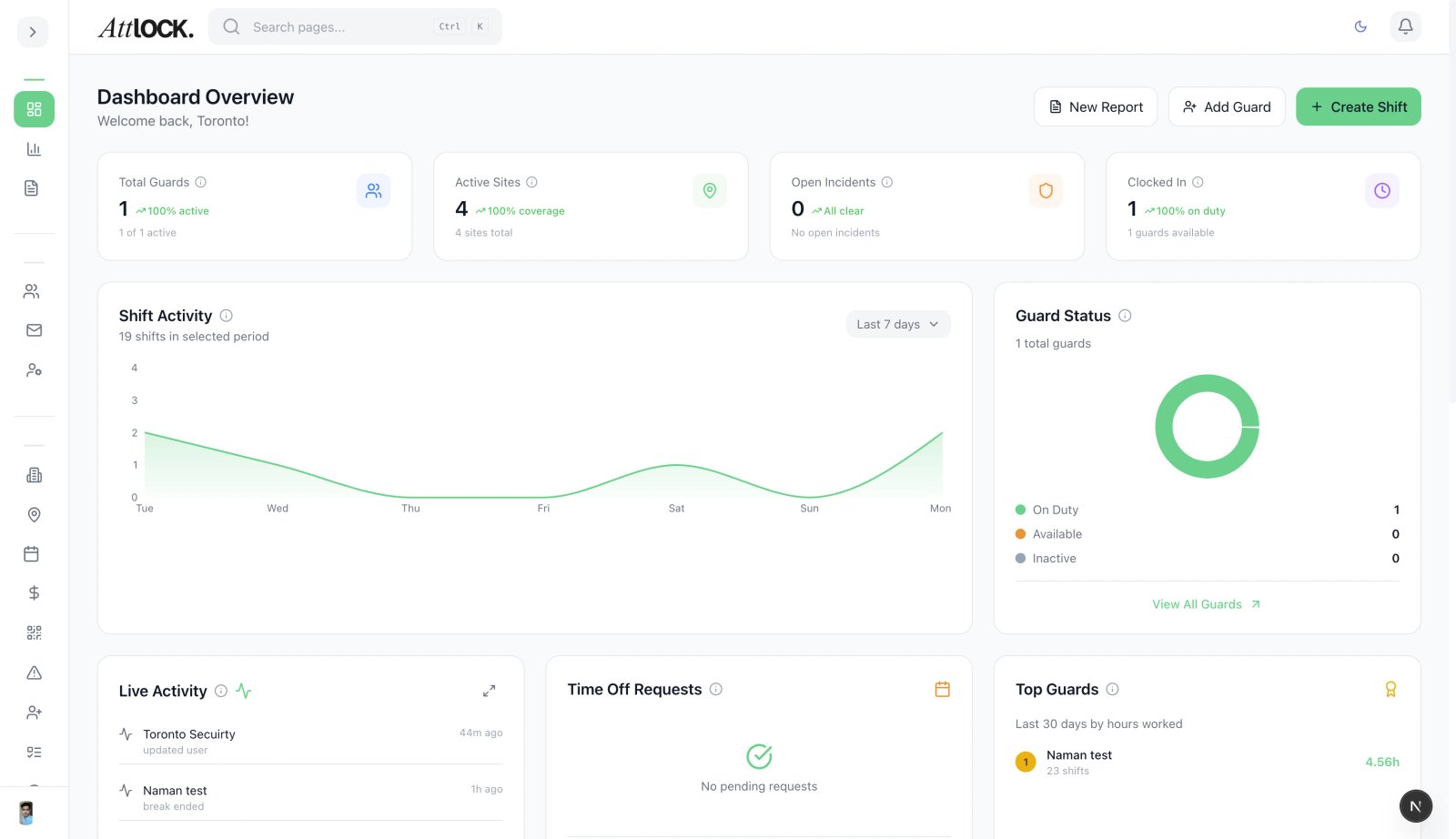
- Navigate to Field Management > Post Orders in the sidebar.
- View all post orders across your sites.
Creating a Post Order
- Click Create Post Order.
- Fill in:
- Title — Clear, descriptive name (e.g., "Main Entrance Security Procedures").
- Site — Which site this post order applies to.
- Content — Detailed instructions (supports rich text formatting):
- Guard duties and responsibilities.
- Patrol procedures.
- Emergency procedures.
- Access control rules.
- Reporting requirements.
- Client-specific instructions.
- Effective Date — When this post order takes effect.
- Expiry Date (optional) — When it expires.
- Click Save.
Assigning Post Orders
Post orders are typically assigned at the site level:
- All guards assigned to the site automatically see the post orders.
- Guards view post orders in their mobile app under the site section.
- Post orders can also be attached to specific shifts.
Updating Post Orders
- Open the post order.
- Click Edit.
- Make changes to the content.
- Save — all guards at the site will see the updated version.
Important: When updating post orders, consider notifying guards of the changes. Major updates should be discussed during shift briefings.
Post Orders Within Sites
You can also manage post orders from within a site:
- Go to Operations > Sites.
- Open a site.
- Navigate to the Post Orders tab.
- View, create, or edit post orders specific to that site.
Tips & Best Practices
- Keep post orders current — Review and update monthly or when client requirements change.
- Be specific — Vague instructions lead to inconsistent performance.
- Include emergency procedures — Every post order should have an emergency section.
- Use rich formatting — Headers, bullet points, and bold text make post orders easier to scan.
- Version control — Note the date and author on each update.
Troubleshooting
Guards can't see post orders
- Verify the guard is assigned to the correct site.
- Check the post order's effective date — it may not have started yet.
- Ensure the post order is in Active status.
Related Articles
- Creating a New Site
- Using Pass-On Logs
- Using Compliance Checklists
- Creating a New Shift