


Using the Command Palette & Keyboard Shortcuts
Attlock includes a powerful command palette and a set of keyboard shortcuts that let you navigate the platform without touching your mouse. Whether you need to jump to a specific page, search for a guard, or toggle interface elements, shortcuts save you time every day.
Opening the Command Palette
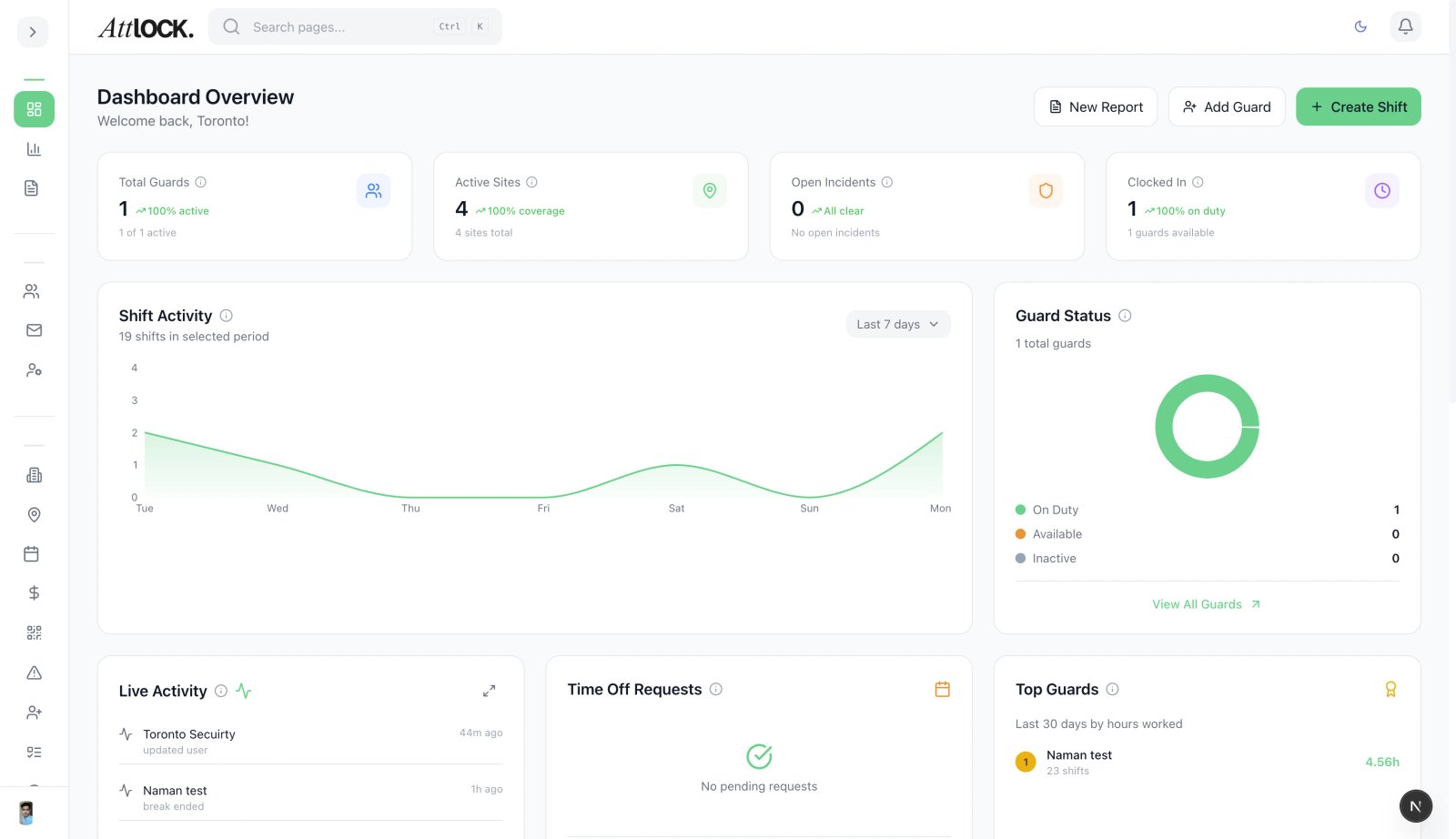
Press Cmd + K (Mac) or Ctrl + K (Windows) to open the command palette. A search bar appears in the center of your screen where you can type to find anything in Attlock.
What You Can Do from the Command Palette
- Search pages — Type a page name like "Payroll" or "Sites" to jump there instantly
- Find guards — Search by guard name to open their profile
- Find sites — Type a site name to navigate to its detail page
- Access settings — Type "Settings" to go directly to configuration pages
- Run actions — Common actions like "Create Shift" or "Add Guard" appear as you type
Press Enter to select the highlighted result, or use the Up/Down arrow keys to browse through results. Press Escape to close the palette without selecting anything.
Quick Navigation Shortcuts
Attlock uses a two-key shortcut pattern for navigation. Press G (for "Go"), then press a second letter to jump to a specific page:
| Shortcut | Destination | ---------- | ------------- | G then D | Dashboard | G then S | Sites | G then G | Guards | G then P | Patrols | G then R | Run Sheets | G then C | Clients | G then I | Invitations | G then T | Settings | G then Y | Payroll | G then F | About Page |
|---|
Simply tap the G key, release it, and then tap the second letter. You do not need to hold them together.
Interface Shortcuts
| Shortcut | Action | ---------- | -------- | Cmd + K / Ctrl + K | Open Command Palette | Cmd + B / Ctrl + B | Toggle Sidebar | Escape | Close any open panel, dialog, or palette | ? | Show keyboard shortcut help overlay |
|---|
Tips for Getting the Most Out of Shortcuts
- Learn G-shortcuts first — These save the most time since page navigation is the most common action
- Use the command palette for search — It is the fastest way to find a specific guard, site, or setting
- Toggle the sidebar — Press Cmd + B to collapse the sidebar and give yourself more screen space when reviewing reports or large tables
- Press ? anywhere — If you forget a shortcut, press the question mark key to see the full list
Troubleshooting
If shortcuts are not working:
- Make sure your cursor is not focused inside a text input field
- Check that no dialog or modal is blocking the keyboard
- Try clicking on an empty area of the page first, then retry the shortcut