


Using Voice Notes in Reports
When you need to file an incident report quickly — especially during an active situation — typing on a phone screen isn't always practical. The Attlock Guard app includes a voice input feature that lets you dictate your report and have it automatically converted to text.
Where Voice Input Is Available
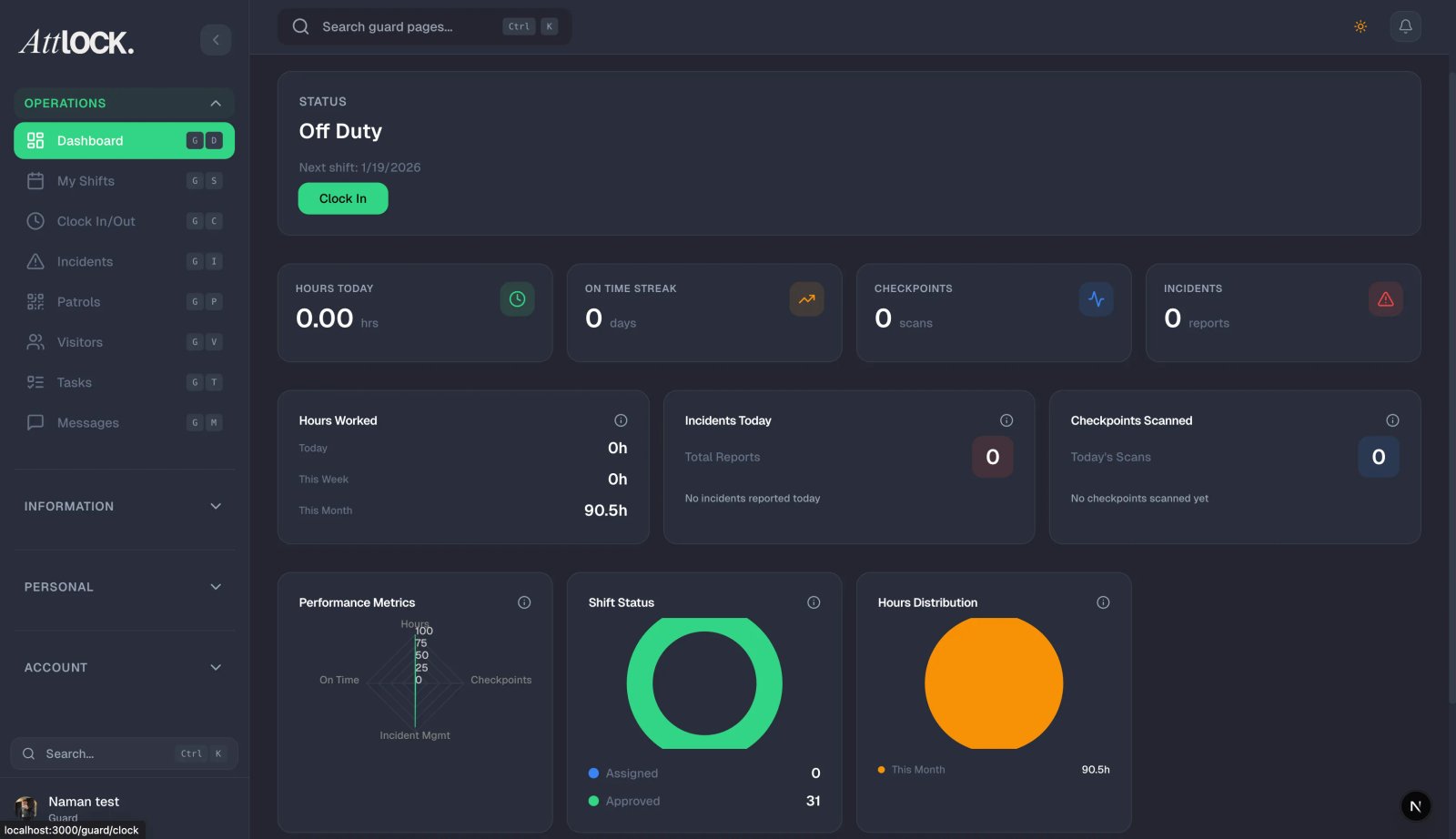
The voice input button appears on the following screens:
- Incident Reports — in the description and notes fields
- Daily Activity Reports — in the summary field
- Patrol Notes — when adding observations to a checkpoint
Look for the microphone icon next to any text input field that supports voice.
How to Record a Voice Note
- Tap the microphone icon next to the text field
- Hold the button and begin speaking clearly
- Release the button when you're finished
- The app will process your audio and display the transcribed text in the field
- Review the text and make any corrections before submitting
The recording indicator will pulse while you're speaking, confirming that audio is being captured.
Reviewing and Editing Transcribed Text
After the transcription appears:
- Read through the text carefully for accuracy
- Tap anywhere in the text to place your cursor and make edits
- Fix any words that were misheard or unclear
- Add punctuation or formatting if needed
- You can record again to append more text — new dictation is added after existing content
Important: Always review your transcription before submitting. Voice-to-text is highly accurate but not perfect, especially with names, locations, or industry-specific terms.
When to Use Voice vs. Typing
| Situation | Recommended Input | ----------- | ------------------ | Active incident in progress | Voice — faster, hands-free | Detailed description with specific names or numbers | Typing — more precise | Walking a patrol and noting observations | Voice — convenient on the move | Quiet environment with time to write | Typing — may be more accurate | Report requires urgency | Voice — get the key details recorded fast |
|---|
Voice input is ideal for capturing the essentials quickly. You can always edit and refine the text afterward.
Audio Quality Tips
For the best transcription results:
- Speak at a normal pace — don't rush or speak too slowly
- Hold the phone 15 to 20 centimetres from your mouth
- Reduce background noise when possible — step away from loud machinery, traffic, or crowds
- Speak in complete sentences rather than single words for better accuracy
- State names and addresses clearly — pause briefly before and after proper nouns
- Avoid covering the microphone with your hand or protective case
Permissions
The first time you use voice input, the app will request microphone access. Tap Allow to enable the feature. If you previously denied this permission:
- Open your phone's Settings
- Find the Attlock Guard app
- Enable Microphone access
- Return to the app and try again
Troubleshooting
- If the microphone icon is greyed out, check that microphone permissions are enabled
- If transcription is blank after recording, ensure you held the button for the entire duration of your speech
- Poor transcription quality usually indicates background noise — try moving to a quieter spot
- If the feature is unavailable, ensure your app is updated to the latest version