


Configuring Overtime Rules
Attlock lets you define overtime rules that automatically calculate overtime pay based on the hours your guards work. Once configured, these rules apply across all shifts and feed directly into payroll calculations, ensuring guards are compensated correctly without manual adjustments.
Accessing Overtime Settings
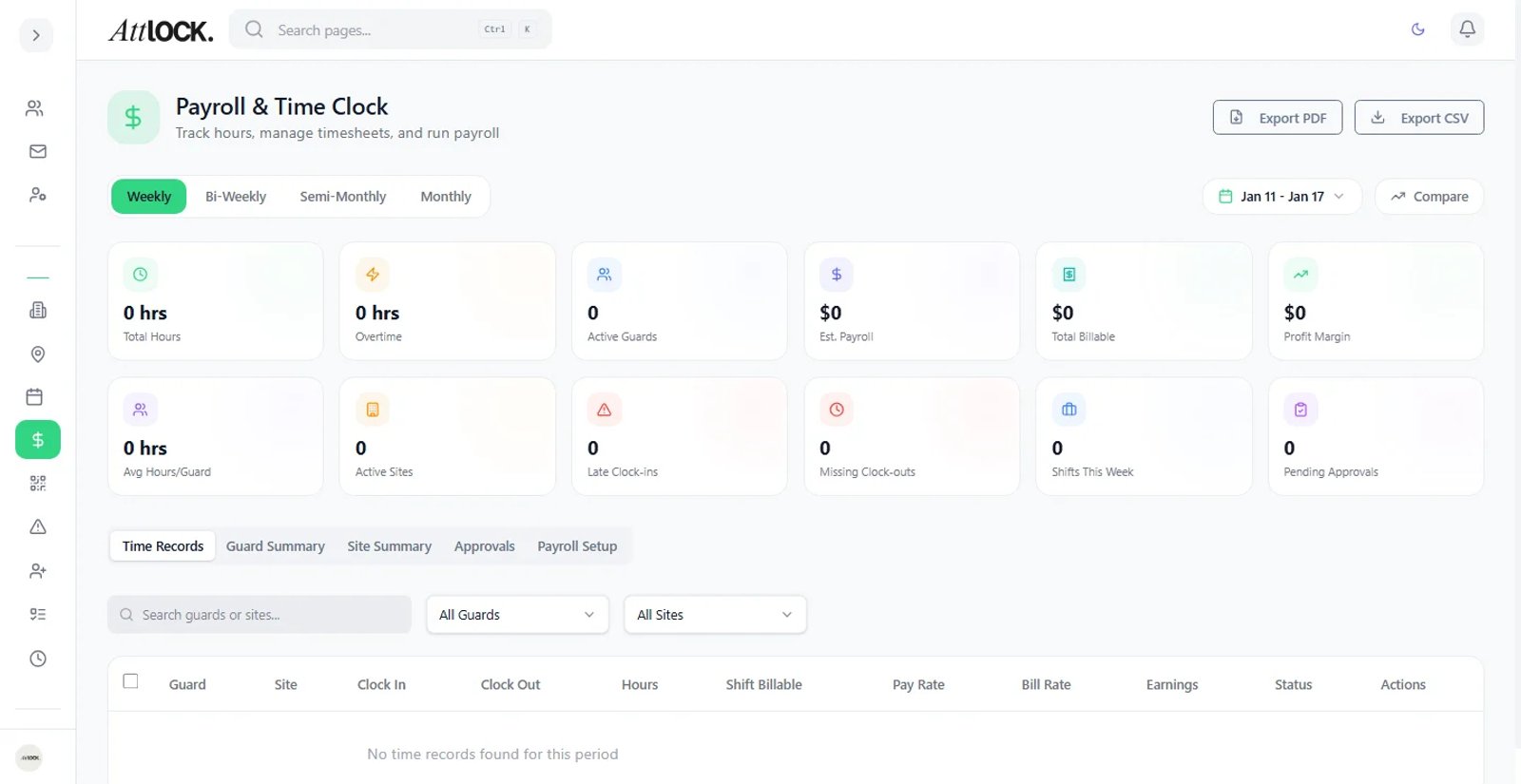
- Open the admin sidebar and navigate to Payroll
- Click the Overtime Rules tab at the top of the page
- The current overtime configuration displays with all active rules
Setting Daily Overtime
Daily overtime triggers when a guard works more than a set number of hours in a single day.
- Under Daily Overtime, enable the toggle to activate daily overtime tracking
- Set the Daily Threshold — the number of hours after which overtime begins (commonly 8 hours)
- Set the Overtime Multiplier — typically 1.5x the regular hourly rate
- Click Save to apply
Example: If a guard's regular rate is $20/hour and they work 10 hours in one day, the first 8 hours are paid at $20/hour and the remaining 2 hours are paid at $30/hour (1.5x).
Setting Weekly Overtime
Weekly overtime triggers when a guard exceeds a set number of hours across an entire work week.
- Under Weekly Overtime, enable the toggle to activate weekly overtime tracking
- Set the Weekly Threshold — the total weekly hours before overtime applies (commonly 40 hours)
- Set the Overtime Multiplier — typically 1.5x
- Click Save to apply
Example: A guard who works 45 hours in a week gets 40 hours at the regular rate and 5 hours at the overtime rate.
Setting Double-Time Rules
Double-time applies when guards work extremely long shifts or exceed a higher threshold.
- Under Double-Time, enable the toggle to activate double-time tracking
- Set the Double-Time Threshold — the number of daily hours after which double-time begins (commonly 12 hours)
- The Double-Time Multiplier is set to 2x by default but can be adjusted
- Click Save to apply
Example: A guard working a 14-hour day gets 8 hours at the regular rate, 4 hours at 1.5x (hours 9 through 12), and 2 hours at 2x (hours 13 and 14).
Overtime Alerts
Attlock can notify you when guards are approaching or exceeding overtime thresholds.
- In the Overtime Rules tab, scroll to Alerts & Notifications
- Enable Approaching Overtime Alert — triggers when a guard reaches 90% of the weekly threshold
- Enable Overtime Exceeded Alert — triggers immediately when overtime begins
- Choose who receives alerts: the scheduling admin, the site supervisor, or both
These alerts help you make staffing decisions before overtime costs accumulate.
How Overtime Appears in Payroll
Once overtime rules are configured, they apply automatically:
- Timesheets show regular hours and overtime hours in separate columns
- Payroll summaries calculate the correct pay using the configured multipliers
- Pay period reports include a breakdown of regular, overtime, and double-time hours
- Export files include overtime data for use in your accounting software
You do not need to manually flag overtime — Attlock detects it based on your rules and the actual hours worked.
Tips
- Review local labor laws to set compliant thresholds for your region
- Use overtime alerts proactively to control labor costs
- If rules differ by site or contract, contact support for multi-rule configuration