


Exporting Payroll Data
Attlock makes it easy to export your payroll and timesheet data so you can share it with your accounting team, import it into your payroll software, or keep it for your records. Exports are available in CSV and PDF formats.
Accessing Payroll Exports
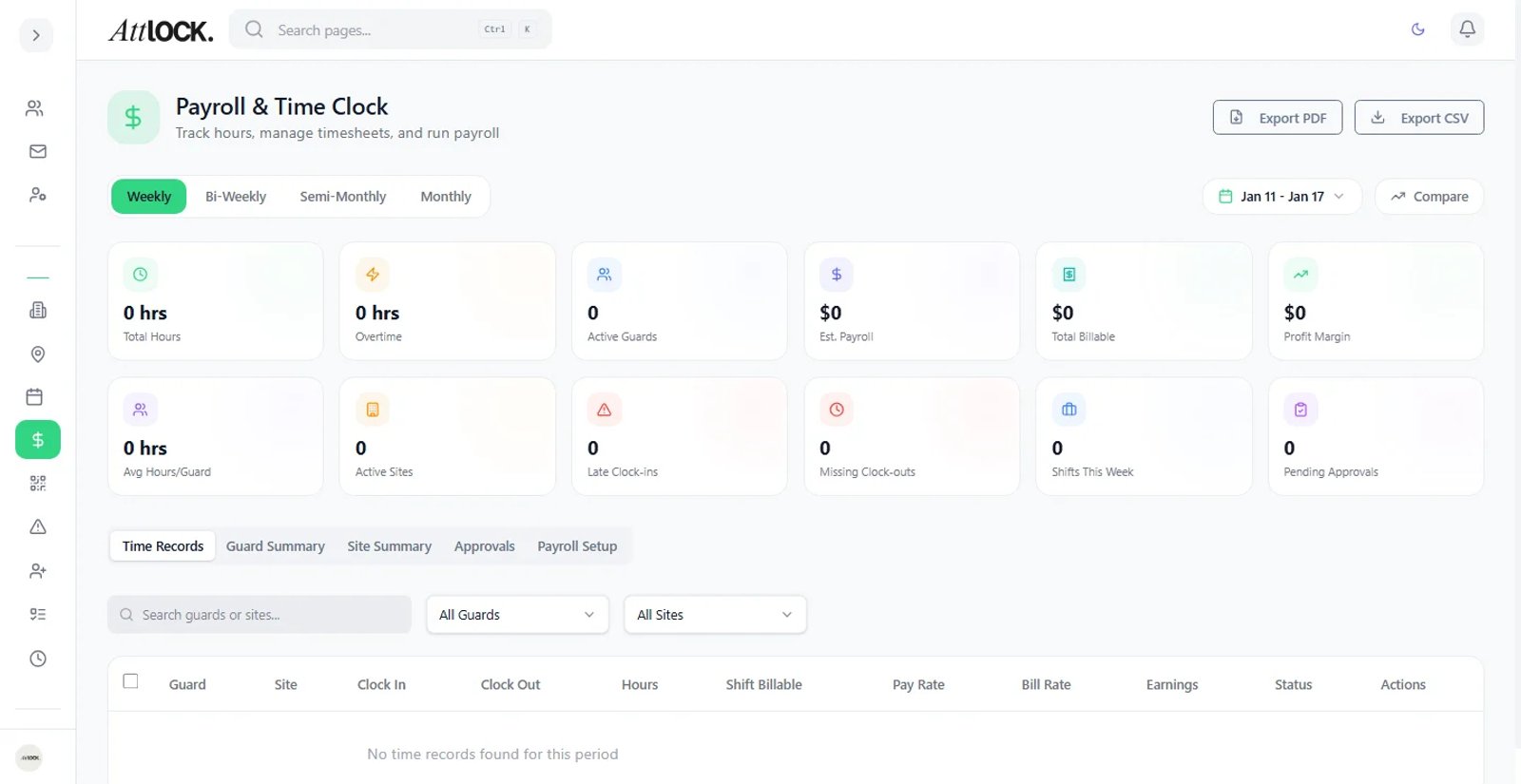
- Open the admin sidebar and navigate to Payroll
- Click the Export button in the top-right corner of the Payroll page
- The export dialog opens with options to customize your export
Selecting a Pay Period
Before exporting, choose the pay period you want to include:
- In the export dialog, select the Pay Period from the dropdown
- Common options include the current period, previous period, or a custom date range
- For a custom range, click Custom and set the start and end dates
- The preview updates to show how many records will be included
Choosing an Export Format
Attlock supports two export formats:
CSV (Spreadsheet)
- Best for importing into accounting or payroll software
- Opens in any spreadsheet application
- Each row represents one guard's data for the selected period
- Columns are clearly labeled for easy mapping to your software's import fields
PDF (Report)
- Best for printing, sharing, or archiving
- Formatted as a professional report with your company header
- Includes summary totals and breakdowns
- Suitable for management review or audit documentation
Data Included in Exports
Every payroll export includes the following information:
- Guard name and employee identifier
- Pay period start and end dates
- Regular hours worked during the period
- Overtime hours calculated based on your overtime rules
- Double-time hours if applicable
- Hourly rate for each guard
- Gross pay calculated from hours and rates
- Site assignments showing where each guard worked
- Shift dates and times for each entry
If you have custom pay codes or deductions configured, those appear as additional columns in the CSV or sections in the PDF.
Bulk Export
For larger operations, you can export data for multiple pay periods at once:
- In the export dialog, select Bulk Export
- Choose the date range that spans multiple pay periods
- Select whether to combine all periods into one file or generate separate files per period
- Click Export to download
Bulk exports are useful for quarterly reviews, year-end reporting, or audits.
Compatibility with Accounting Software
The CSV format is designed to work with popular accounting and payroll platforms. The column headers use standard naming conventions, making it straightforward to map fields during import. If your software requires a specific column order or naming format, you can rearrange columns in your spreadsheet application before importing.
Tips
- Always review timesheets and approve them before exporting to ensure data accuracy
- Export a test file first to verify it imports correctly into your accounting software
- Keep PDF exports archived for compliance and audit readiness
- Schedule regular exports at the end of each pay period to stay current