


Viewing Your Sites
The Sites tab shows all locations where your security provider operates on your behalf. Use it to check guard coverage, view site details, and access site-specific information at a glance.
Accessing Sites
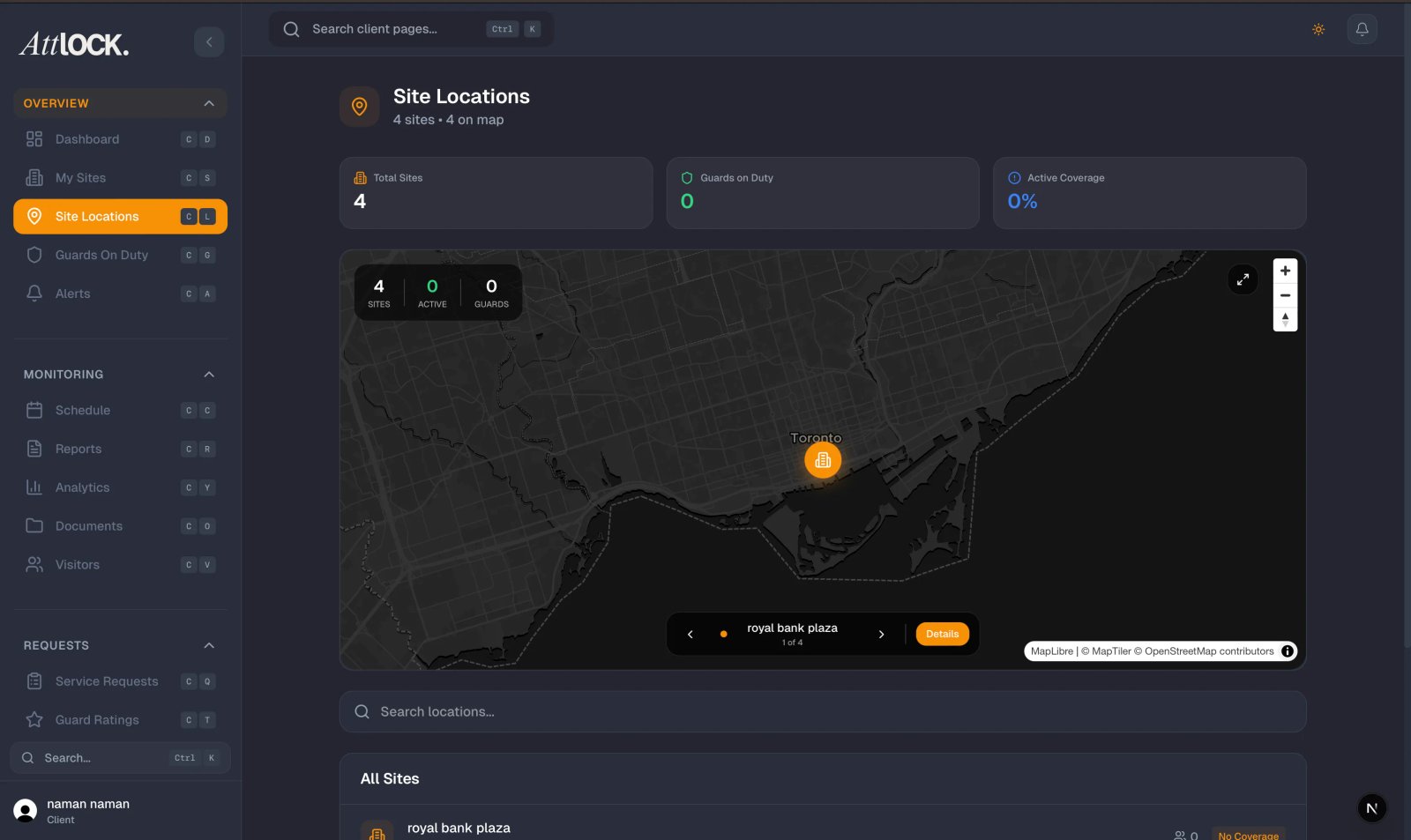
- Tap the Sites tab at the bottom of the screen.
- The sites list loads with the subtitle "Your Sites," showing all your assigned locations.
Understanding Site Cards
Each site appears as a card with key information:
- Site Name — The name of the location.
- Address — The full street address of the site.
- Active Guard Count — The number of guards currently on duty at this location.
- Active Indicator — A green badge confirming the site has active security coverage.
This overview lets you quickly see which sites have guards on duty and how many are present at each location.
Searching for Sites
If you manage multiple locations, use the search bar at the top of the screen:
- Tap the "Search sites..." field.
- Type part of the site name or address.
- Results filter in real-time as you type.
- Tap a result to view that site's details.
Viewing Site Details
Tap any site card to open the full site detail screen. Here you will find:
- Full Site Information — Complete address, site type, and configuration details.
- Current Guards on Duty — A list of guards currently working at this site, with their names and status.
- Recent Activity — A feed of recent events including guard check-ins, incidents, and reports.
- Site Contacts — Key contact people for this site (e.g., property manager, on-site liaison).
Tips
- Check active guard counts during shift changes to verify that coverage transitions are happening smoothly — you should see guard counts stay consistent as shifts overlap.
- Use the search bar if you manage many sites — it is much faster than scrolling through a long list.
- Tap into site details regularly to review recent activity without needing to navigate to separate reports.
- Note the active indicator — If a site does not show the green "Active" badge, it may be outside of scheduled coverage hours.
- Compare guard counts against your contracted coverage levels to ensure you are receiving the service you are paying for.
Related Articles
- Viewing Live Guard Positions
- Viewing the Guard Schedule
- Checking Parking Availability
- Viewing Post Orders & Documents
- Getting Started with the Client Portal