


Viewing Site Reports
Site reports give you detailed visibility into security activity at your properties. Access incident reports filed by guards, patrol completion records, and activity logs — all organized by date and filterable by type.
Accessing Reports
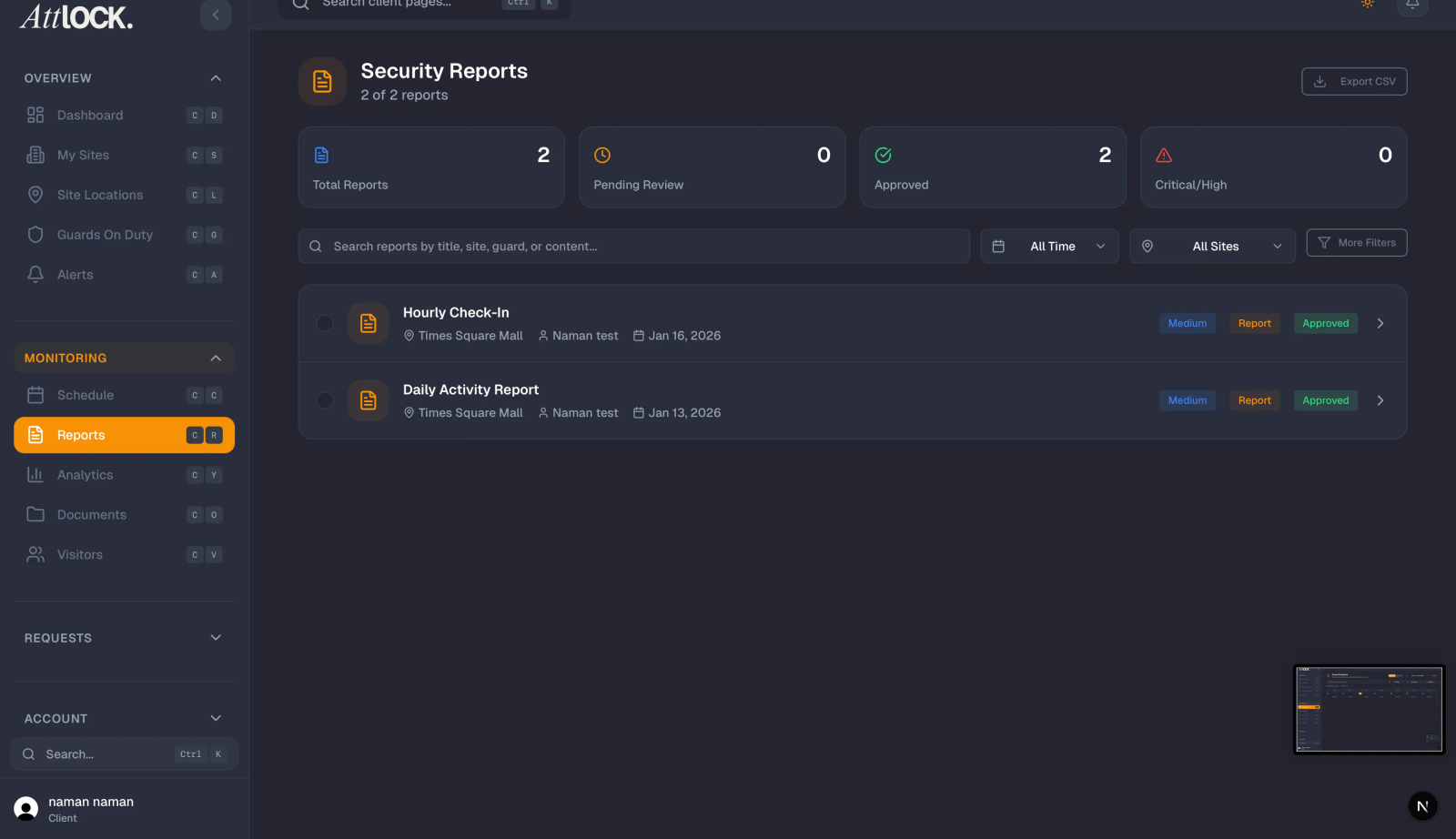
- From the Profile menu, tap "Site Reports".
- The reports screen loads showing all reports across your sites, sorted by most recent.
Filtering Reports
Three filter tabs at the top let you narrow down what you see:
- All — Every report type in one view.
- Incidents — Security incident reports only (e.g., trespassing, property damage, suspicious activity).
- Patrols — Patrol completion reports showing checkpoint tours and route coverage.
Tap a tab to switch between views.
Understanding Report Cards
Reports are grouped by date for easy scanning. Each report card displays:
- Report Type — Either "Incident" or "Patrol" with a color-coded indicator.
- Site Name — Which of your sites the report relates to.
- Guard Name — The guard who filed the report.
- Timestamp — When the report was created.
- Description Snippet — A preview of the report content.
Viewing Full Report Details
Tap any report card to open the full report. You will see:
- Full Description — The complete narrative of what occurred or was observed.
- Photos and Attachments — Any images or files the guard attached (e.g., photos of damage, evidence, or conditions).
- Guard Information — The name and details of the reporting guard.
- Location Data — Where on the site the event occurred or the patrol was conducted.
- Actions Taken — What steps the guard took in response (for incident reports).
- Checkpoint Details — Which checkpoints were completed and when (for patrol reports).
Tips
- Review reports weekly to stay informed about what is happening at your sites without needing to call your provider.
- Filter by Incidents when you want to focus specifically on security events that require attention.
- Use patrol reports to verify that guards are completing their rounds as scheduled.
- Share reports with stakeholders — Reports provide documented evidence of security activity for management, insurance, or compliance purposes.
- Look for patterns — If similar incidents keep occurring, discuss preventive measures with your security provider.
- Pair reports with analytics — Use the analytics dashboard to see trends alongside individual report details.
Related Articles
- Getting Started with the Client Portal
- Viewing Analytics and Performance Metrics
- Guard Ratings & Preferences
- Viewing Live Guard Positions
- Submitting Service Requests