


Using the Client Mobile App Offline
This article is for Clients.
The Attlock client mobile app is designed to keep working even when your internet connection is unreliable. Whether you're in a basement, a remote site, or an area with poor signal, the app caches key data locally so you can still access the information you need. This article explains what works offline, what requires a connection, and how syncing works when you reconnect.
What Works Offline
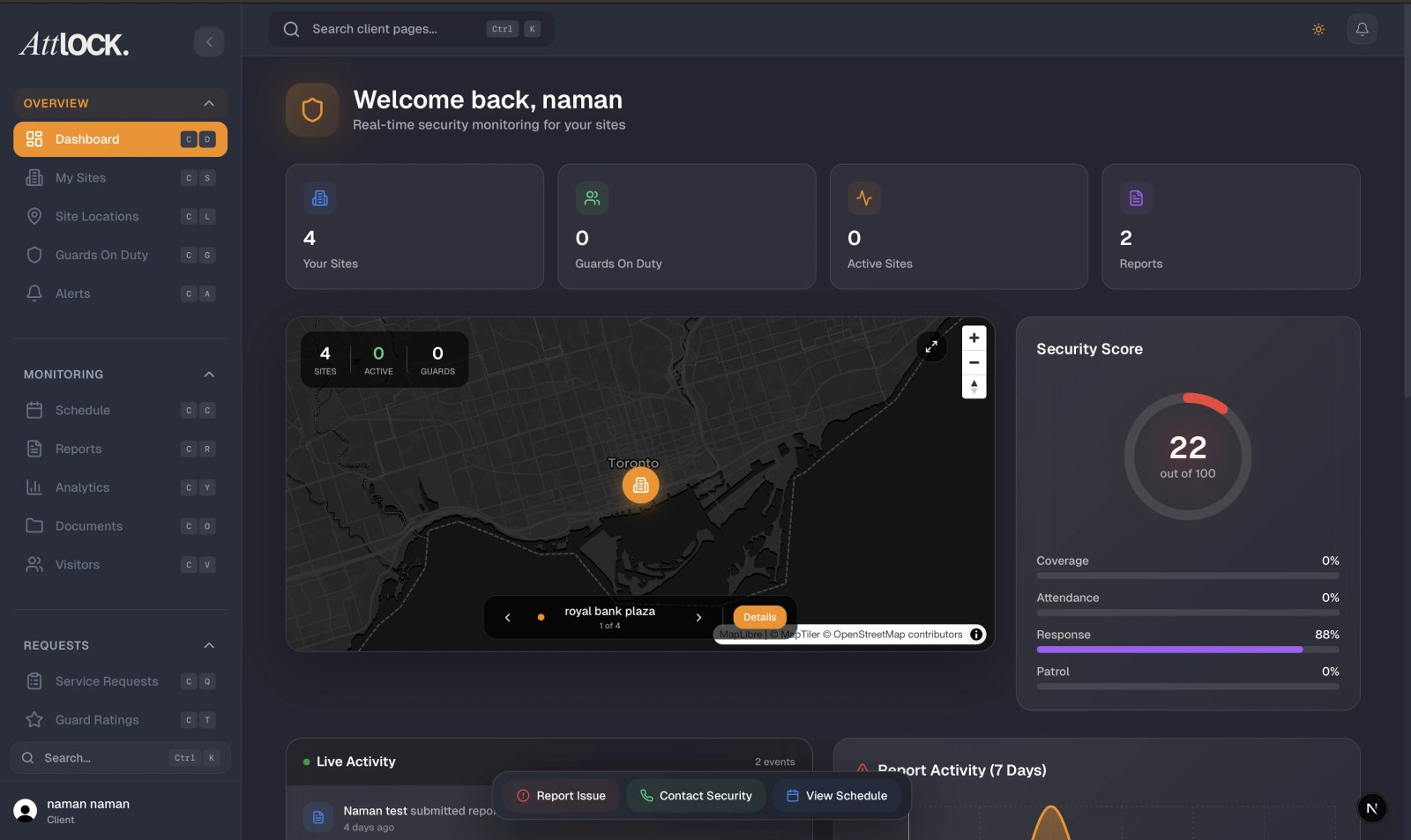
The following features are available without an active internet connection:
Site and Guard Information
The app caches your site list, site details, and the current guard schedule when you last had a connection. You can browse your sites, view assigned guards, and check shift times without being online. Note that this data reflects the last sync — it won't show real-time changes made after you went offline.
Recent Reports
The last 30 days of reports (incident reports, daily activity summaries, and patrol reports) are stored locally on your device. You can read these reports in full while offline.
Visitor Access Lists
Your visitor access lists are cached locally, so you can look up approved visitors and contractors even without a connection. This is particularly useful if you're at a site entrance and need to verify access quickly.
Emergency Contacts
Your site emergency contacts are always available offline. This is intentional — in an emergency, you shouldn't have to wait for a network connection to find a phone number.
Previously Viewed Alerts
Alerts you've already loaded are accessible offline. New alerts won't appear until you reconnect.
What Requires a Connection
Some features need a live connection to function:
- Live guard tracking on the map — real-time guard positions require an active data connection
- Submitting service requests — requests are queued locally and sent when you reconnect (see below)
- New incident report notifications — you won't receive push notifications while offline
- Viewing live analytics — dashboard charts and real-time metrics require connectivity
- Approving shift changes — approval actions are queued and submitted on reconnect
Offline Queuing
If you take an action while offline — such as submitting a service request, adding a comment to an incident, or approving a shift change — the app queues the action locally. A small indicator in the app shows you have pending actions waiting to sync.
When your connection is restored, the app automatically submits all queued actions in the order they were made. You'll receive a confirmation notification once each action is processed.
Keeping Your Cache Fresh
To ensure you have the most up-to-date data available offline, open the app and let it sync fully before heading to a site with poor connectivity. The app syncs automatically whenever it's open and connected, but you can also trigger a manual sync by pulling down on the main dashboard screen.
To check when your data was last synced, go to Settings in the app and look for Last Synced under the Data section.
Storage and Cache Management
The Attlock app stores cached data on your device. If you're running low on storage, you can clear the cache by going to Settings > Data > Clear Cache. Note that clearing the cache removes all offline data — you'll need a connection to reload it.
Troubleshooting Sync Issues
If your data seems out of date after reconnecting:
- Pull down on the dashboard to force a manual sync.
- Check that background app refresh is enabled for Attlock in your device settings.
- Log out and back in to force a full data refresh.
If queued actions fail to sync after reconnecting, you'll receive an error notification with the option to retry.