


Using the Client Dashboard
The Home tab is the first screen you see when you open the Attlock client app. It provides a real-time snapshot of your security operations so you can stay informed at a glance.
Overview of the Home Tab
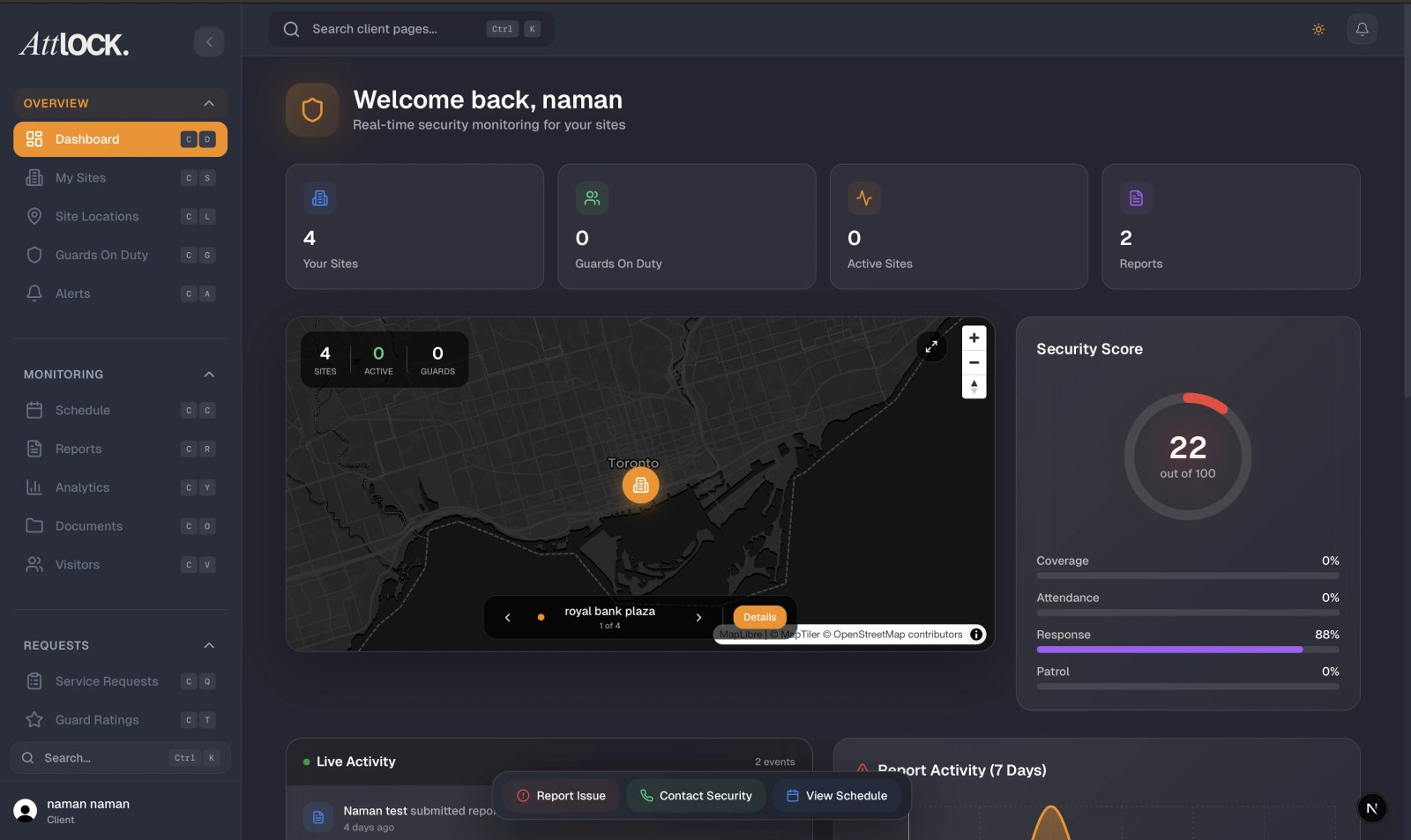
The Home tab is designed to surface the most important information without requiring you to navigate deeper into the app. It includes:
- A personalized greeting with today's date.
- Key security metrics displayed as summary cards.
- A live activity feed showing recent events across all your sites.
- Quick-access shortcuts to frequently used features.
Activity Feed
The activity feed occupies the main section of the Home tab and shows a chronological list of recent events:
- Guard arrivals and departures — See when guards check in or out of your sites.
- Incident reports — Get notified when an incident is logged at one of your properties.
- Shift updates — View shift changes, late arrivals, or schedule modifications.
- Patrol completions — Track when guards complete their scheduled patrol rounds.
Each activity entry shows the event type, the guard's name (if applicable), the site, and a timestamp. Tap any entry to view its full details.
Total Guards on Duty
At the top of the Home tab, you'll see a prominent Guards on Duty card displaying the total number of guards currently active across all your sites. This count updates in real time and gives you immediate confidence that your properties are covered.
If the count appears lower than expected, tap the card to jump directly to the Guards tab for a detailed breakdown by site.
Sites Overview
Below the guards count, a Sites summary card shows:
- The total number of sites assigned to your account.
- How many sites currently have active guards on duty.
- A quick visual indicator for each site's status (active, no guards, or off-schedule).
Tap the Sites card to navigate to the full Sites tab where you can browse individual property details, contacts, and guard schedules.
Quick Access to Key Features
The Home tab includes shortcut buttons for common actions:
- View Map — Jump directly to the live guard tracking map.
- Recent Reports — Open the latest incident and activity reports.
- Contact Provider — Quickly reach your security provider's support team.
- Announcements — View any broadcasts or messages from your provider.
These shortcuts save time by eliminating extra taps to reach the features you use most.
Pull-to-Refresh
To make sure you're viewing the latest data:
- Scroll to the top of the Home tab.
- Pull down on the screen and release.
- The activity feed, guard counts, and site statuses will all refresh with the most current information.
The dashboard also refreshes automatically when you return to the Home tab from another screen, so the data is always reasonably current even without a manual refresh.
Tips for Getting the Most Out of Your Dashboard
- Enable push notifications so you're alerted to critical events even when the app is closed.
- Check the activity feed daily for a quick summary of overnight security activity.
- Use the Guards on Duty card as your first check each morning to confirm shift coverage.