


Understanding Your Security Coverage Summary
This article is for Clients.
Attlock gives you a real-time snapshot of how your security services are performing across all your sites. The Security Coverage Summary is your at-a-glance view of guard deployment, active hours, and any gaps in coverage — so you always know whether your sites are protected.
Where to Find the Coverage Summary
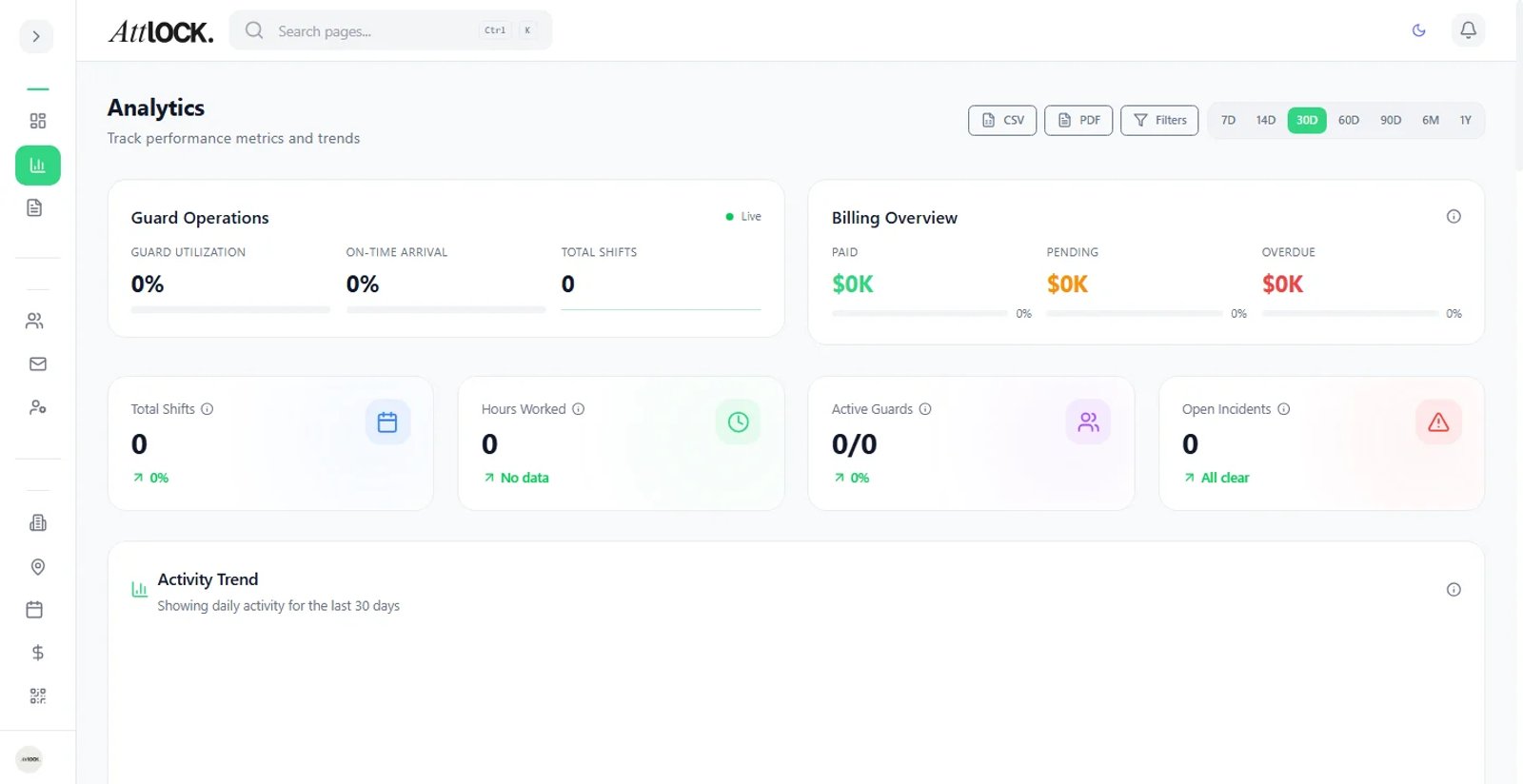
Log in to the Attlock client portal and navigate to Dashboard. The coverage summary panel appears near the top of the page. For a more detailed breakdown, go to Sites and select a specific site — each site has its own coverage summary tab.
What the Summary Shows
Active Coverage Status
Each site displays one of three statuses:
- Covered — At least one guard is currently on duty and checked in at the site.
- Partial — Some scheduled positions are filled, but not all required guards are on site.
- Uncovered — No guards are currently checked in. This may indicate a no-show, a scheduling gap, or an off-hours period.
Scheduled vs. Actual Hours
The summary compares the number of guard hours your contract specifies against the hours actually logged. If actual hours fall below scheduled hours over a billing period, Attlock flags this automatically so you can follow up with your security provider.
Guard Deployment Breakdown
For multi-site clients, the coverage summary shows how many guards are deployed across all your locations at any given time. You can filter by site, shift type (day/night/weekend), or date range.
Coverage Gaps
Attlock highlights any periods in the past 30 days where a site was scheduled for coverage but no guard was checked in. These gaps are listed with the date, time window, and affected site — giving you a clear record to reference when reviewing service quality.
Reading the Coverage Timeline
The coverage timeline is a visual bar chart showing guard presence hour by hour. Green bars indicate covered periods, yellow indicates partial coverage, and red indicates gaps. Hover over any bar to see which guard was on duty and their check-in/check-out times.
Setting Coverage Alerts
You can configure Attlock to notify you when a site goes uncovered during scheduled hours. Go to Notification Settings and enable Coverage Gap Alerts. You can set a grace period (e.g., alert after 15 minutes of no check-in) to avoid false alarms during guard handovers.
Exporting Coverage Data
To share coverage data with your team or use it in an internal report, click Export on the coverage summary page. You can download a CSV or PDF covering any date range. This is useful for monthly security reviews or contract performance discussions with your provider.
What to Do If You See a Gap
If the summary shows an unexpected coverage gap:
- Check the Alerts tab to see if an incident or no-show was already logged.
- Contact your security provider directly via the Contact Provider button on the site detail page.
- If the gap is recurring, submit a Service Request to formally document the issue.
The coverage summary updates in real time, so any changes your security provider makes to guard assignments will be reflected immediately.