


Understanding Your Pay Stub and Earnings
This article is for Security Guards.
Attlock gives you direct access to your pay information from your phone. You can view your earnings breakdown, check pay stubs for past periods, and track hours worked — all without needing to contact your payroll department. This guide walks you through how to read your pay stub and make sense of every line item.
Accessing Your Pay Stub
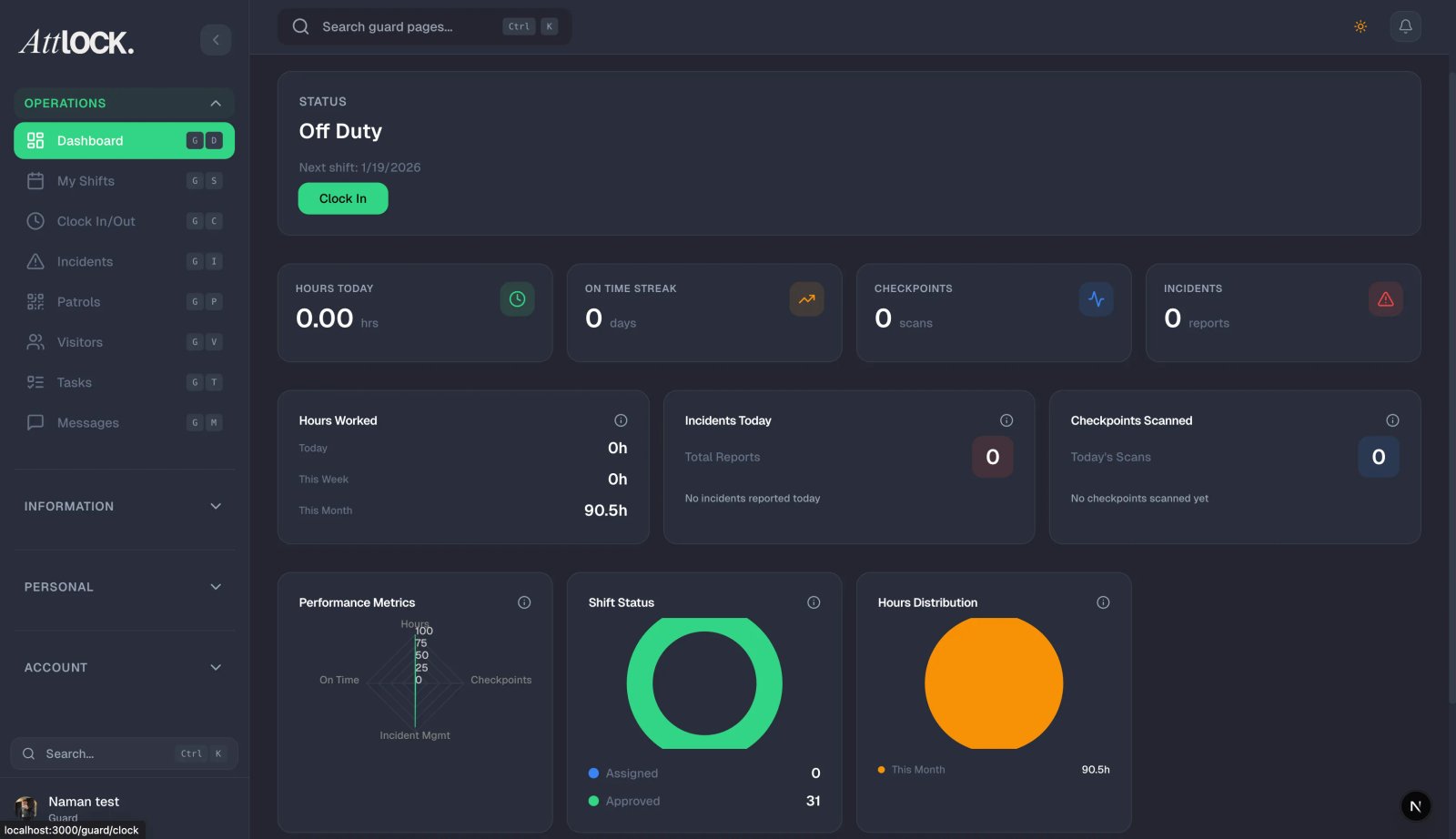
- Tap the More tab at the bottom of the screen.
- Tap Timesheet.
- At the top of the Timesheet screen, tap the Pay or Earnings tab (depending on your app version).
- Select the pay period you want to review using the date selector.
Your pay stub for that period will load with a full breakdown of your earnings.
Reading Your Pay Stub
A typical Attlock pay stub is divided into several sections:
Pay Period
Shows the start and end dates of the pay period this stub covers. Most companies run weekly, biweekly, or semi-monthly pay cycles. If you're unsure of your pay cycle, check with your supervisor or HR.
Earnings Summary
This is the top-level view of what you earned:
| Line Item | What It Means | ----------- | --------------- | Regular Hours | Standard hours worked at your base hourly rate | Overtime Hours | Hours worked beyond your standard threshold (usually 40 hrs/week) at 1.5x rate | Holiday Pay | Hours worked on designated public holidays, often at a premium rate | Bonus | Any performance bonuses or one-time payments applied this period | Gross Pay | Your total earnings before any deductions |
|---|
Deductions
Deductions are amounts subtracted from your gross pay:
| Deduction | What It Means | ----------- | --------------- | Federal Tax | Income tax withheld for the federal government | State/Provincial Tax | Income tax withheld for your state or province | Social Security / CPP | Mandatory government pension contributions | Medicare / EI | Health and employment insurance contributions | Other Deductions | Uniform fees, equipment deposits, or other agreed deductions |
|---|
Net Pay
This is your take-home amount — gross pay minus all deductions. This is what gets deposited into your bank account or issued as a cheque.
Year-to-Date (YTD) Totals
The YTD column shows your cumulative earnings and deductions from the start of the calendar year to the end of this pay period. This is useful for tracking your annual income and for tax preparation.
Checking Your Hours Breakdown
The Timesheet tab (separate from the Pay tab) shows a day-by-day log of your hours:
- Each shift appears as a row with the date, site name, clock-in time, clock-out time, and total hours.
- Breaks are shown as deductions from the total where applicable.
- Approved overtime is highlighted separately.
If you believe a shift is missing or hours are incorrect, note the date and site and raise it with your supervisor promptly — payroll corrections are easier to make before the pay period closes.
Understanding Overtime
Overtime rules vary by jurisdiction and company policy, but in general:
- Daily overtime kicks in after a set number of hours in a single day (commonly 8 or 10 hours).
- Weekly overtime kicks in after a set number of hours in a week (commonly 40 hours).
- Your overtime rate is typically 1.5x your regular hourly rate, sometimes called "time and a half."
- Some companies offer double time (2x) for holidays or extended overtime thresholds.
Your specific overtime rules are set by your employer and will be reflected in your pay stub automatically.
Downloading or Sharing Your Pay Stub
If you need a copy of your pay stub for a loan application, rental agreement, or personal records:
- Open the pay stub for the relevant period.
- Tap the Download or Share icon (top right corner).
- Choose to save as a PDF or share directly to another app.
Tips
- Review every pay stub — don't assume it's always correct. Mistakes happen, and catching them early is much easier than disputing old pay.
- Check your YTD totals quarterly — this helps you anticipate your tax liability and avoid surprises at year-end.
- Keep records — download and save pay stubs for at least two years. You may need them for tax filings, benefit applications, or employment verification.
- Report discrepancies quickly — if hours are missing or rates look wrong, contact your supervisor or payroll contact within the same pay period if possible.
Troubleshooting
Pay stub not showing for a recent period Pay stubs are typically published after payroll is processed, which may be a day or two after the pay period ends. If it's been more than 3 business days, contact your payroll administrator.
Hours on pay stub don't match my timesheet Some hours may be pending approval. Check the Timesheet tab for any shifts marked as "Pending" — these may not yet be included in the pay calculation.
Related Articles
- Viewing Your Timesheet
- Clocking In and Out of Shifts
- Requesting Time Off
- Managing Your Profile and Settings