


Reviewing Incident Reports and Follow-Ups
This article is for Clients.
When a security incident occurs at one of your sites, the responding guard files an incident report in Attlock. As a client, you have full visibility into these reports — including the incident details, any actions taken, and the current resolution status. This article walks you through how to find, read, and follow up on incident reports.
Where to Find Incident Reports
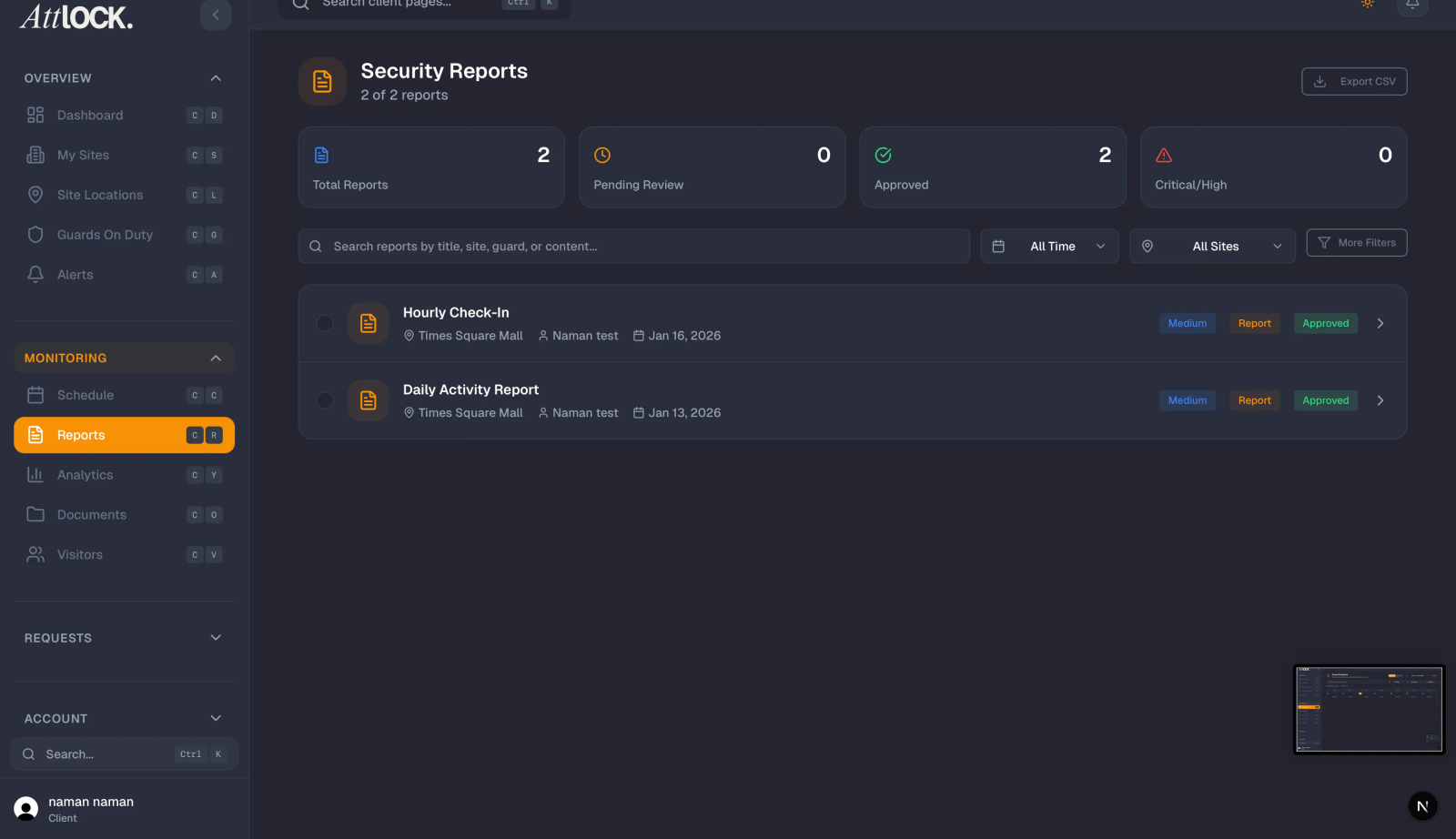
From the Attlock client portal, go to Reports in the left navigation menu, then select Incident Reports. You'll see a list of all incidents logged across your sites, sorted by date with the most recent at the top.
You can also access incidents from a specific site by going to Sites, selecting the site, and clicking the Incidents tab.
Understanding the Incident Report
Each incident report contains:
- Incident type — e.g., trespassing, property damage, medical emergency, suspicious activity
- Date and time — when the incident was first observed or reported
- Location — the specific area within the site (e.g., parking lot, main entrance, floor 3)
- Description — a written account from the guard detailing what happened
- Actions taken — steps the guard took in response (e.g., contacted police, escorted individual off premises, administered first aid)
- Attachments — photos, videos, or documents uploaded by the guard
- Status — Open, In Progress, or Resolved
Incident Severity Levels
Attlock categorises incidents by severity:
- Low — Minor issues with no immediate risk (e.g., a lost item, a minor disturbance)
- Medium — Situations requiring follow-up but no immediate danger (e.g., vandalism, unauthorised access attempt)
- High — Serious incidents requiring urgent attention (e.g., assault, break-in, medical emergency)
High-severity incidents trigger an automatic notification to your registered contacts. You can manage who receives these alerts under Notification Settings.
Following Up on an Incident
If you need more information or want to request action on an incident:
- Open the incident report.
- Scroll to the Comments section at the bottom.
- Type your message and click Send. Your security provider will be notified.
You can also change the status of an incident if your role permits — for example, marking it as Resolved once you're satisfied with the outcome.
Requesting a Formal Follow-Up Report
For serious incidents, you may need a formal written follow-up from your security provider. To request one:
- Open the incident report.
- Click Request Follow-Up.
- Describe what additional information you need and set a due date.
Your security provider will receive a task notification and can upload the follow-up document directly to the incident record.
Filtering and Searching Incidents
Use the filters at the top of the Incident Reports page to narrow results by:
- Site
- Date range
- Incident type
- Severity level
- Status (Open / In Progress / Resolved)
You can also use the search bar to find incidents by keyword — useful if you're looking for a specific event or location.
Exporting Incident Reports
To export a list of incidents for your records or for an insurance claim, click Export and choose CSV or PDF. The export includes all visible columns and respects your current filter settings.