


Managing Guard Certifications and Licenses
This article is for Administrators and Company Admins.
Keeping guard certifications and licenses current is a legal and operational requirement for any security company. Attlock centralizes all certification tracking so you always know which guards are compliant, which documents are expiring, and which guards are cleared for specific deployments.
Where Certifications Live
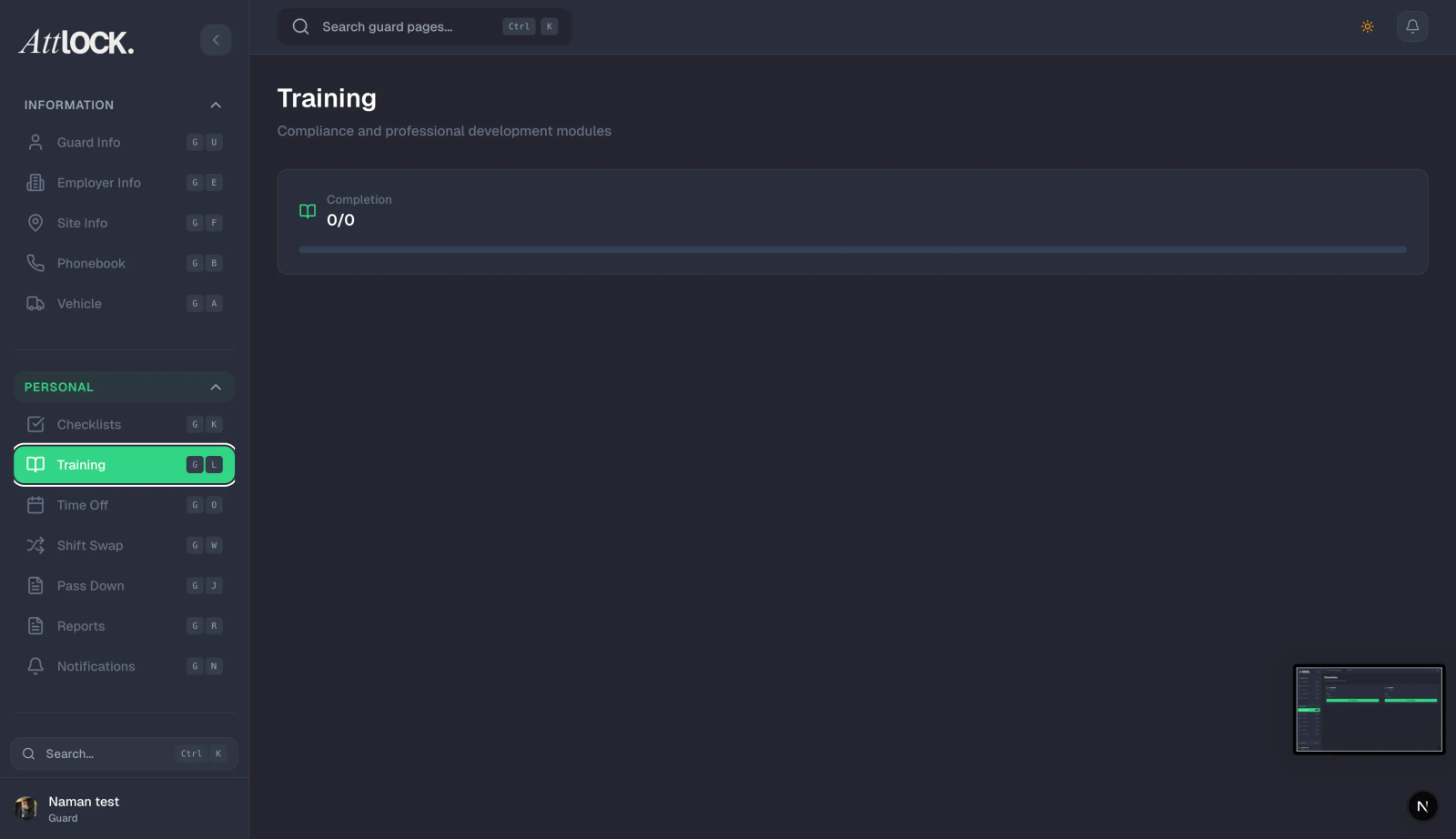
Certification records are stored on each guard's profile. Navigate to Team → Guards, open a guard's profile, and select the Certifications tab.
Each certification record includes:
- Certification type (e.g., SIA Licence, First Aid, Fire Warden, CCTV Operator)
- Issuing authority
- Certificate number
- Issue date and expiry date
- Document attachment (PDF or image)
- Status — Active, Expiring Soon, Expired
Adding a Certification
- Open the guard's profile and go to the Certifications tab.
- Click Add Certification.
- Select the Certification Type from the dropdown, or type a custom name.
- Enter the Certificate Number, Issue Date, and Expiry Date.
- Upload the supporting document (PDF, JPG, or PNG, max 10 MB).
- Click Save.
The certification is immediately visible on the guard's profile and included in compliance reports.
Expiry Alerts and Notifications
Attlock automatically monitors expiry dates and sends alerts:
| Alert Trigger | Who Is Notified | -------------- | ---------------- | 60 days before expiry | Company Admin | 30 days before expiry | Company Admin + Guard's Supervisor | 7 days before expiry | Company Admin + Supervisor + Guard | Day of expiry | All of the above | Expired | Guard flagged as non-compliant; scheduling blocked |
|---|
You can customize alert thresholds in Settings → Compliance → Certification Alerts.
Bulk Certification Management
For large teams, use the bulk import tool:
- Go to Team → Guards → Bulk Actions → Import Certifications.
- Download the CSV template.
- Fill in guard IDs, certification types, numbers, and dates.
- Upload the completed CSV.
- Review the import preview and confirm.
This is especially useful when onboarding a new team or after a company-wide licence renewal cycle.
Compliance Dashboard
The Compliance → Compliance Dashboard gives a company-wide view:
- Total certifications tracked
- Expiring within 30 days — with a list of affected guards
- Currently expired — guards blocked from scheduling
- Compliance rate — percentage of guards fully certified
Use the Export button to generate a compliance report for audits or client submissions.
Blocking Non-Compliant Guards from Scheduling
When a required certification expires, Attlock can automatically prevent that guard from being scheduled for roles that require it.
- Go to Settings → Compliance → Certification Requirements.
- Create a rule linking a Site Type or Role to a required certification.
- Toggle Block Scheduling on Expiry to On.
Supervisors will see a warning if they attempt to schedule a non-compliant guard, and the shift will be flagged in the schedule view.
Best Practices
- Upload documents at onboarding — make certification upload part of your guard onboarding checklist.
- Set 60-day alerts — gives enough lead time to arrange renewals without disrupting operations.
- Audit quarterly — run the compliance report every quarter and address gaps proactively.
- Link certifications to site requirements — ensures only qualified guards are deployed to regulated sites.
Related Articles
- Managing Guards
- Compliance, Policies & Training
- Guard Disciplinary Notes
- Invitations & Onboarding