


Security & Privacy Settings
Keeping your Attlock account secure is essential for protecting your property information and security data. This guide covers all the security and privacy settings available in the client app.
Changing Your Password
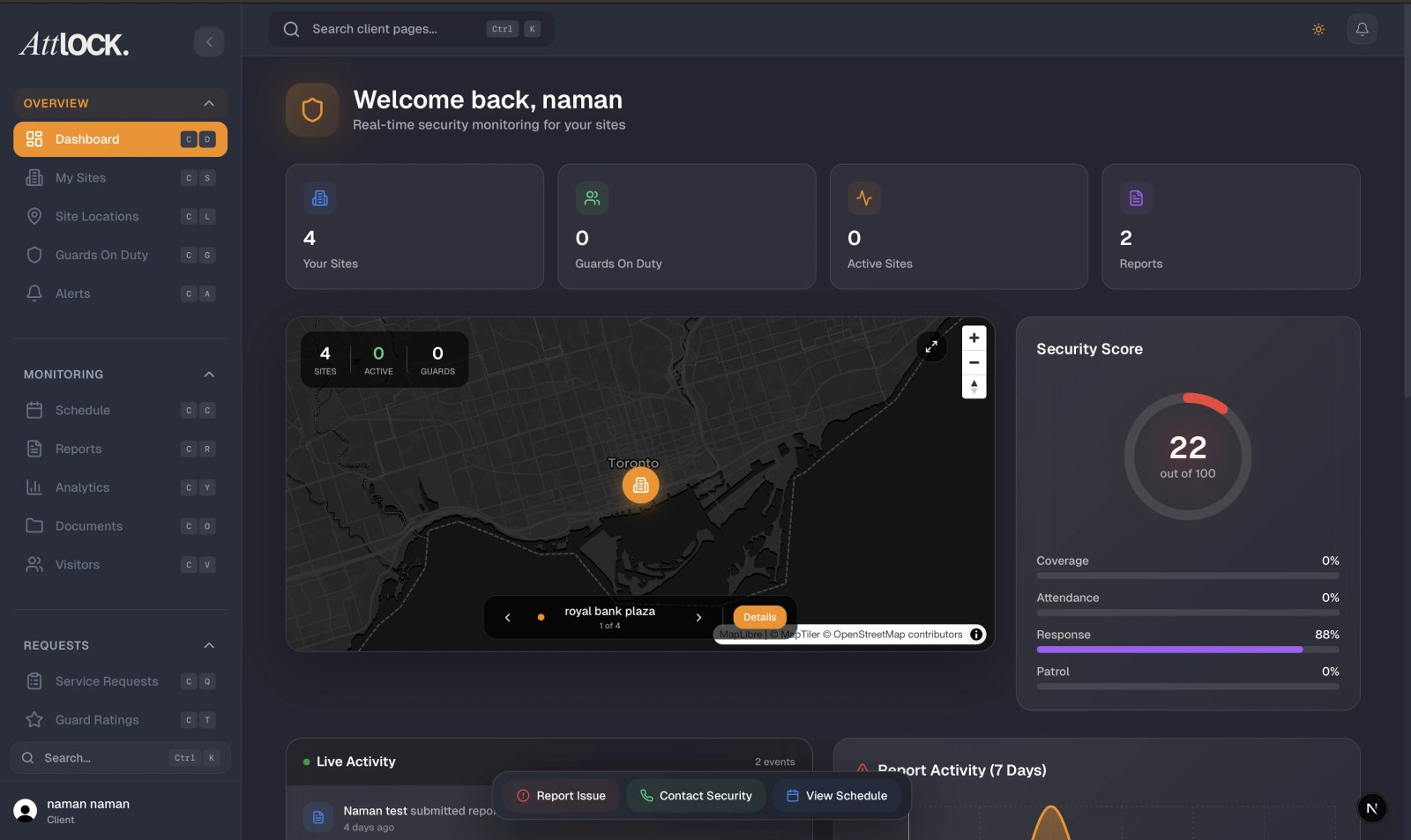
To update your account password:
- Tap the Profile tab in the bottom navigation bar.
- Tap Security Settings.
- Tap Change Password.
- Enter your current password for verification.
- Enter your new password and confirm it.
- Tap Save to apply the change.
Your new password must be at least 8 characters long and include a mix of uppercase letters, lowercase letters, and numbers. You'll be signed out of other devices after changing your password.
Enabling Two-Factor Authentication
Two-factor authentication (2FA) adds an extra layer of security to your account by requiring a verification code in addition to your password.
To enable 2FA:
- Go to Profile > Security Settings.
- Tap Two-Factor Authentication.
- Tap Enable to begin setup.
- Choose your preferred method:
- Authenticator app — Scan the QR code with an app like Google Authenticator or Authy.
- SMS verification — Receive a code via text message to your registered phone number.
- Enter the verification code to confirm setup.
- Save your backup codes in a secure location — these let you access your account if you lose your 2FA device.
Once enabled, you'll need to provide a verification code each time you sign in on a new device.
Viewing Active Sessions
Monitor where your account is currently signed in:
- Go to Profile > Security Settings.
- Tap Active Sessions.
- You'll see a list of all devices currently signed into your account, including:
- Device type and operating system.
- Location (approximate, based on IP address).
- Last active timestamp.
If you see an unfamiliar session, tap it and select Sign Out to revoke access immediately. You can also tap Sign Out All Other Devices to end every session except your current one.
Biometric Login
For faster and more secure access, enable biometric authentication:
- Go to Profile > Security Settings.
- Tap Biometric Login.
- Toggle the switch to enable.
- Authenticate with your device's biometric sensor to confirm.
Supported biometric methods:
- Face ID on compatible iPhones and iPads.
- Fingerprint (Touch ID on Apple devices, fingerprint sensor on Android devices).
Once enabled, you can unlock the app using your face or fingerprint instead of typing your password each time. Your password remains available as a fallback.
Language and Timezone Settings
To adjust your language or timezone preferences:
- Go to Profile > Security Settings (or Profile > Preferences depending on your app version).
- Tap Language to select your preferred display language.
- Tap Timezone to set your local timezone.
Timezone settings affect how shift times, report timestamps, and activity logs are displayed throughout the app. Make sure this matches your local time to avoid confusion when reviewing guard schedules.
Logging Out and Session Management
To sign out of the app:
- Tap the Profile tab.
- Scroll to the bottom of the screen.
- Tap Log Out.
- Confirm by tapping Log Out again in the dialog.
Logging out clears your session from the device. You'll need to sign in again with your credentials (and 2FA code if enabled) to access the app.
For security best practices:
- Log out when using shared devices to prevent unauthorized access.
- Review active sessions periodically and revoke any you don't recognize.
- Enable 2FA for the strongest account protection.
- Use biometric login for convenience without compromising security.