


Managing Notification Settings
Stay informed about what matters most by customizing your notification preferences in the Attlock client app. This guide explains how to access notification settings and configure each alert type.
Accessing Notification Preferences
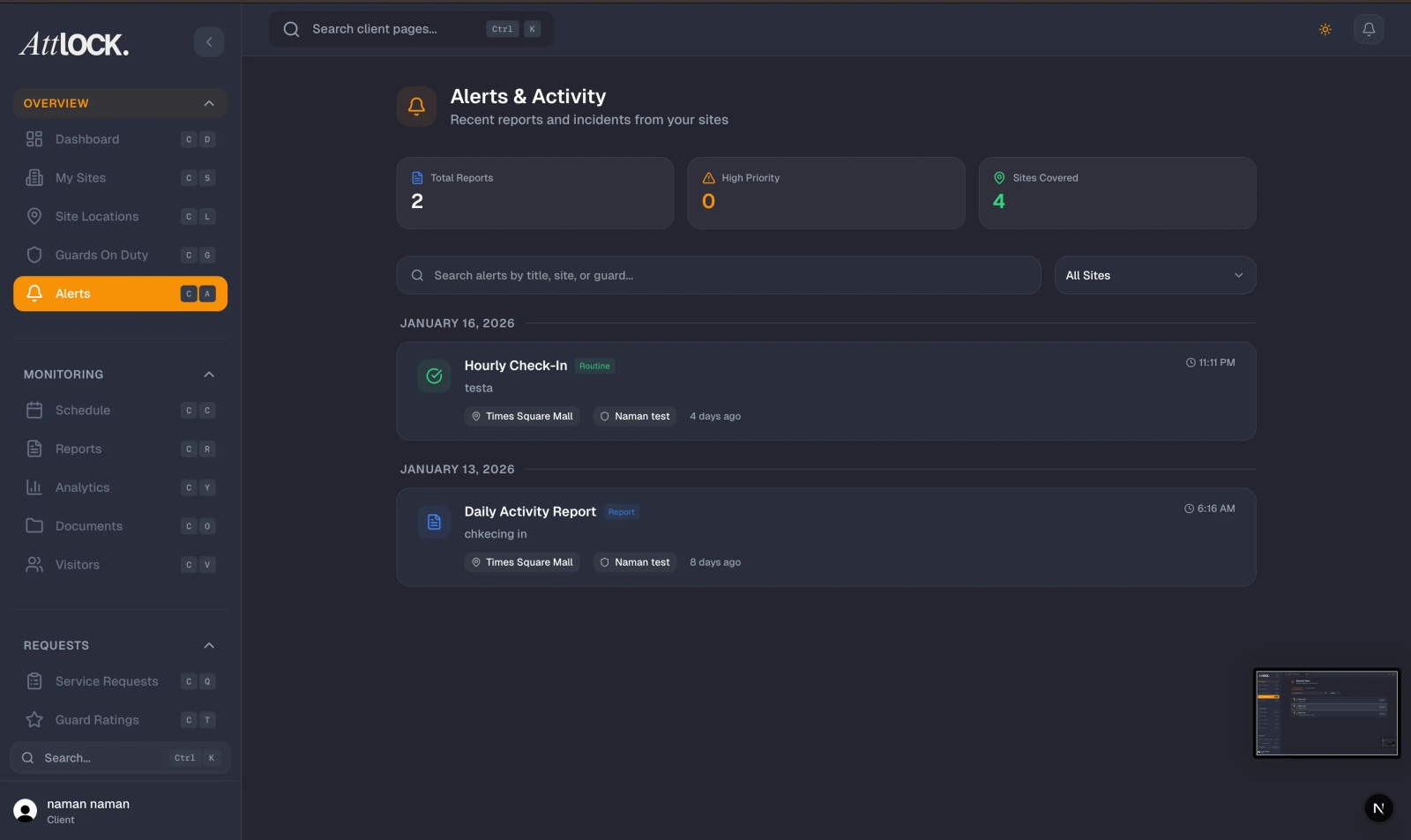
To manage your notifications:
- Tap the Profile tab in the bottom navigation bar.
- Tap Notification Settings from the menu.
- You'll see a list of all available notification categories with toggle switches.
Types of Notifications
The Attlock client app supports the following notification types:
Incident Alerts
Receive immediate push notifications when an incident is reported at any of your sites. These are the highest-priority alerts and are enabled by default.
- Includes incident type, severity level, site name, and a brief description.
- Tapping the notification opens the full incident report in the app.
Guard Arrival & Departure
Get notified when guards check in or check out of your sites.
- Arrival notifications confirm that a guard has started their shift at your property.
- Departure notifications let you know when a guard's shift has ended.
- Useful for verifying that coverage transitions happen on schedule.
Reports
Receive alerts when new reports are submitted for your sites, including:
- Daily activity reports.
- Patrol completion summaries.
- Custom reports filed by guards or supervisors.
Shift Updates
Stay informed about changes to the guard schedule at your sites:
- Shift swaps and replacements.
- Late arrivals or no-shows.
- Overtime extensions.
Announcements
Receive broadcasts from your security provider, such as:
- Service updates and maintenance notices.
- Policy changes or new procedures.
- Seasonal security advisories.
Enabling or Disabling Specific Alert Types
Each notification type has its own toggle switch:
- Navigate to Profile > Notification Settings.
- Find the notification category you want to adjust.
- Tap the toggle to enable (green) or disable (gray) that alert type.
- Changes save automatically — no confirmation button is needed.
You can disable non-critical notifications like announcements while keeping high-priority alerts like incidents always on. We recommend keeping Incident Alerts enabled at all times.
Push Notification Permissions
For notifications to reach your device, push permissions must be enabled at the operating system level:
iOS
- Open the Settings app on your iPhone.
- Scroll down and tap Attlock Client.
- Tap Notifications.
- Make sure Allow Notifications is turned on.
- Enable Banners, Sounds, and Badges for the best experience.
Android
- Open Settings on your Android device.
- Navigate to Apps > Attlock Client > Notifications.
- Make sure the main notification toggle is turned on.
- You can also configure individual notification channels if your Android version supports them.
If you're not receiving notifications, check these OS-level settings first — in-app toggles only work when the device allows the app to send push notifications.
Alert Color Coding
Notifications in your in-app notification center are color-coded for quick scanning:
| Color | Meaning | ------- | --------- | Red | Incident alert — requires immediate attention. | Green | Guard arrival — a guard has checked in at your site. | Orange | Guard departure — a guard has checked out. | Blue | Report — a new report has been submitted. |
|---|
This color system helps you prioritize which notifications to review first, especially when multiple alerts arrive during busy periods.