


Checking Parking Availability
Monitor parking lot occupancy across your sites in real-time. The parking feature gives you a clear view of how many spaces are available, helping you plan for events, manage visitor expectations, and identify capacity trends.
Accessing Parking
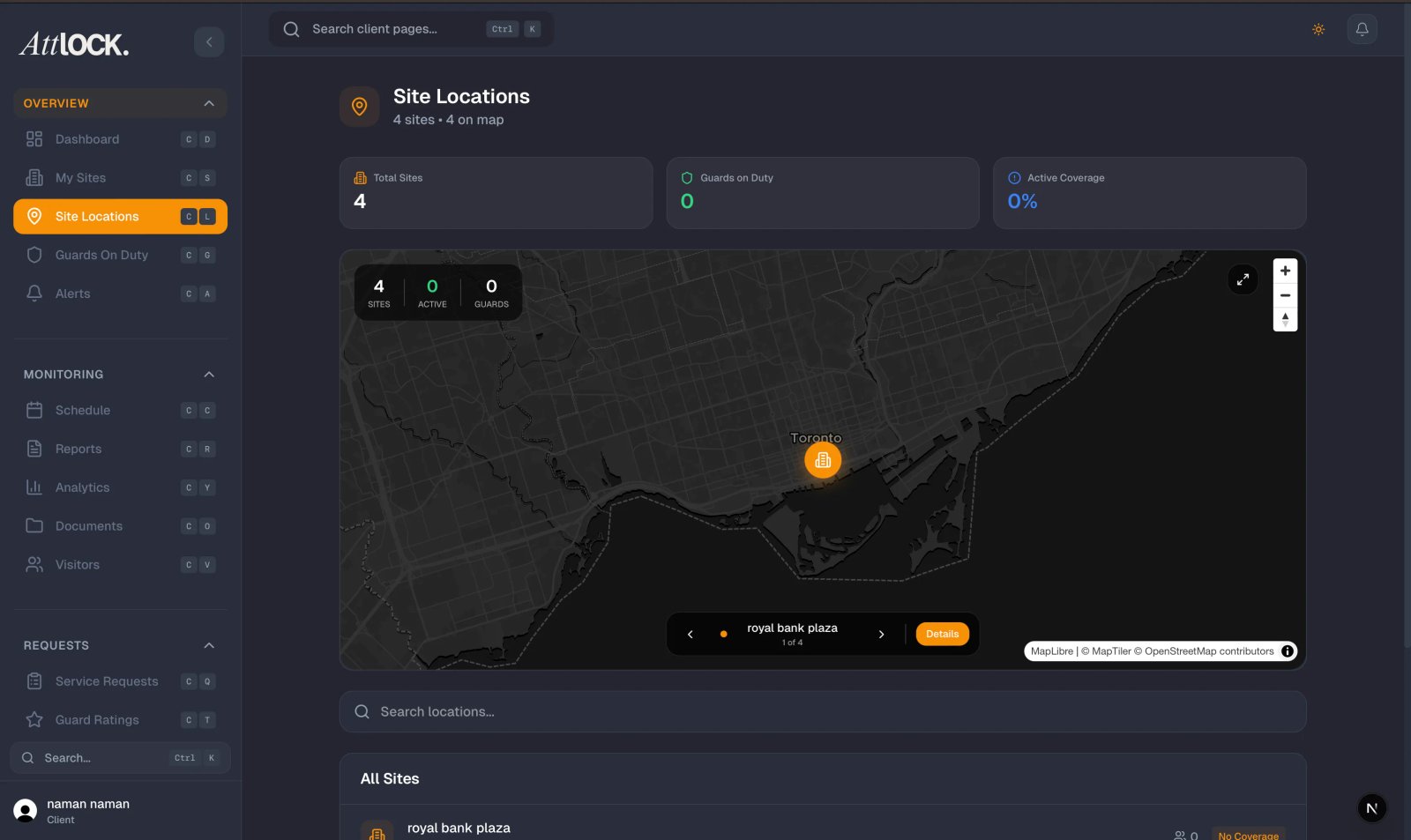
- From the Profile menu, tap "Parking".
- The "Parking Availability" screen loads, showing all parking lots across your sites.
Overview Summary
At the top of the screen, a summary line provides an at-a-glance view:
"X available of Y total spaces across Z lots."
This gives you an instant snapshot of overall parking capacity without needing to check each lot individually.
Understanding Lot Cards
Each parking lot appears as a card with the following details:
- Lot Name — The name or designation of the parking area (e.g., "Main Lot," "Visitor Parking," "Garage Level 2").
- Occupancy Bar — A visual progress bar showing how full the lot is, color-coded for quick assessment:
| Occupancy Level | Color | Meaning | ---------------- | ------- | --------- | Below 70% | Green | Plenty of spaces available | 70% to 90% | Orange | Filling up — plan accordingly | Above 90% | Red | Nearly full — limited availability |
|---|
- Available Count — The number of open spaces displayed as "X available."
- Occupied Count — Shown as "X of Y occupied" for the full picture.
Tips
- Check before events or busy periods — High-traffic events, shift changes, and morning arrival times can fill lots quickly. Check availability in advance to plan accordingly.
- Monitor capacity trends over time — If lots are consistently red (above 90%), it may be worth discussing overflow parking options or capacity expansion with your property management team.
- Direct visitors to available lots — When pre-registering visitors, check parking availability first and include parking instructions in your visitor notes (e.g., "Use Lot B — closest to the main entrance").
- Use during emergencies — Knowing parking occupancy helps during evacuations or emergency responses when you need to account for how many people may be on-site.
- Share availability with your team — If colleagues are planning to visit the site, a quick screenshot of parking availability can save them time.
Related Articles
- Viewing Your Sites
- Getting Started with the Client Portal
- Pre-Registering Visitors
- Viewing Live Guard Positions