


Viewing Your Upcoming Schedule
The Schedule tab is your go-to place for seeing what's coming up — all your assigned shifts, past completions, and everything you need to plan your week.
Accessing Your Schedule
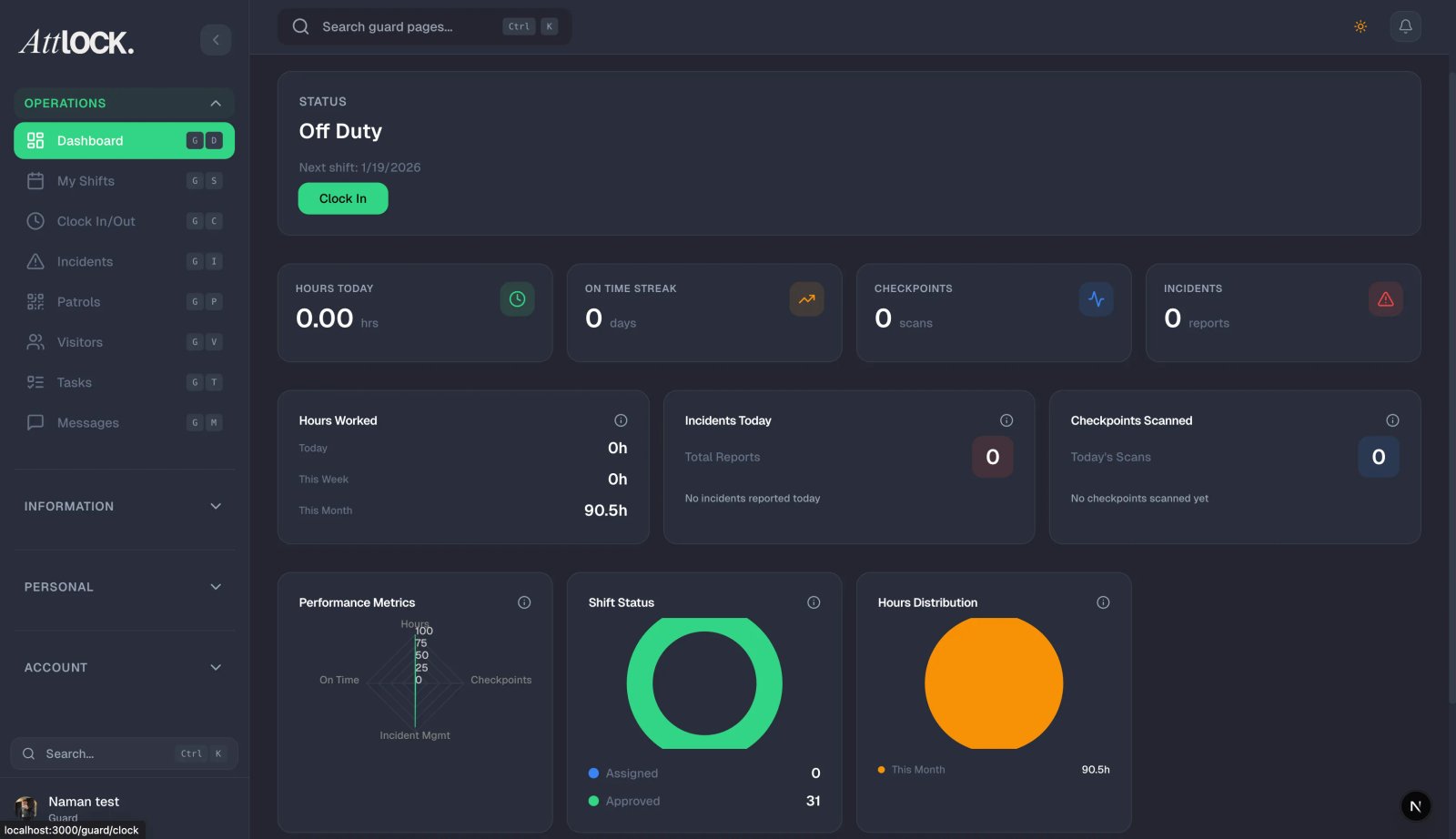
- Tap the Schedule tab at the bottom of the app.
- Your current site name appears at the top of the screen.
- Your shifts are organized into two main views.
Schedule Tabs
Upcoming
This tab shows all your future assigned shifts in chronological order. Each shift card displays:
- Date and day of the week (e.g., "Monday, March 30").
- Time range — when the shift starts and ends (e.g., "6:00 PM – 6:00 AM").
- Site name and street address.
- Status badge:
- PENDING (yellow) — you haven't accepted this shift yet. Action is required.
- APPROVED (green) — confirmed and ready to go. You'll be able to clock in when the time comes.
- Pay rate — shown if your company has configured pay rate visibility.
Completed
This tab shows your past shifts with their outcomes:
- COMPLETED (gray) — you finished the shift normally.
- CANCELLED (red) — the shift was cancelled by your supervisor or admin.
Reviewing completed shifts is useful for verifying your hours before payroll.
Accepting a Shift
When a new shift is assigned to you, it appears with a PENDING badge. You need to accept it to confirm your availability:
- Tap the shift card to open the details.
- Review the shift information — date, time, site, and any special instructions.
- Slide the "Accept" button to confirm.
- The status changes to APPROVED and your supervisor is notified.
Tip: Accept shifts as soon as you see them. Pending shifts may be reassigned to another guard if you don't respond promptly.
Declining a Shift
If you can't work an assigned shift:
- Tap the pending shift card to open it.
- Tap "Decline."
- Provide a reason (optional but recommended — it helps your supervisor understand and plan accordingly).
- Tap "Confirm."
- Your supervisor is notified of the decline and the reason.
Note: Declining shifts frequently may affect your scheduling priority. If you need regular time off, consider using the Time Off Request feature instead.
Viewing Shift Details
For a complete view of any shift, tap "View Details" on the shift card. The Shift Details Modal shows:
- Full shift information — date, start time, end time, and total hours.
- Site details — full address, site-specific instructions, and a map if available.
- Break schedule — when breaks are scheduled and how long they are.
- Equipment required — any items you need to pick up or bring.
- Special instructions — notes from your supervisor about the shift (e.g., "VIP event on premises, increased patrol frequency").
- Assigned guards — who else is working this shift (if applicable).
Review these details before your shift starts so you arrive prepared.
Understanding Shift Statuses
| Status | Color | Meaning | -------- | ------- | --------- | PENDING | Yellow | Assigned to you but not yet accepted. Requires your action. | APPROVED | Green | Confirmed. You're expected to work this shift. | COMPLETED | Gray | Shift finished normally. | CANCELLED | Red | Shift was cancelled. No action needed. |
|---|
Tips
- Check your schedule daily — new shifts can be assigned at any time, including evenings and weekends.
- Accept shifts promptly — pending shifts may be reassigned after a timeout period set by your admin.
- Read special instructions before each shift — knowing about site-specific requirements, events, or hazards in advance helps you perform better.
- Use the Completed tab to verify hours — if something looks off, flag it with your supervisor before the payroll cutoff date.
- Plan ahead for long shifts — if you see a 12-hour shift coming up, make sure you rest beforehand and pack essentials (charger, food, water).
- Enable push notifications — so you're instantly alerted when new shifts are assigned or existing ones change.
Related Articles
- Clocking In and Out of Shifts
- Requesting a Shift Swap
- Requesting Time Off
- Viewing Your Timesheet
- Getting Started with the Guard Mobile App