


Viewing the Guard Schedule
See exactly which guards are scheduled to work at your sites and when. The schedule view helps you plan ahead, verify expected coverage, and stay informed about shift assignments.
Accessing the Schedule
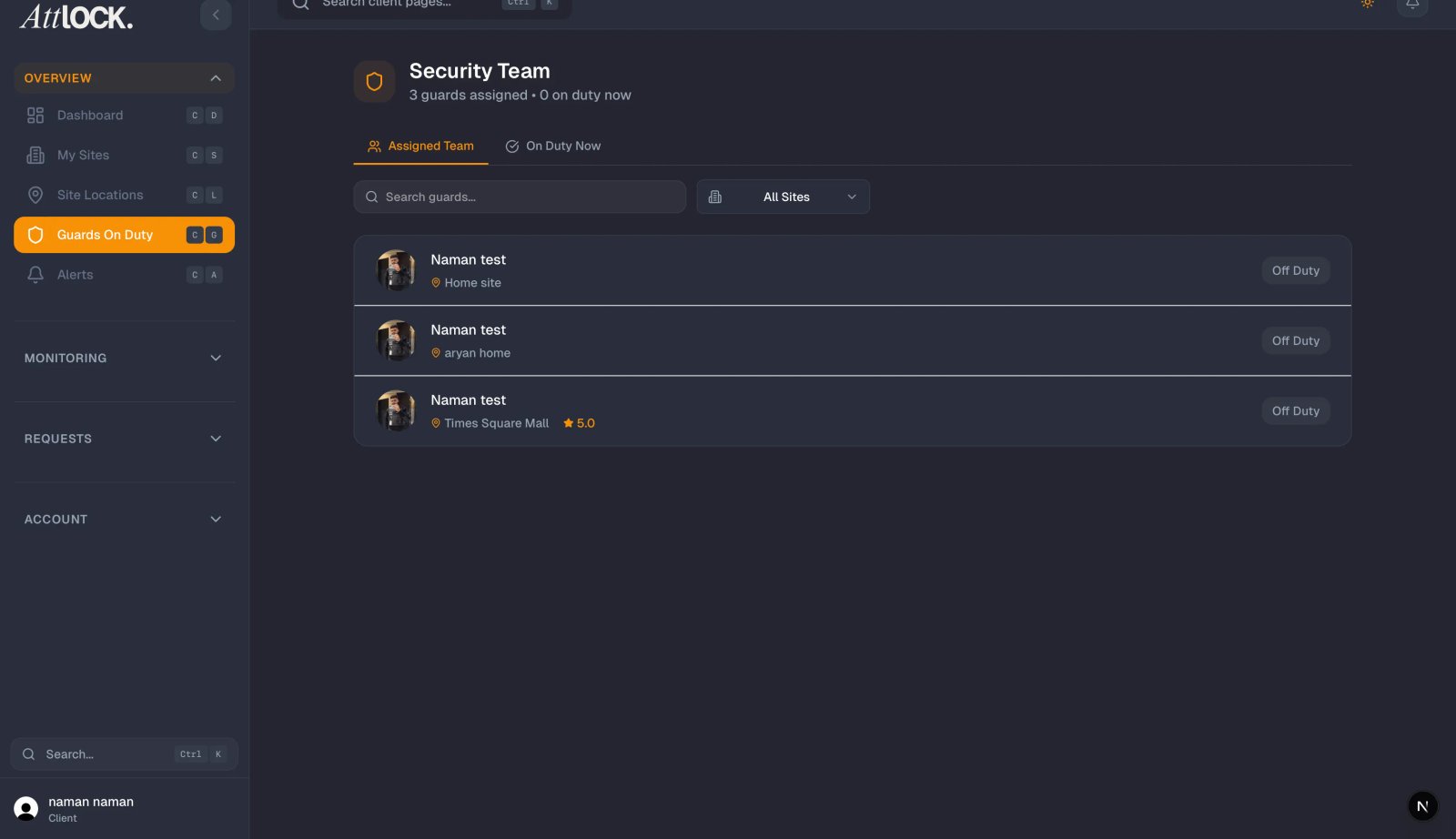
- From the Profile menu, tap "Schedule".
- The schedule screen loads showing upcoming shifts across all your sites.
Date Range Filters
Use the filter buttons at the top to control the time window:
- Week — Shows shifts for the current week. Best for day-to-day planning.
- Month — Shows shifts for the current month. Useful for reviewing overall coverage patterns.
- All Upcoming — Shows all future scheduled shifts. Ideal for long-range planning.
Tap a filter to switch between views.
Filtering by Site
If you manage multiple locations, you can filter the schedule to a specific site:
- Tap the site filter dropdown or chip.
- Select the site you want to view.
- The schedule updates to show only shifts at that location.
- Select "All Sites" to return to the combined view.
Understanding the Shift List
Shifts are grouped by date for easy scanning. Each shift entry shows:
- Guard Name(s) — The guard(s) assigned to this shift.
- Site and Location — Where the shift takes place.
- Start and End Time — The scheduled shift hours.
- Status — Whether the shift is confirmed, pending, or has any changes.
Tips
- Check the schedule weekly to ensure your expected coverage levels are in place and there are no gaps.
- Filter by site when you want to focus on a specific location — this is especially helpful if you manage five or more sites.
- Note shift change times so you know when to expect guard transitions. Coverage may briefly overlap during handoff periods, which is normal.
- Compare the schedule with live guard positions — Use the Guards tab to confirm that scheduled guards have actually clocked in.
- Contact your security provider if you notice unfilled shifts or unexpected schedule changes. Use the Service Requests feature for documentation.
- Plan site visits around the schedule — If you want to meet a specific guard or observe shift changes, the schedule tells you exactly when to be there.
Related Articles
- Viewing Live Guard Positions
- Viewing Your Sites
- Getting Started with the Client Portal
- Submitting Service Requests
- Guard Ratings & Preferences