


Viewing Live Guard Positions
See exactly where your guards are in real-time on an interactive map. The Guards tab provides live GPS tracking so you always know your sites are covered.
Accessing the Guards Map
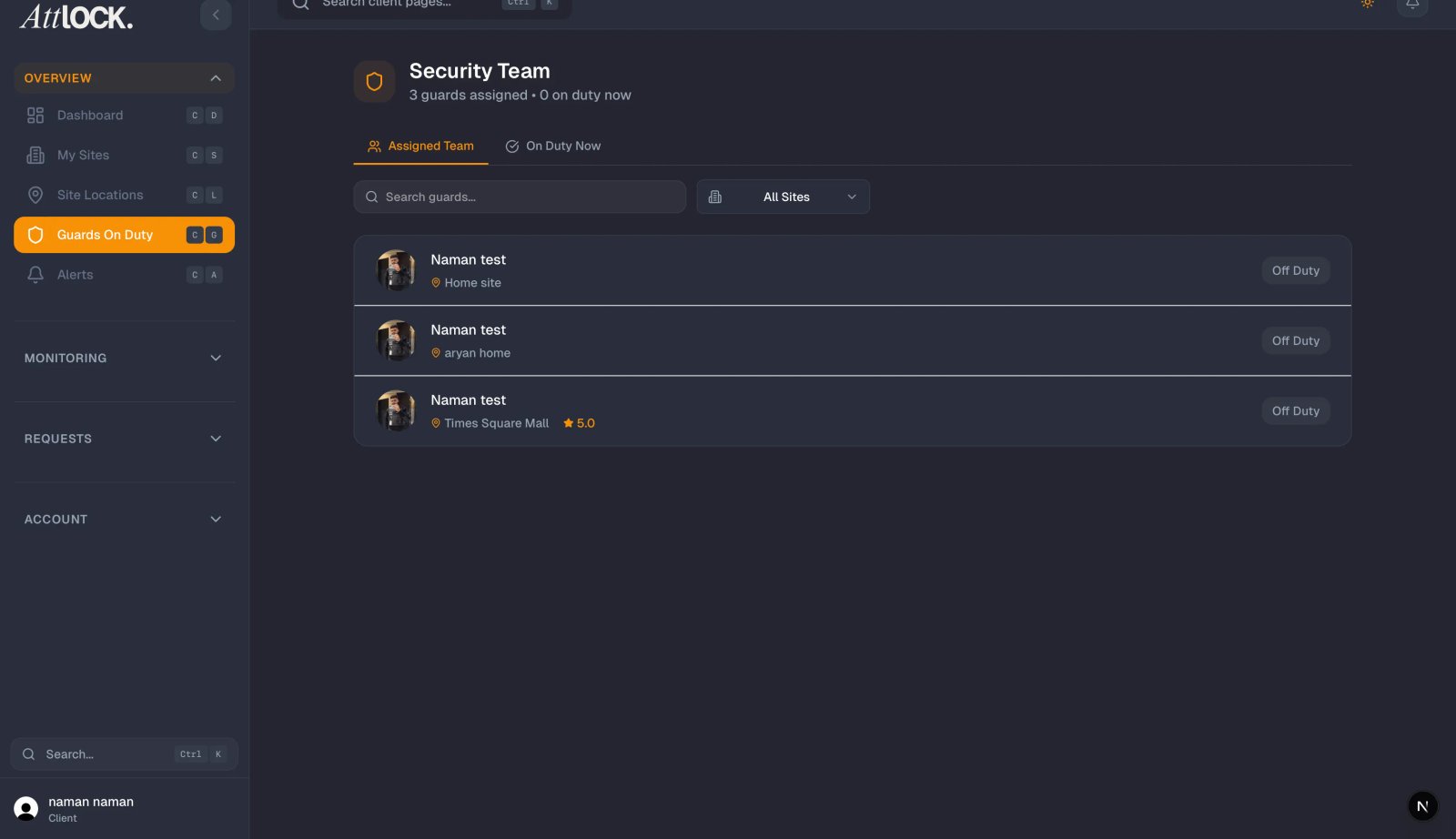
- Tap the Guards tab at the bottom of the screen.
- The "Guards On Duty" screen loads with a live map showing all active guard positions.
Understanding the Map View
The map displays several key elements:
- Guard Markers — Each on-duty guard appears as a marker with a pulsing animation, indicating their live GPS position.
- Geofence Circles — Colored boundary circles around each site show the expected patrol area. Each site has a distinct color for easy identification.
- Site Labels — Site names appear on the map so you can quickly orient yourself.
Filtering by Site
Above the map, you will find site filter chips that let you focus on specific locations:
- "All Sites" — The default view showing guards across every site.
- Individual Site Chips — Each chip displays the site name and a badge with the number of guards currently on duty.
- Tap any chip to filter the map to show only guards at that site.
- Tap "All Sites" again to return to the full view.
This is especially useful if you manage multiple locations and want to check coverage at a specific site.
Guard List
Below the map, a scrollable list shows all on-duty guards with key details:
- Guard Name — The guard's full name.
- Site Assignment — Which site they are currently working at.
- Status Dot — A green dot indicates the guard is actively on duty.
- Location Badge — Shows "Live" if GPS is actively updating, or "Site" if the guard is within the geofence.
Interacting with Guards
Tap a guard marker on the map or a guard in the list to:
- Center the map on their current position.
- View their details including name, assigned site, and last GPS update time.
- See their patrol path if patrol tracking is enabled at the site.
Auto-Refresh
The map refreshes automatically every 30 seconds to keep positions current. You can also pull down on the screen to trigger a manual refresh at any time.
Tips
- Check during shift changes to verify that incoming guards have arrived and outgoing guards are transitioning smoothly.
- Zoom in on individual sites for precise guard positions and patrol routes.
- Look for the "Live" badge — This confirms the guard's phone is actively sending GPS data.
- Use site filter chips to quickly jump between your different locations.
- Pull to refresh if you need the latest positions immediately rather than waiting for auto-refresh.
Troubleshooting
Guard Not Showing on Map
- The guard may not have clocked in yet — check the schedule to confirm their shift time.
- Their phone's GPS may be temporarily unavailable (poor signal, battery saver mode, etc.).
- Pull to refresh or wait for the 30-second auto-refresh cycle.
Stale Position Data
- If a guard's position has not updated recently, the "Live" badge may disappear.
- This usually resolves itself when the guard's phone regains GPS connectivity.
- Contact your security provider if a guard's position appears stuck for an extended period.
Map Not Loading
- Check your internet connection.
- Close and reopen the app.
- Ensure the app is updated to the latest version.
Related Articles
- Getting Started with the Client Portal
- Viewing Site Reports
- Viewing the Guard Schedule
- Viewing Your Sites
- Contacting Your Security Provider