


Viewing Guard Patrol Routes
Attlock records the GPS path that guards follow during their patrols. You can review these routes on an interactive map to confirm that guards are covering the areas outlined in your security plan. This feature is valuable for accountability, compliance documentation, and identifying gaps in patrol coverage.
Accessing Patrol Routes
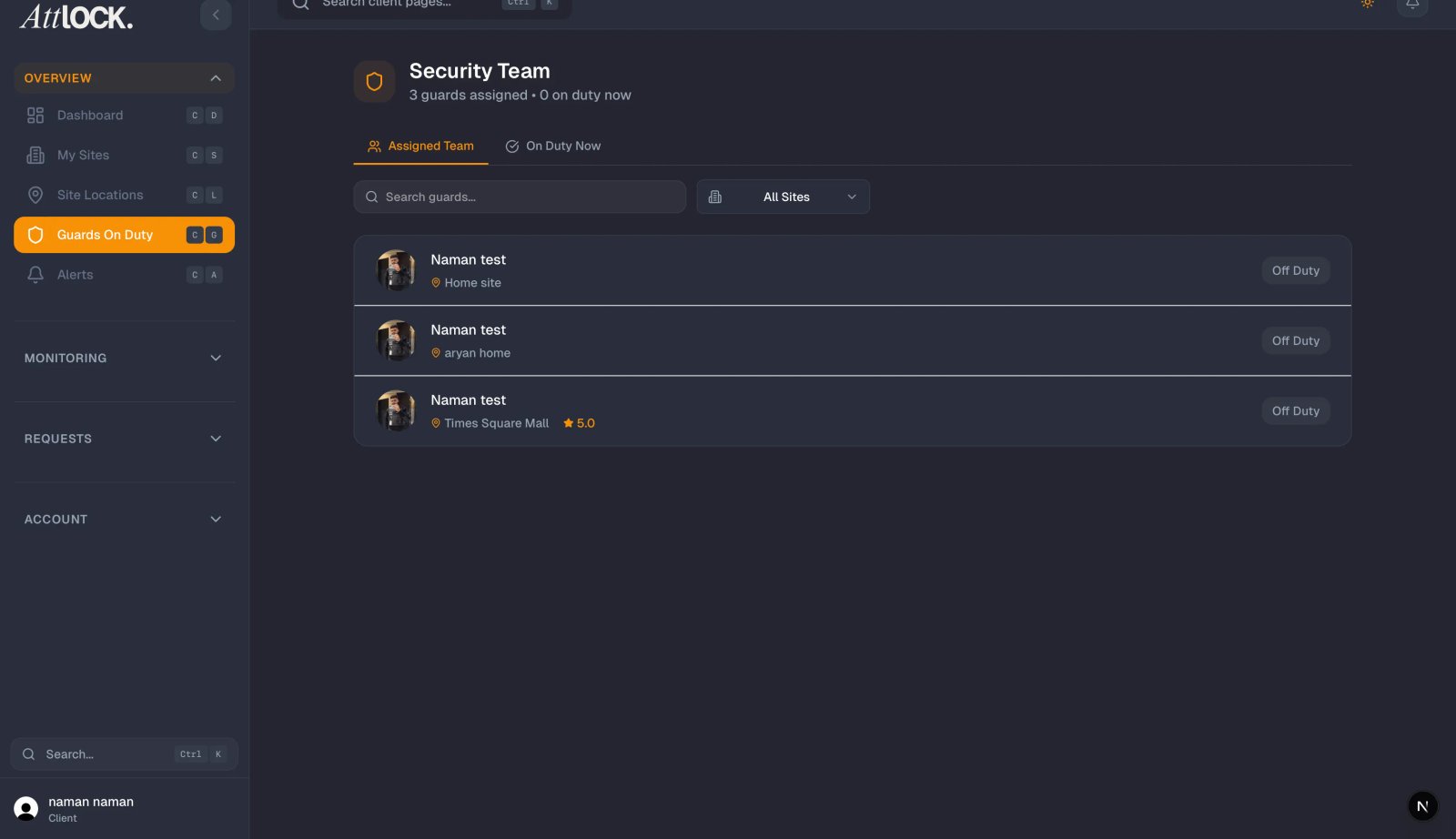
Patrol route information is available through the Schedule section of the Attlock client portal.
- Open the Attlock app or web portal.
- Navigate to the Schedule page from the main menu.
- Find the shift you want to review. You can browse by date or use the filters to narrow results.
- Tap or click on a completed or in-progress shift to open the shift details.
- Select View Patrol Route to open the interactive map.
Patrol routes are available for any shift that has been completed or is currently in progress. Upcoming shifts that have not started yet will not have route data.
Understanding the Patrol Map
When you open a patrol route, you will see an interactive map showing the guard's path throughout the shift.
GPS Breadcrumb Trail
The colored line on the map represents the guard's GPS breadcrumb trail — a continuous path showing everywhere the guard traveled during the patrol. The trail is recorded automatically as the guard moves through your site.
Start and End Markers
Two markers indicate where the patrol began and ended:
- Green pin — The location where the guard started the patrol.
- Red pin — The location where the patrol ended (or the guard's current position if the shift is still in progress).
Timestamp Information
Tap or hover over any point along the route to see the exact time the guard was at that location. This allows you to verify timing at specific areas of your property and confirm that guards are following the expected schedule.
What the Colors Mean
The patrol trail uses color coding to give you a quick visual summary of how the patrol performed against the expected schedule:
- Green — The guard was on time and within the expected patrol area. Checkpoints in this section were completed on schedule.
- Orange — The guard was running behind schedule or took longer than expected at a particular area. This may indicate a minor delay but is not necessarily a concern.
- Red — A checkpoint was missed, the guard deviated significantly from the expected route, or a section of the patrol was skipped entirely.
If you see a mix of colors on a single patrol, focus on the red and orange sections to understand where issues occurred.
Checkpoint Indicators
Along the patrol route, you may see checkpoint markers. These represent specific locations the guard was required to visit during the patrol. Each checkpoint shows:
- The checkpoint name or description
- The time the guard arrived (if completed)
- Whether the checkpoint was scanned or verified
- A status indicator showing if it was completed on time, late, or missed
Using Patrol Data for Accountability
Patrol routes provide objective evidence of guard activity at your sites. Here are some practical ways to use this information:
- Verify coverage — Confirm that guards are patrolling all required areas, including perimeters, parking structures, and building entries.
- Check timing — Ensure patrols are happening at the frequencies specified in your security plan.
- Document compliance — Use patrol data as evidence for regulatory compliance, insurance requirements, or internal audits.
- Identify patterns — Review multiple patrol routes over time to spot recurring issues, such as consistently missed areas or timing problems.
What to Do If Something Looks Wrong
If you notice patrol routes that concern you — such as repeated missed checkpoints, large gaps in coverage, or routes that do not match your security plan — you can take action directly from the portal:
- Take note of the specific date, shift, and issue.
- Navigate to Service Requests and submit a request describing the concern.
- Your security provider will investigate and respond through the portal.
Related Articles
- Viewing Guard Schedule
- Understanding Guard Reports & What They Mean
- Submitting Service Requests