


Viewing Guard Certifications and Compliance
This article is for Clients.
Attlock gives you visibility into the certifications and compliance status of the guards assigned to your sites. Whether you need to verify that a guard holds a valid security licence, a first aid certificate, or a site-specific clearance, you can check this information directly in the client portal without having to contact your security provider.
Where to Find Guard Certifications
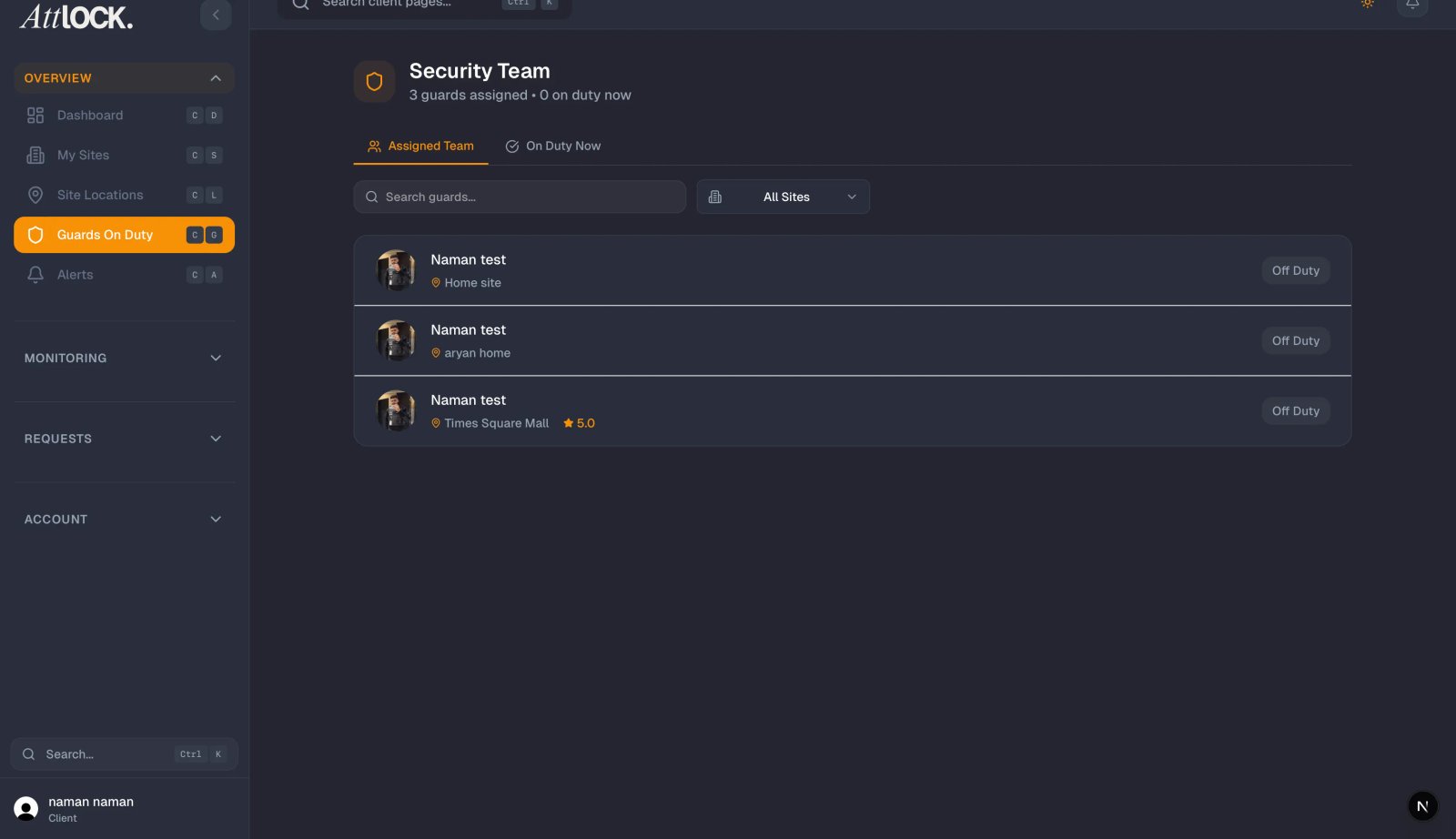
There are two ways to access certification information:
From the Guard Schedule:
- Go to Schedule in the left navigation menu.
- Click on any guard's name in the schedule view.
- Select the Certifications tab in the guard profile panel.
From the Site Detail Page:
- Go to Sites and select a site.
- Click the Assigned Guards tab.
- Click on a guard's name to open their profile, then select Certifications.
What Certification Information Is Shown
For each guard assigned to your sites, Attlock displays:
- Security licence — licence number, issuing authority, and expiry date
- First aid / CPR certification — certification level and expiry date
- Site-specific clearances — any access or background check clearances required for your site
- Training completions — completed training modules such as fire safety, conflict de-escalation, or emergency response
- Compliance status — a green, amber, or red indicator showing whether all required certifications are current
Understanding Compliance Status Indicators
- Green (Compliant) — all certifications are current and meet your site's requirements
- Amber (Expiring Soon) — one or more certifications will expire within 30 days
- Red (Non-Compliant) — one or more required certifications have expired or are missing
If a guard shows a red status, Attlock automatically notifies your security provider. You'll also receive a notification if compliance alerts are enabled in your Notification Settings.
Setting Certification Requirements for Your Site
You can specify which certifications are mandatory for guards working at each of your sites. To configure this:
- Go to Sites and select the site.
- Click Site Settings, then Compliance Requirements.
- Toggle on the certifications you require (e.g., valid security licence, first aid, background check).
Once requirements are set, Attlock will flag any guard assigned to that site who doesn't meet them — giving your security provider advance notice to make adjustments.
Requesting Certification Documents
If you need a copy of a guard's certification for your own records (for example, for an insurance audit or a client compliance review), you can request it directly through Attlock:
- Open the guard's certification profile.
- Click Request Document next to the relevant certification.
- Your security provider will be notified and can upload the document to the guard's profile.
Once uploaded, you'll receive a notification and can download the document from the same page.
Compliance Reports
To get a full compliance overview across all guards at all your sites, go to Reports and select Compliance Report. This report shows the certification status of every assigned guard, grouped by site, and can be exported as a PDF or CSV for your records.