


Viewing Alerts and Notifications
Stay informed about security events at your sites with real-time alerts. The Alerts screen collects all notifications in one place so you never miss an important update about guard activity, incidents, or schedule changes.
Accessing Alerts
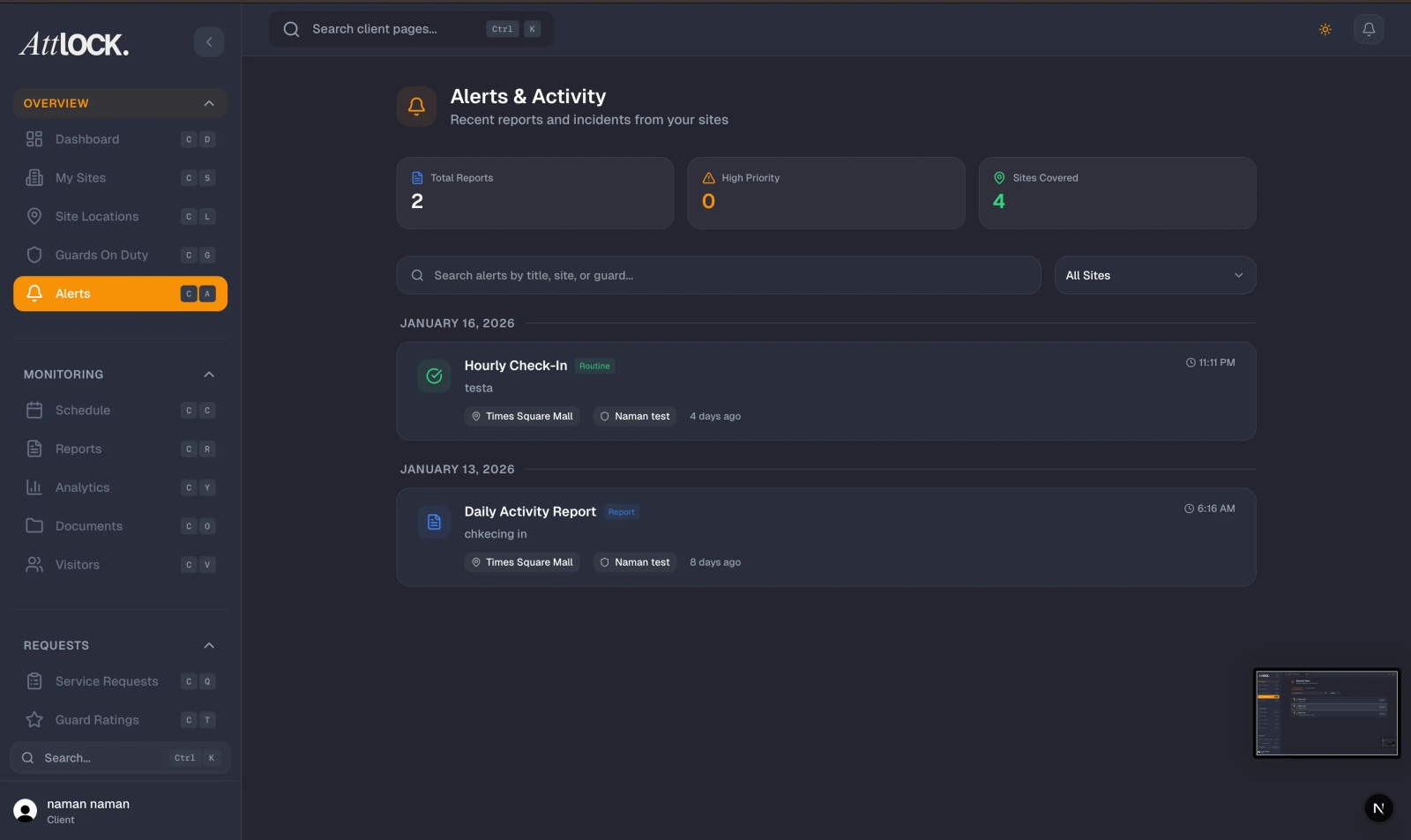
- From the Profile menu, tap "Alerts".
- The alerts list loads showing your most recent notifications, with the newest at the top.
Understanding Alert Types
Alerts are color-coded by type so you can quickly identify what requires your attention:
| Type | Color | Description | Example | ------ | ------- | ------------- | ---------- | Incident | Red/Orange | A security incident has been reported at your site | "Trespasser detected at Main Entrance" | Guard Arrival | Green | A guard has clocked in and started their shift | "Officer Smith checked in at Site A" | Guard Departure | Blue | A guard has clocked out and ended their shift | "Officer Johnson checked out at Site B" | Report | Blue | A new report has been filed at your site | "Patrol report submitted for Building 3" | Shift Update | Orange | A schedule change has been made for your sites | "Evening shift reassigned at Warehouse" | Announcement | Purple | A general announcement from your security provider | "Holiday schedule changes effective Dec 20" |
|---|
Reading Alert Details
Each alert in the list displays:
- Color-Coded Icon — Matches the alert type for quick visual identification.
- Title — A brief description of the event.
- Timestamp — Shown as relative time (e.g., "5 minutes ago") or a full date/time for older alerts.
- Unread Indicator — An orange dot appears next to alerts you have not yet viewed.
Tap any alert to view additional details when available.
Push Notifications
For the best experience, enable push notifications so alerts come to your device in real-time:
- When prompted by the app, tap Allow to enable notifications.
- If you previously declined, go to your device's Settings > Attlock Client > Notifications and enable them.
- Configure which alert types trigger push notifications in Profile > Notification Settings.
A help banner on the Alerts screen explains how to enable push notifications if they are currently disabled.
Empty State
If you have no recent alerts, the screen displays "No New Alerts" with a suggestion to check back later. This is normal during quiet periods — it means no notable events have occurred at your sites recently.
Tips
- Enable push notifications — This is the single most important step to ensure you do not miss critical security events like incidents or guard no-shows.
- Check alerts after reported incidents — Detailed information including guard actions, photos, and follow-up steps will be posted as alerts.
- Review guard arrival alerts — These confirm that your scheduled coverage is actually in place. If you expect a guard at 6:00 AM and see no arrival alert, follow up.
- Use alerts alongside the schedule — Compare guard arrival/departure alerts with the schedule to verify punctuality.
- Do not ignore shift update alerts — Schedule changes may mean different guards are assigned or shift times have changed at your sites.
- Check regularly even with push notifications enabled — The alerts screen provides a complete history that push notifications alone may not capture.
Related Articles
- Getting Started with the Client Portal
- Viewing Site Reports
- Viewing Live Guard Positions
- Contacting Your Security Provider
- Client Profile & Account Settings
- Viewing the Guard Schedule