


Using the Audit Log and Activity History
This article is for Administrators and Company Admins.
The Attlock audit log is a tamper-evident record of every significant action taken in your account — who did what, when, and from where. It is an essential tool for security investigations, compliance audits, and understanding how your platform is being used.
Accessing the Audit Log
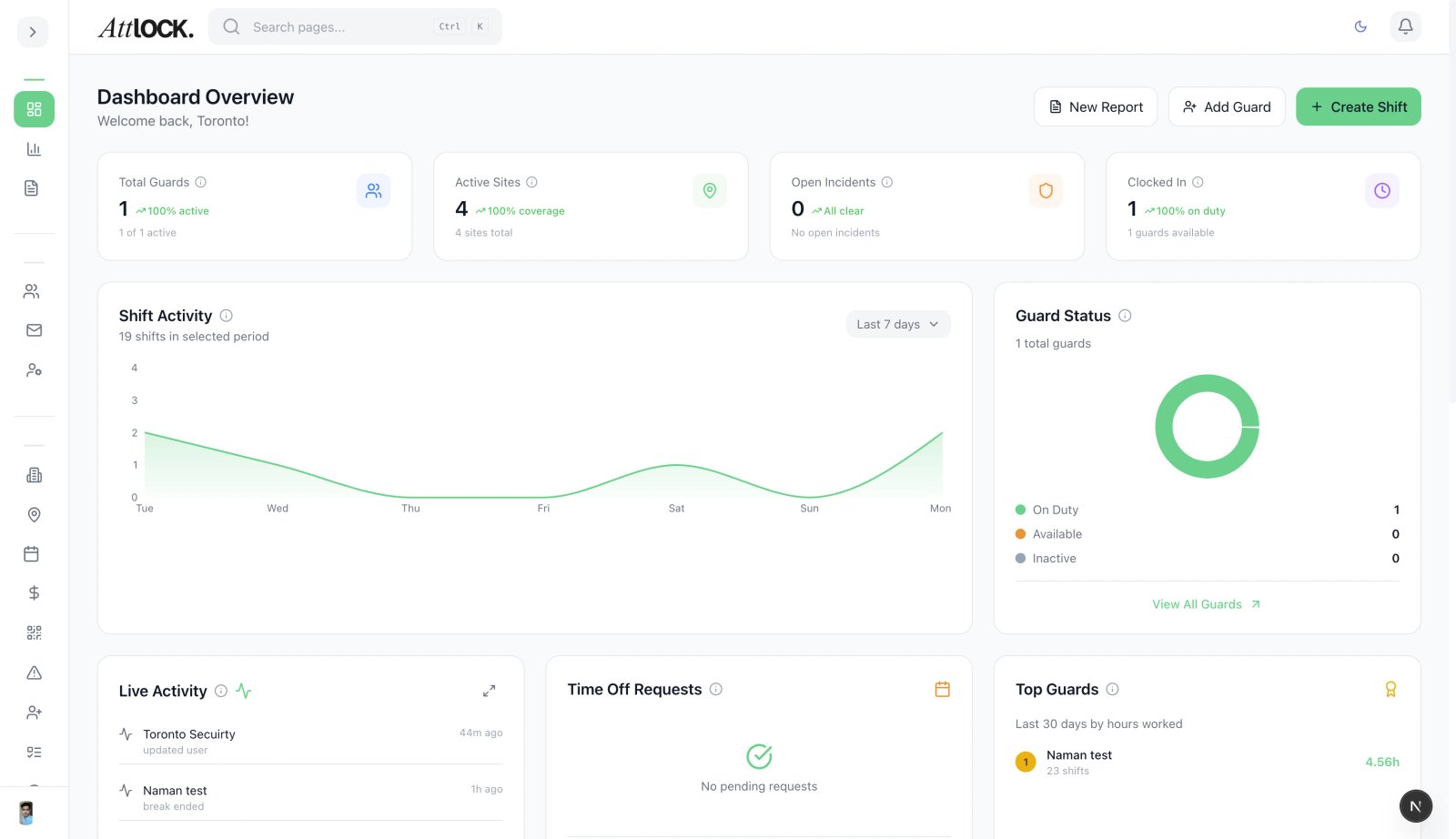
Navigate to Settings → Audit Log. Only Company Admins and Super Admins can view the audit log.
What the Audit Log Records
The audit log captures events across every major area of the platform:
| Category | Example Events | ---------- | --------------- | Authentication | Login, logout, failed login, 2FA enabled/disabled, password reset | User Management | Guard created, guard deactivated, role changed, invitation sent | Scheduling | Shift created, shift edited, shift deleted, guard assigned/removed | Incidents | Incident filed, incident updated, investigation opened/closed | Sites & Clients | Site created, client added, geofence modified | Settings | Company settings changed, billing updated, API key created/revoked | Data Exports | Report exported, payroll data downloaded, bulk import run | Access Control | Permission changed, role created, user locked/unlocked |
|---|
Each log entry includes:
- Timestamp — exact date and time (UTC)
- Actor — the user who performed the action
- Action — what was done
- Target — the record or resource affected
- IP Address — the actor's IP at the time
- Device / Browser — user agent string
- Before / After — for data changes, the previous and new values
Searching and Filtering
Use the filter bar at the top of the audit log to narrow results:
- Date range — filter by a specific period
- Actor — search by user name or email
- Event category — filter by Authentication, Scheduling, Incidents, etc.
- Action type — filter by Created, Updated, Deleted, Exported
- IP address — investigate activity from a specific IP
- Keyword search — full-text search across action descriptions
Combine multiple filters to isolate specific events quickly.
Investigating Suspicious Activity
If you suspect unauthorized access or a data breach:
- Filter by Actor to see all actions by a specific user.
- Check IP Address — logins from unexpected locations are a red flag.
- Look for bulk exports or settings changes outside normal business hours.
- Review failed login events — repeated failures may indicate a brute-force attempt.
- Check role changes — unauthorized privilege escalation is a common attack vector.
If you identify a compromised account, immediately go to Team → Guards → [User] → Security → Force Logout All Sessions and reset their password.
Exporting the Audit Log
- Apply any filters you need.
- Click Export in the top-right corner.
- Choose CSV or PDF.
- The export includes all filtered results, up to 10,000 rows per export.
For compliance audits, export the full log for the relevant period and retain it according to your data retention policy.
Retention Policy
By default, Attlock retains audit log data for 12 months. Super Admins can extend this to 24 months in Settings → Data & Privacy → Audit Log Retention.
Export and archive logs before the retention window closes if your compliance requirements demand longer retention.
Best Practices
- Review the audit log weekly — spot anomalies before they become incidents.
- Export monthly for compliance — keep an offline archive for regulated industries.
- Set up alerts for critical events — use Notification Settings to get emailed on high-risk actions like bulk exports or role changes.
- Investigate all failed logins — a pattern of failures followed by a successful login is a strong indicator of credential compromise.
Related Articles
- Access Control & Roles
- Setting Up Two-Factor Authentication
- Settings & Configuration
- API Keys & Webhook Configuration