


Using Dashboard Search and Filters
This article is for Administrators and Company Admins.
As your Attlock account grows, finding the right record quickly becomes essential. Attlock provides several search and filtering tools — from the global command palette to per-page filter bars — that let you locate any guard, site, shift, incident, or document in seconds.
Global Search: The Command Palette
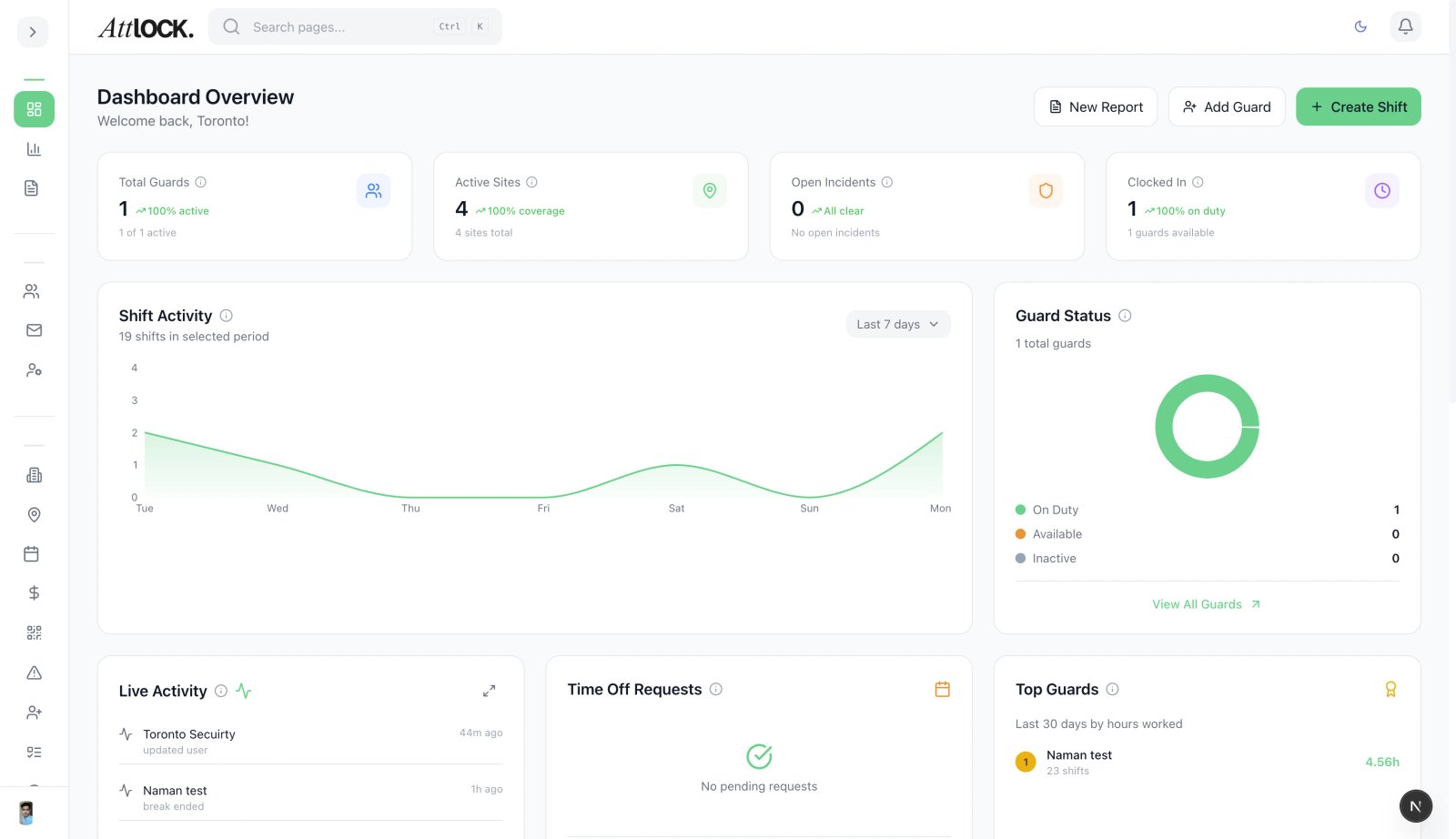
The fastest way to find anything in Attlock is the Command Palette.
- Press G anywhere in the dashboard to open it.
- Start typing to search across all record types simultaneously.
- Results are grouped by type: Guards, Sites, Clients, Shifts, Incidents, Reports.
- Press Enter to navigate to the top result, or use arrow keys to select a specific result.
- The palette also surfaces Quick Actions — type "new shift" or "add guard" to jump directly to creation forms.
The command palette searches names, IDs, reference numbers, and descriptions — so you can search by a guard's name, a site address, or an incident reference number.
Per-Page Filter Bars
Every list view in Attlock has a dedicated filter bar. The available filters vary by page but follow a consistent pattern.
Common Filters Across All List Views
| Filter | What It Does | -------- | ------------- | Search box | Full-text search within the current list | Date range | Filter records by creation date or event date | Status | Filter by Active, Inactive, Pending, Completed, etc. | Site | Show records for a specific site only | Team / Supervisor | Filter by the assigned team or supervisor |
|---|
Guard List Filters
- Role — filter by guard, supervisor, or admin
- Certification status — show only guards with expiring or expired certifications
- Employment type — full-time, part-time, contractor
- Availability — guards available for a specific date/time
Scheduling Filters
- Date range — view shifts for a specific week or month
- Site — show shifts at a specific location
- Guard — view all shifts for one guard
- Status — Scheduled, In Progress, Completed, Uncovered, No-Show
Incident Filters
- Severity — Low, Medium, High, Critical
- Type — Theft, Trespass, Medical, Fire, Vandalism, etc.
- Status — Open, Under Investigation, Resolved, Closed
- Site — incidents at a specific location
- Date range — incidents within a time period
Saving Filter Presets
If you regularly use the same combination of filters, save them as a preset:
- Apply your filters.
- Click Save Filter (the bookmark icon next to the filter bar).
- Give the preset a name (e.g., "Night Shift Uncovered", "High Severity Open Incidents").
- Click Save.
Saved presets appear in the Saved Filters dropdown at the top of the filter bar. They are personal to your account and do not affect other users.
Sorting List Views
Click any column header to sort the list by that column. Click again to reverse the sort order. An arrow indicator shows the current sort direction.
Common useful sorts:
- Guards → Last Active — see who has not logged in recently
- Incidents → Severity — prioritize the most critical open incidents
- Shifts → Start Time — view upcoming shifts in chronological order
Bulk Actions After Filtering
Once you have filtered a list to the records you need, use Bulk Actions to act on multiple records at once:
- Check the boxes next to the records you want to act on, or check the header box to select all filtered results.
- Click Bulk Actions in the toolbar.
- Choose an action: Export, Assign, Deactivate, Send Message, etc.
Bulk actions only apply to the selected records, not the entire unfiltered list.
Exporting Filtered Results
Any filtered list can be exported:
- Apply your filters.
- Click Export in the top-right corner of the list.
- Choose CSV or PDF.
- The export contains only the filtered, visible records.
Best Practices
- Use the command palette first — it is faster than navigating to a page and filtering.
- Save your most-used filter combinations — saves time on daily operational checks.
- Export after filtering — always filter before exporting to avoid downloading unnecessary data.
- Combine filters — multiple filters are AND-combined, so you can narrow results precisely.
Related Articles
- Getting Started with the Admin Dashboard
- Command Palette & Shortcuts
- Reports & Analytics
- Incidents & Investigations