


Using the Daily Briefing and Shift Notes
This article is for Security Guards.
Before you start any shift, you need to know what's happening at your site. The Attlock guard app delivers your daily briefing and shift notes directly to your phone, so you're always informed and prepared — whether it's a routine day or a site with active incidents from the previous shift. This guide explains how to access and use these features.
What Is the Daily Briefing?
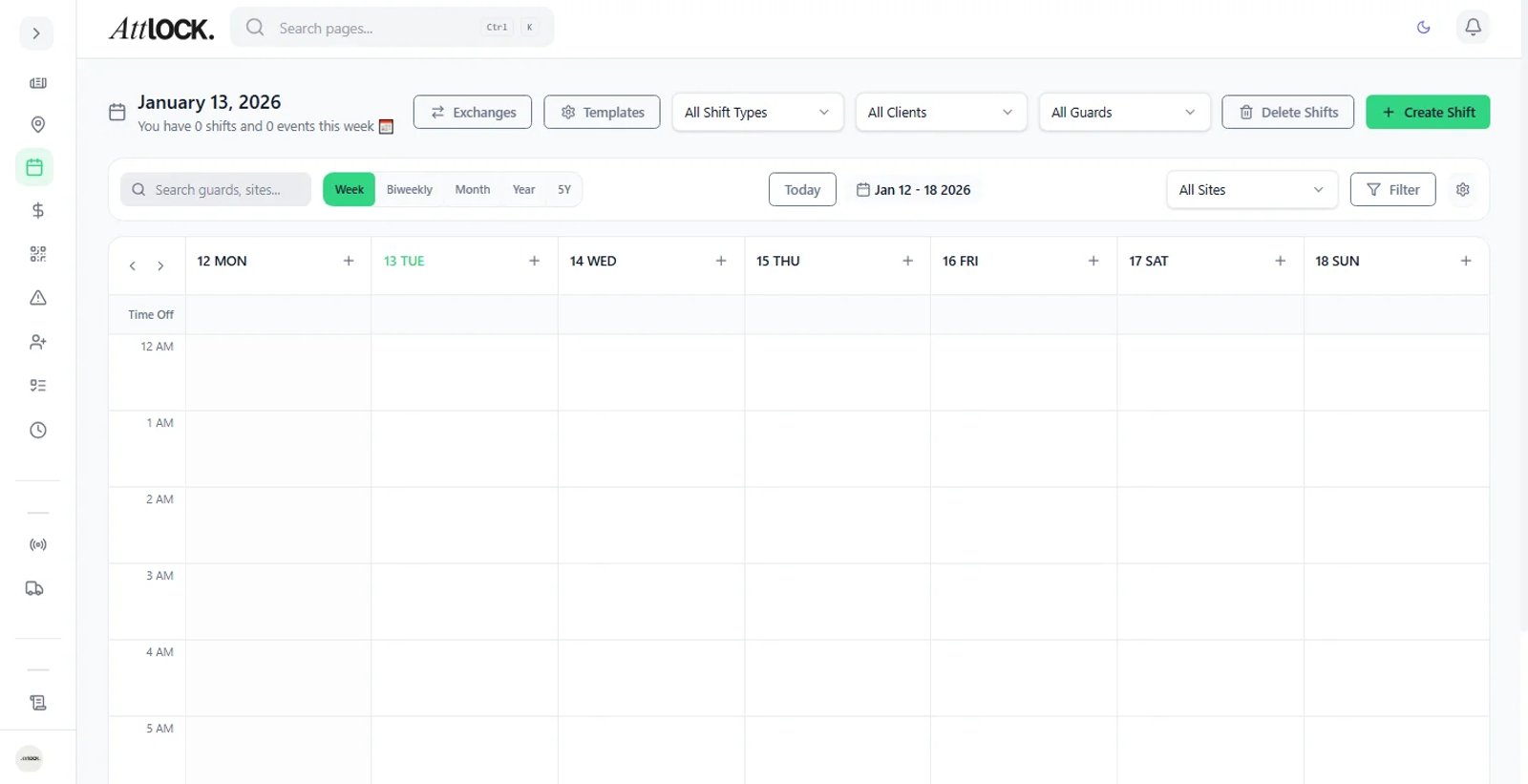
The daily briefing is a summary prepared by your supervisor or site manager that covers:
- Active alerts — ongoing security concerns or incidents from previous shifts.
- Special instructions — one-off directives for today (e.g., "VIP visitor arriving at 14:00, escort to Level 3").
- Site changes — temporary access restrictions, construction zones, or areas under maintenance.
- Staffing notes — who else is on shift, any coverage changes.
- Reminders — upcoming training, policy updates, or equipment checks.
Reading your briefing before clocking in is one of the most important habits you can build. It takes two minutes and can prevent costly mistakes.
Accessing Your Daily Briefing
- Open the Attlock app.
- On the Home screen, look for the Briefing card or banner near the top — it appears when a briefing has been published for your shift.
- Tap the card to open the full briefing.
- Read through all sections carefully.
- Tap Acknowledge at the bottom to confirm you've read it.
Alternatively, you can access briefings from:
- More > Message Board — briefings may be posted here as pinned announcements.
- More > Post Orders — standing instructions that form the baseline for every shift.
Note: Some sites use the Message Board for daily briefings while others use a dedicated briefing card. Your supervisor will tell you where to look on your first shift at a new site.
Reading Shift Notes
Shift notes are the real-time record of what happened during the shift before yours. They come from two sources:
Pass-Down Log
The outgoing guard's handover notes. These are the most important shift notes to read:
- Tap More > Pass-down.
- Check the Current tab for active entries.
- Read every unread entry — they're marked with an unread indicator.
- Tap Acknowledge on entries that require it.
- Add a comment if you have follow-up information or questions.
Activity Timeline
The Home screen's Activity Timeline shows a chronological log of events from the current day. This gives you a quick visual summary of what's happened at the site.
Writing Your Own Shift Notes
At the end of your shift, before clocking out, write a pass-down entry for the incoming guard:
- Tap More > Pass-down > Create.
- Write a clear summary of:
- Any incidents or unusual events.
- Outstanding issues that need follow-up.
- Equipment or access point status.
- Anything the next guard needs to know.
- Categorize the entry appropriately (General, Incident, Security, Maintenance).
- Attach photos if relevant.
- Tap Post.
Even if your shift was uneventful, a brief "Nothing significant to report — all clear" entry is good practice. It confirms you were attentive and gives the next guard confidence.
Acknowledging Briefings and Notes
Acknowledging a briefing or pass-down entry is not just a formality — it creates a timestamped record that you received and understood the information. Your supervisor can see who has and hasn't acknowledged each item.
- Unacknowledged briefings may be flagged to your supervisor.
- Unread pass-down entries can leave you unaware of active situations.
- Make acknowledgment a habit at the start of every shift.
Tips
- Read your briefing before clocking in — not after. You need this information from the moment your shift starts.
- Check the Pass-Down Log first thing — it's the most current picture of what's happening at the site.
- Don't skip entries marked as read by others — they were read by someone else, not necessarily by you.
- Write thorough shift notes — the quality of your handover directly affects the next guard's ability to do their job.
- Ask questions — if a briefing item is unclear, message your supervisor before your shift starts rather than guessing.
Related Articles
- Using the Pass-Down Log
- Reading Post Orders and Policies
- Using the Message Board and Announcements
- Communicating with Your Supervisor
- Clocking In and Out of Shifts