


Understanding Client Team Roles & Permissions
Attlock provides four distinct roles for client team members, each with different levels of access. Understanding these roles helps you organize your team effectively and ensure the right people have the right access to your security information.
The Four Client Roles
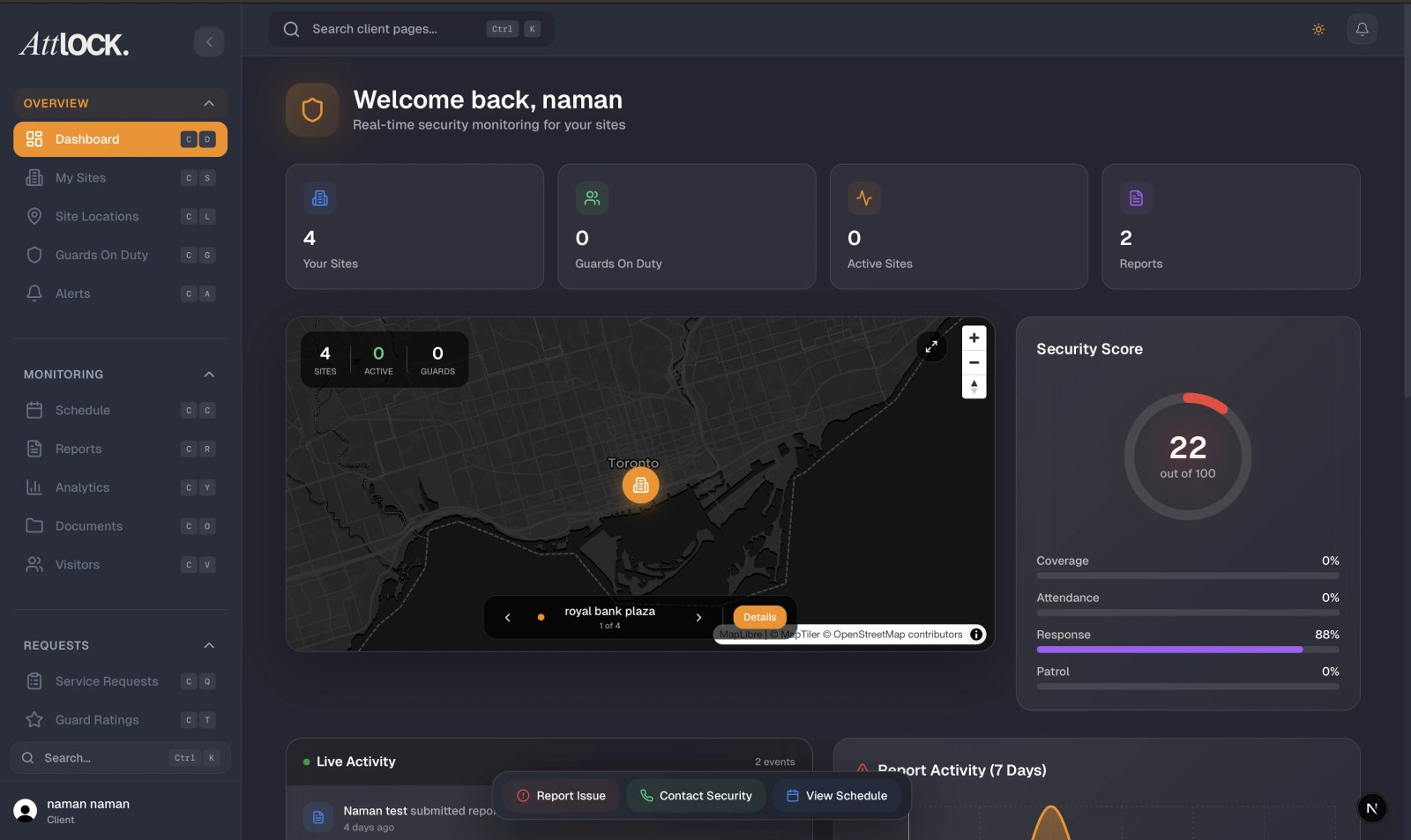
When your security provider sets up your Attlock account, your team members are assigned one of four roles. Each role determines what features are available and which sites a person can access.
Primary Contact
The Primary Contact is the highest-level client role. This person has full access to everything in the Attlock client portal and serves as the main point of communication with your security provider.
What a Primary Contact can do:
- Access all sites associated with your account
- View and manage billing, invoices, and payment methods
- Add, remove, and manage all team members
- Assign roles to other team members
- Submit and manage service requests for any site
- View all reports, analytics, and guard activity across every site
- Configure notification preferences for the entire account
- Approve or deny visitor pre-registrations at any site
Team Admin
A Team Admin has broad access across your account but cannot manage billing or change the Primary Contact. This role is ideal for operations managers or security coordinators who need visibility across all locations.
What a Team Admin can do:
- View all sites associated with your account
- Add and remove team members (except the Primary Contact)
- Assign Site Manager and Viewer roles to others
- Submit service requests for any site
- View reports and guard activity across all sites
- Manage visitor pre-registrations at any site
- Access analytics and export data
Site Manager
A Site Manager has access only to the specific sites they are assigned to. This role works well for on-site facility managers, property managers, or location supervisors who need detailed information about their own sites.
What a Site Manager can do:
- Access assigned sites only (not all company sites)
- Submit service requests for their assigned sites
- View reports and guard activity for their sites
- Manage visitor pre-registrations at their sites
- View guard schedules and patrol information for their sites
- Rate guard performance at their assigned locations
Viewer
A Viewer has read-only access to their assigned sites. They cannot submit requests or make changes. This role is suitable for stakeholders who need to stay informed but do not manage security operations directly.
What a Viewer can do:
- View assigned sites only (read-only access)
- View reports and incident logs for their sites
- View live guard positions on the map for their sites
- View guard schedules at their assigned locations
- View visitor logs (cannot create or manage visitors)
Permissions Comparison
| Feature | Primary Contact | Team Admin | Site Manager | Viewer | --- | --- | --- | --- | --- | Access all sites | Yes | Yes | Assigned only | Assigned only | Manage billing & invoices | Yes | No | No | No | Add/remove team members | Yes | Yes | No | No | Assign roles | Yes | Yes (limited) | No | No | Submit service requests | Yes | Yes | Yes (own sites) | No | View reports | Yes | Yes | Own sites | Own sites | View guard positions | Yes | Yes | Own sites | Own sites | Manage visitors | Yes | Yes | Own sites | No | Export data | Yes | Yes | Own sites | No | View analytics | Yes | Yes | Own sites | No |
|---|
How Roles Affect Your Experience
Your assigned role determines what you see when you open the Attlock app or web portal. A Primary Contact or Team Admin will see all sites on their dashboard, while a Site Manager or Viewer will only see the sites they have been assigned to. Menu options that are not available for your role will not appear in the navigation.
Requesting a Role Change
If you need a different level of access, contact your team's Primary Contact or Team Admin. They can update your role from the Team Management section of the portal. If you are unsure who your Primary Contact is, reach out to your security provider for assistance.
Related Articles
- Managing Your Client Team
- Client Profile & Account Settings
- Getting Started with the Client Portal