


Tracking Guards on the Map
The Guards tab in the Attlock client app provides an interactive map that shows exactly where your security guards are in real time. This guide covers all the map features available to you.
Accessing Guards On Duty
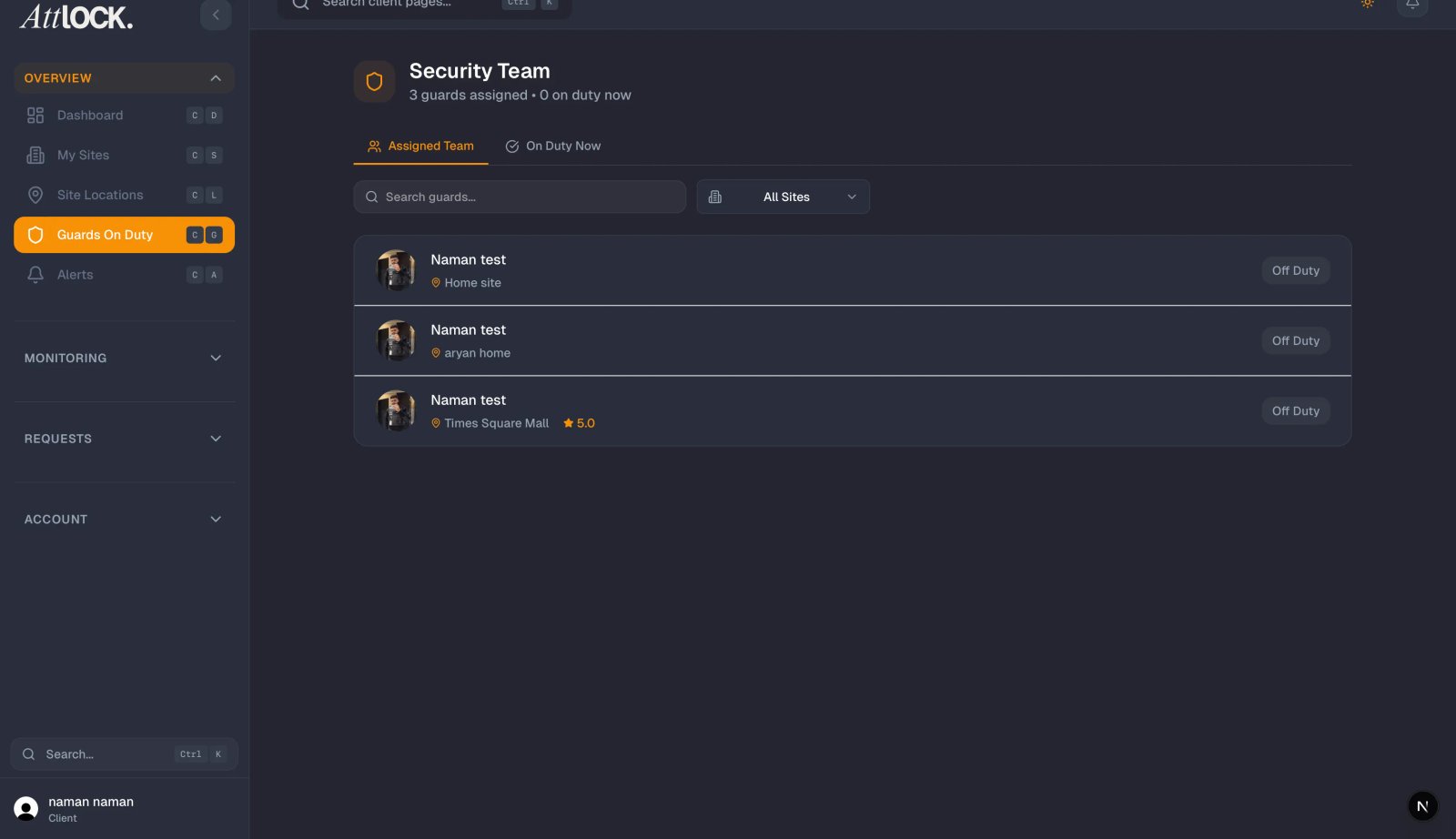
Tap the Guards tab in the bottom navigation bar to open the map view. The map loads automatically centered on your sites and displays all currently on-duty guards.
Interactive Map With Geofence Circles
Each of your sites appears on the map as a geofence circle — a shaded boundary showing the defined perimeter of the property. These circles help you quickly identify:
- Where each site is located geographically.
- Whether guards are positioned within the expected site boundaries.
- The relative size and coverage area of each property.
Geofence circles are color-coded to match the site's current status.
Live Guard Location Markers
Guards currently on duty appear as location markers on the map. Each marker includes:
- The guard's profile avatar or initials.
- A pulsing animation indicating that the location is updating in real time.
- A color indicator showing their status — green for active on-site, yellow for in transit, and gray for a stale location update.
Markers update as new location data arrives, so you can watch guard movement across your properties.
Site Filter Chips
At the top of the map screen, you'll see horizontal filter chips for your sites:
- All Sites — The default view showing every guard and site on the map.
- Individual site chips — Tap a specific site name to zoom the map to that property and show only the guards assigned there.
Filtering is useful when you manage multiple locations and want to focus on one property at a time. Tap All Sites to return to the full view.
Guard List
Below the map, a scrollable guard list displays all on-duty guards with key details:
| Column | Description | -------- | ------------- | Name | The guard's full name and profile photo. | Site | The property they are currently assigned to. | Status | Current status — On Site, In Transit, or Late. |
|---|
You can scroll through this list to review guard assignments without interacting with the map directly.
Auto-Refresh Toggle
The map supports automatic location updates:
- By default, auto-refresh is enabled and updates guard positions every 30 seconds.
- A small refresh indicator at the top of the screen shows when the last update occurred.
- To toggle auto-refresh on or off, tap the refresh icon in the top-right corner of the map.
- You can also manually refresh at any time by pulling down on the guard list.
Tapping a Guard to Center the Map
To focus on a specific guard:
- Tap the guard's marker on the map, or tap their name in the guard list below.
- The map smoothly pans and zooms to center on that guard's current location.
- A detail card appears showing the guard's name, assigned site, shift start time, and last location update.
- Tap the card's X button or tap elsewhere on the map to dismiss it.
Live vs Site Location Indicators
Guard markers include a small badge to distinguish location types:
- Live (blue dot) — The guard's position is based on real-time GPS data from their device.
- Site (gray dot) — The guard's position is inferred from their last check-in at the site, not live GPS.
A Live indicator means you're seeing the guard's actual current position. A Site indicator means the guard checked in but their device may not be sharing continuous location data.
Tips for Effective Monitoring
- Use site filters during multi-site reviews to reduce visual clutter.
- Check the Live vs Site badge to understand how current each guard's position is.
- Enable auto-refresh for hands-free monitoring during active shifts.