


Site Info & Employer Details
Access important information about your assigned sites, your employer, and your own guard profile.
Site Information
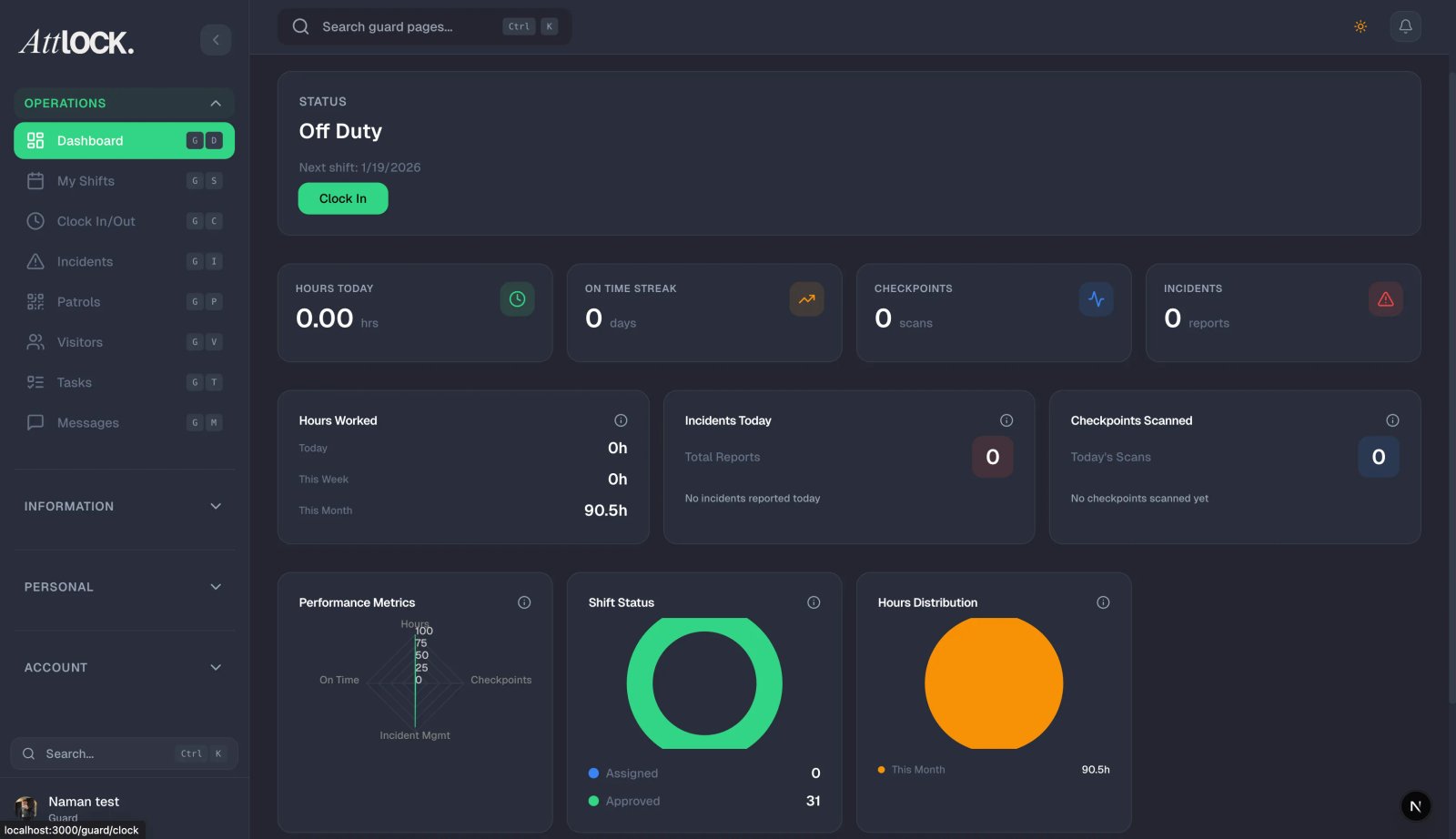
Tap Site Info from the More menu or Profile section.
What You'll See
- Site Name and Address.
- Site Manager/Supervisor — name and contact info.
- Operating Hours — when the site is active.
- Parking Information — where to park.
- Entrance Details — which entrance to use.
- Emergency Contacts — site-specific emergency numbers.
- Site Rules — any restrictions or special requirements.
- Checkpoint Locations — list of checkpoints at this site.
- Equipment Available — what's on-site.
Employer Information
Tap Employer Info from the Profile menu.
What You'll See
- Company Name and Address.
- HR Contact — phone and email.
- Main Office Phone Number.
- Employee Portal Links (if applicable).
- Payroll Contact — for pay-related questions.
- Company Policies Link — quick access to policy documents.
Guard Profile
Tap Guard Info from the Profile menu.
What You'll See
- Your Name and Employee ID.
- Role/Position (e.g., Static Guard, Patrol Guard).
- Assigned Sites — all locations you're assigned to.
- Status — Active or Inactive.
- Hire Date.
- License/Certification Info — your current certifications and expiry dates.
Tips
- Review Site Info before your first shift at a new location — know the entrance, parking, and emergency procedures.
- Keep your Guard Info updated — notify your admin if certifications are expiring.
- Save key contacts from Employer Info to your phone for quick access.
Related Articles
- Getting Started with the Guard Mobile App
- Profile Settings
- Using the Phonebook
- Post Orders & Policies