


Using Shift Schedule Templates
Shift schedule templates let you define reusable shift patterns that can be applied to any week or scheduling period. Instead of manually creating the same shifts every week, build a template once and apply it whenever you need it.
Accessing Templates
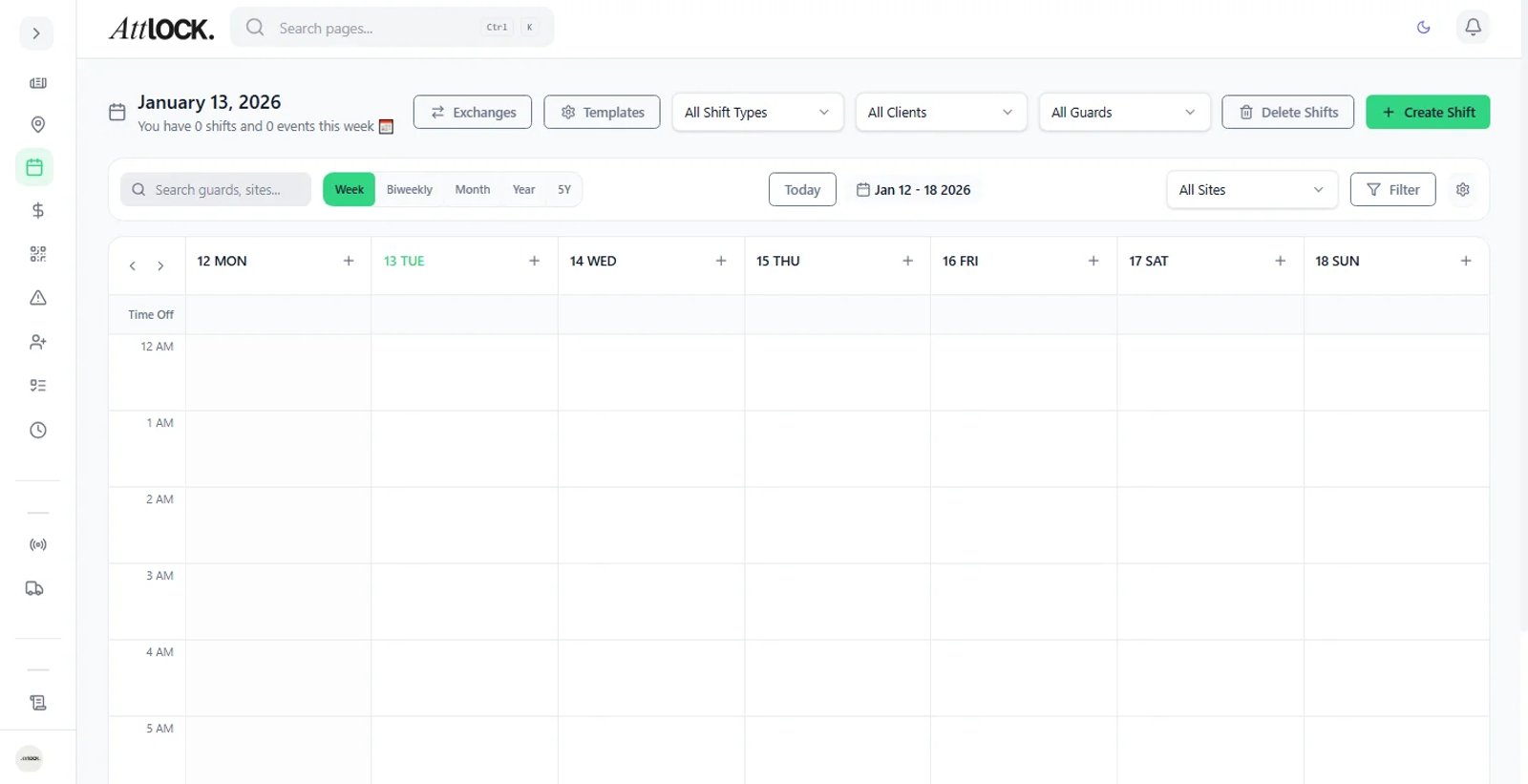
Navigate to Operations > Scheduling > Templates in the sidebar. The templates page displays all saved templates organized by category, with options to create, edit, duplicate, and delete.
Creating a New Template
- Click Create Template in the top-right corner.
- Enter a Template Name (e.g., "Weekday Day Shift - Main Office").
- Select a Category to organize the template:
- Day Shift — standard daytime coverage (typically 06:00–18:00)
- Night Shift — overnight coverage (typically 18:00–06:00)
- Rotating — alternating day/night patterns across the week
- Weekend Only — Saturday and Sunday coverage
- Custom — any non-standard pattern
- Define the shift pattern:
- Select which days of the week the shift applies to.
- Set the start time and end time for each day.
- Assign a site (or leave as "Any Site" for flexible templates).
- Specify the required role or position (e.g., Armed Guard, Patrol Officer).
- Set the number of guards needed per shift.
- Add optional notes for special instructions.
- Click Save Template.
Tip: Start with your most common shift pattern. Once saved, you can duplicate and modify it for variations rather than building from scratch.
Applying Templates to a Schedule
Once you have templates saved, applying them to a week is straightforward:
- Go to Operations > Scheduling > Schedule View.
- Navigate to the target week using the date picker.
- Click Apply Template in the toolbar.
- Select the template you want to apply.
- Choose the date range — a single week, two weeks, or a custom period.
- Select the site if the template is not site-specific.
- Review the preview showing which shifts will be created.
- Click Apply to generate the shifts as drafts.
The generated shifts appear in Draft status. You can assign guards and make adjustments before publishing.
Important: Applying a template does not overwrite existing shifts. New shifts are added alongside any shifts already scheduled for that period. Review the schedule after applying to avoid double-coverage.
Editing an Existing Template
- Go to Scheduling > Templates.
- Find the template and click the Edit (pencil) icon.
- Modify any fields — name, times, days, required guards, or category.
- Click Save Changes.
Editing a template only affects future applications. Shifts already created from the template are not retroactively changed.
Duplicating Templates
Duplicating is the fastest way to create template variations:
- Click the three-dot menu on any template card.
- Select Duplicate.
- The duplicated template opens in edit mode with "(Copy)" appended to the name.
- Make your changes and save.
This is ideal for creating site-specific versions of a standard pattern — duplicate the base template, change the site and times, and save.
Template Categories and Organization
Categories help you find templates quickly as your library grows:
| Category | Typical Use | ---------- | ------------- | Day Shift | Standard business-hours coverage | Night Shift | Overnight security | Rotating | Week-on/week-off or alternating patterns | Weekend Only | Saturday and Sunday coverage | Custom | Holiday coverage, event-specific, or special assignments |
|---|
You can filter the template list by category using the dropdown at the top of the Templates page.
Best Practices
- Name templates descriptively — include the site name, shift type, and hours (e.g., "Night Shift - Warehouse A - 20:00-06:00").
- Review before publishing — always check the schedule view after applying a template to catch conflicts or overstaffing.
- Archive unused templates — delete or archive outdated templates to keep your library clean.
- Combine templates — you can apply multiple templates to the same week for sites with different shift patterns.
Related Articles
- Scheduling Shifts
- Configuring Auto-Approval Rules
- Managing Vacation & Time-Off Requests